llama.cpp in FlyEnv
llama.cpp runs large language model inference in C and C++. Its FlyEnv plugin brings runtime installation, GGUF model downloads and a local inference server into one module, with controls for CPU and GPU settings.
Install llama.cpp from Settings → Plugin Market. Its sidebar entry opens Service, Version Management, Models, Settings and Logs tabs.
Video walkthrough
Watch the plugin installation, runtime and GGUF model management, model settings and local inference startup in FlyEnv.
Runtime versions and backends
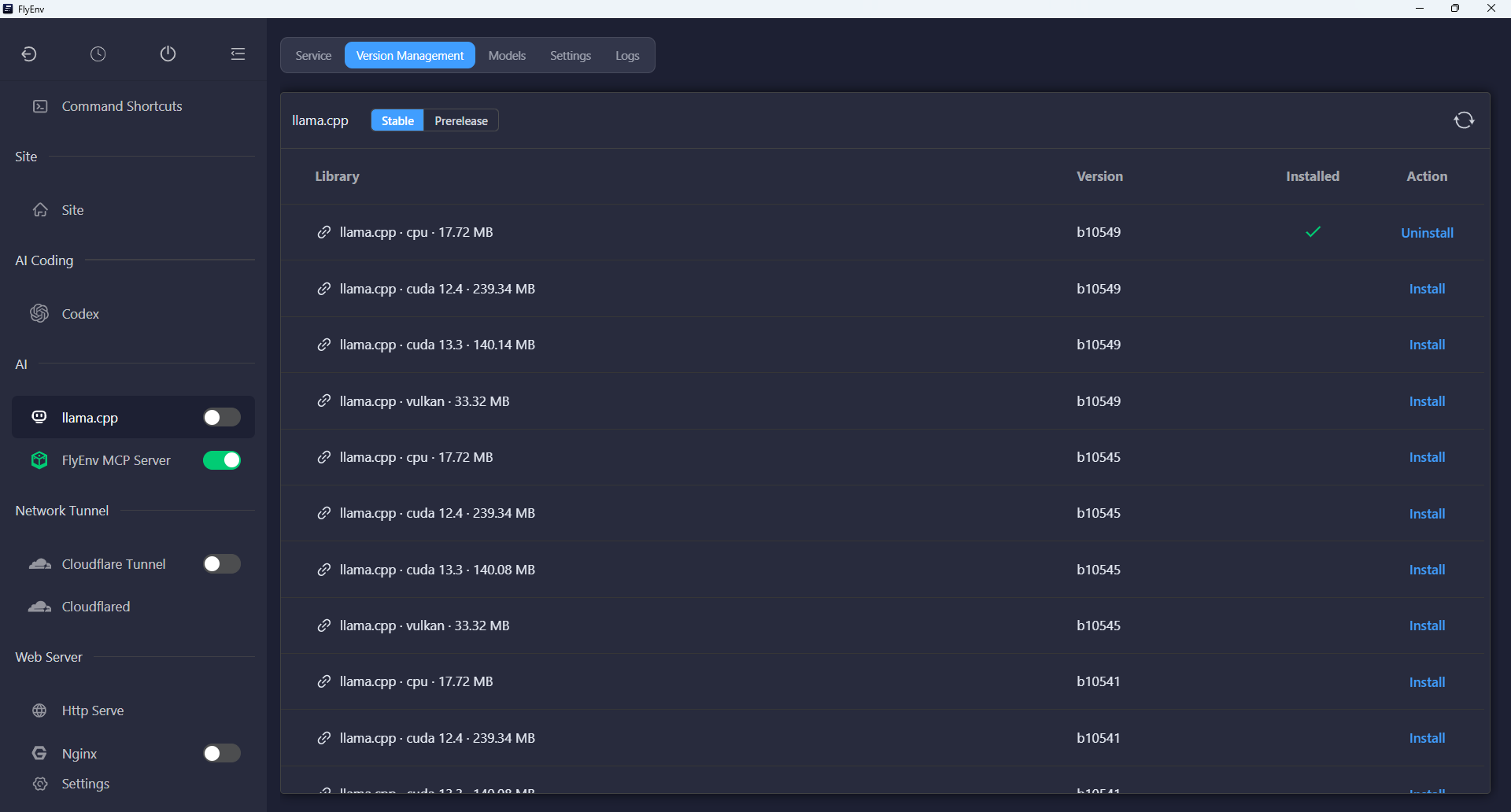
The Version Management tab lists upstream release builds compatible with your operating system and architecture. Refresh the list, choose a release and backend, and install the runtime you need. Stable and prerelease builds are identified in the list.
Different runtime versions can download concurrently and remain installed side by side. Choose which installed runtime to start in the Service tab; installing an additional version does not start another server.
The current plugin supports these runtime combinations when upstream assets are available:
- Apple Silicon macOS: Metal builds.
- Windows x64: CPU, CUDA and Vulkan builds.
- Linux x64: CPU, CUDA and Vulkan builds.
- Linux ARM64: CPU and Vulkan builds.
CUDA variants install their matching companion archive as well. FlyEnv checks the installed server executable before accepting the runtime; GPU drivers and system libraries must still meet the build's requirements.
GGUF model library
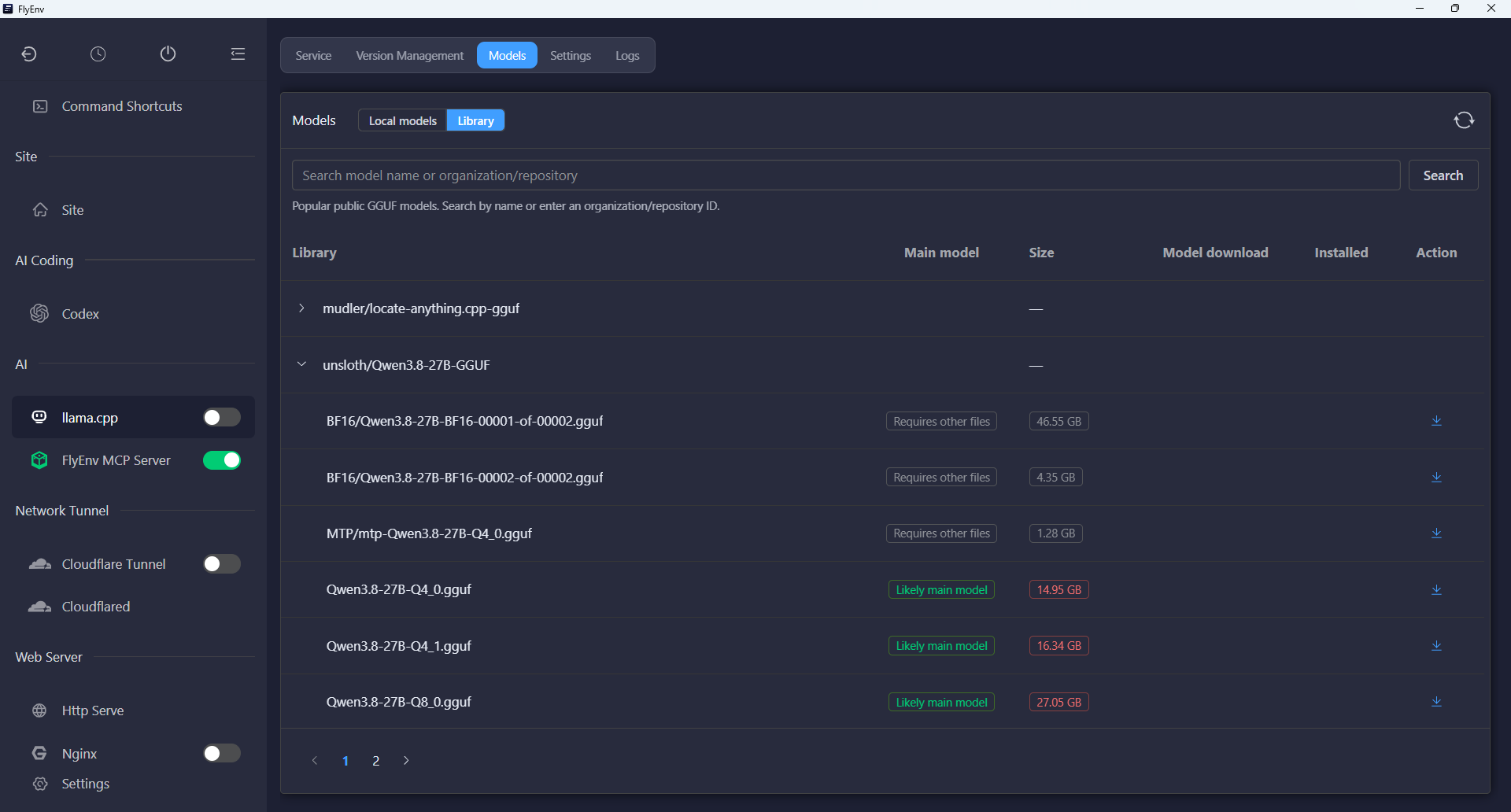
Open Models → Library to browse public GGUF repositories from Hugging Face. Search by model name or enter an organization/repository ID, expand a repository's files and compare their sizes before downloading. The view includes repository information, model licenses when provided, and a RAM/VRAM summary for your machine.
Downloads show progress and can be cancelled. Local models lists the downloaded files and provides selection and deletion controls. The library distinguishes likely main models from supporting files; the service selector accepts standalone GGUF models. Split shards and files that need additional assets are not selectable as standalone server models.
Choose a model that fits your available memory. The model's size, context length and GPU offload settings all affect the resources needed to run it.
Serve a selected model
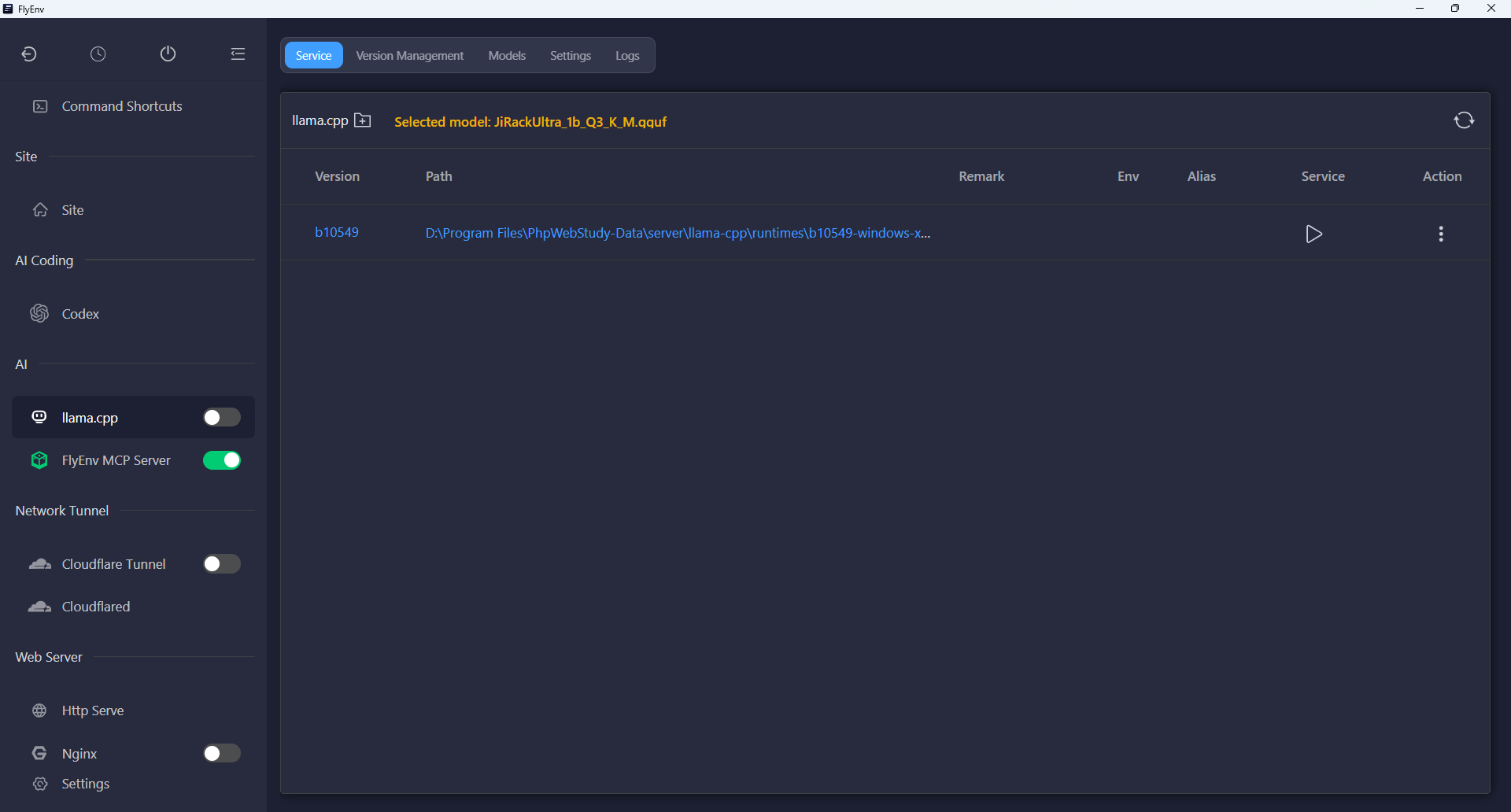
In Service, select a local model and start an installed runtime. The selected-model popover shows the model selector and the OpenAI-compatible Base URL, with a button to copy the endpoint into your client configuration.
The default base URL is http://127.0.0.1:8080/v1. If you change the host or port, the displayed URL follows those settings. Switching models while the server is running asks for confirmation and restarts the service with the new selection.
This makes the model available to applications that can connect to a llama.cpp OpenAI-compatible endpoint. Actual API capabilities depend on the runtime and model you choose.
Inference settings
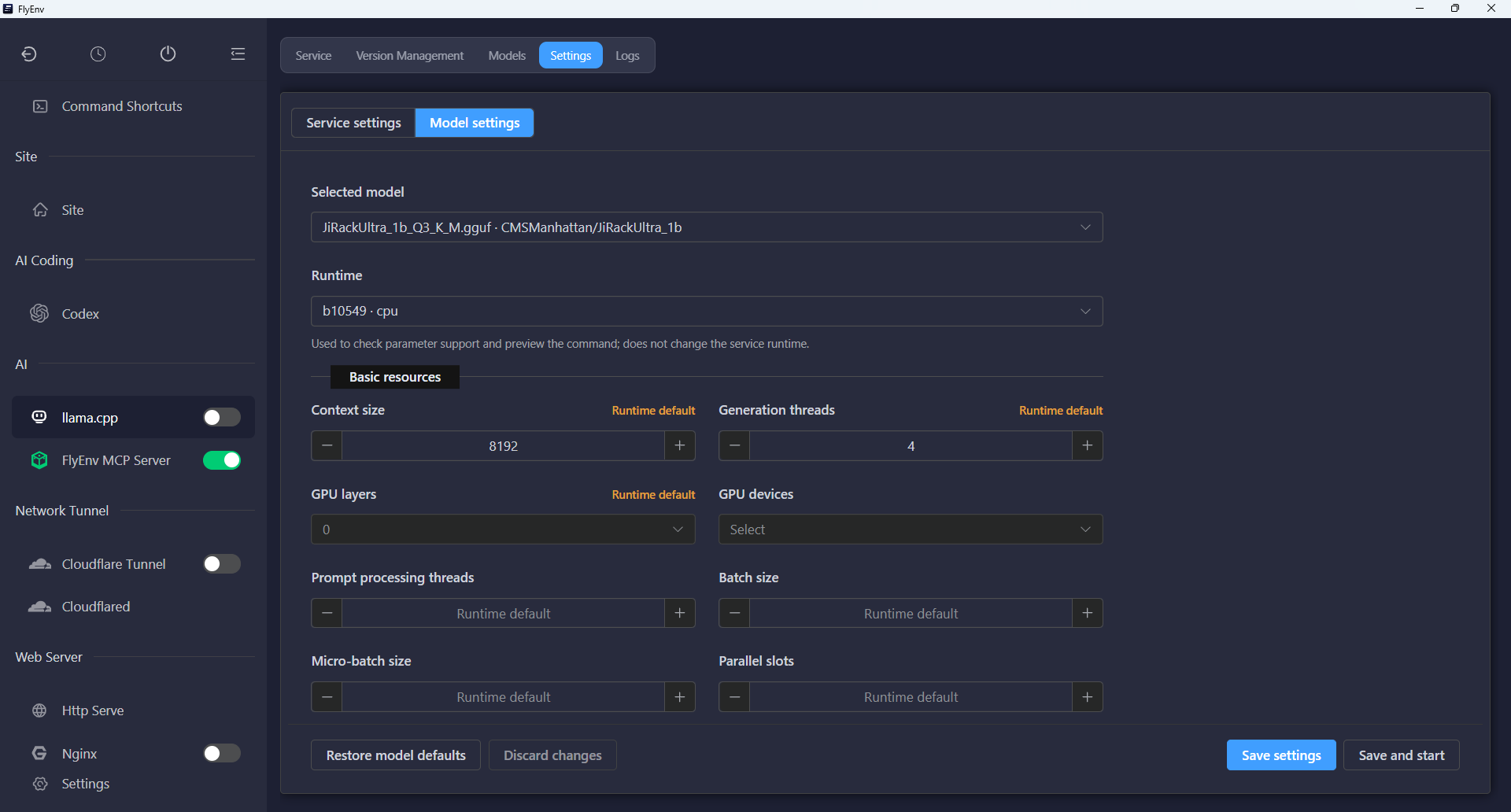
The Settings tab separates Service settings for the bind address, port and API key from Model settings for the selected model's inference options:
- Bind host and port: choose where the API listens.
- Context size: the default is 8192 tokens; larger values use more memory.
- CPU threads: set the thread count for inference.
- GPU layers and device: choose GPU offload settings for a compatible backend.
- API key: generate or enter a key and create a private key file where supported.
Non-loopback binding requires an API key. The current Windows implementation supports loopback binding only. Save the settings and restart a running service to use the updated profile.
Logs and compatibility
The Logs tab opens server output and error logs for the selected runtime. These help diagnose model loading, memory and backend initialization failures.
Runtime and model downloads need network access and disk space; inference can run locally after those assets are installed. Linux release builds may require newer system libraries than an older distribution provides. The module installs published binaries and does not compile llama.cpp from source.
See Ollama for FlyEnv's other local model manager, or return to the Plugin Market to manage the integration.