Terminal Integration in FlyEnv
FlyEnv does not ship its own terminal app — instead it wires itself into the terminals you already use. A shell hook loads the right project environment when you cd into a project, services and projects can be launched in a real terminal window with one click, long-running installs run in embedded xterm terminals inside the app, and a Tools-page utility opens the files and PATH entries behind your environment variables for editing.
Shell hook and PATH integration
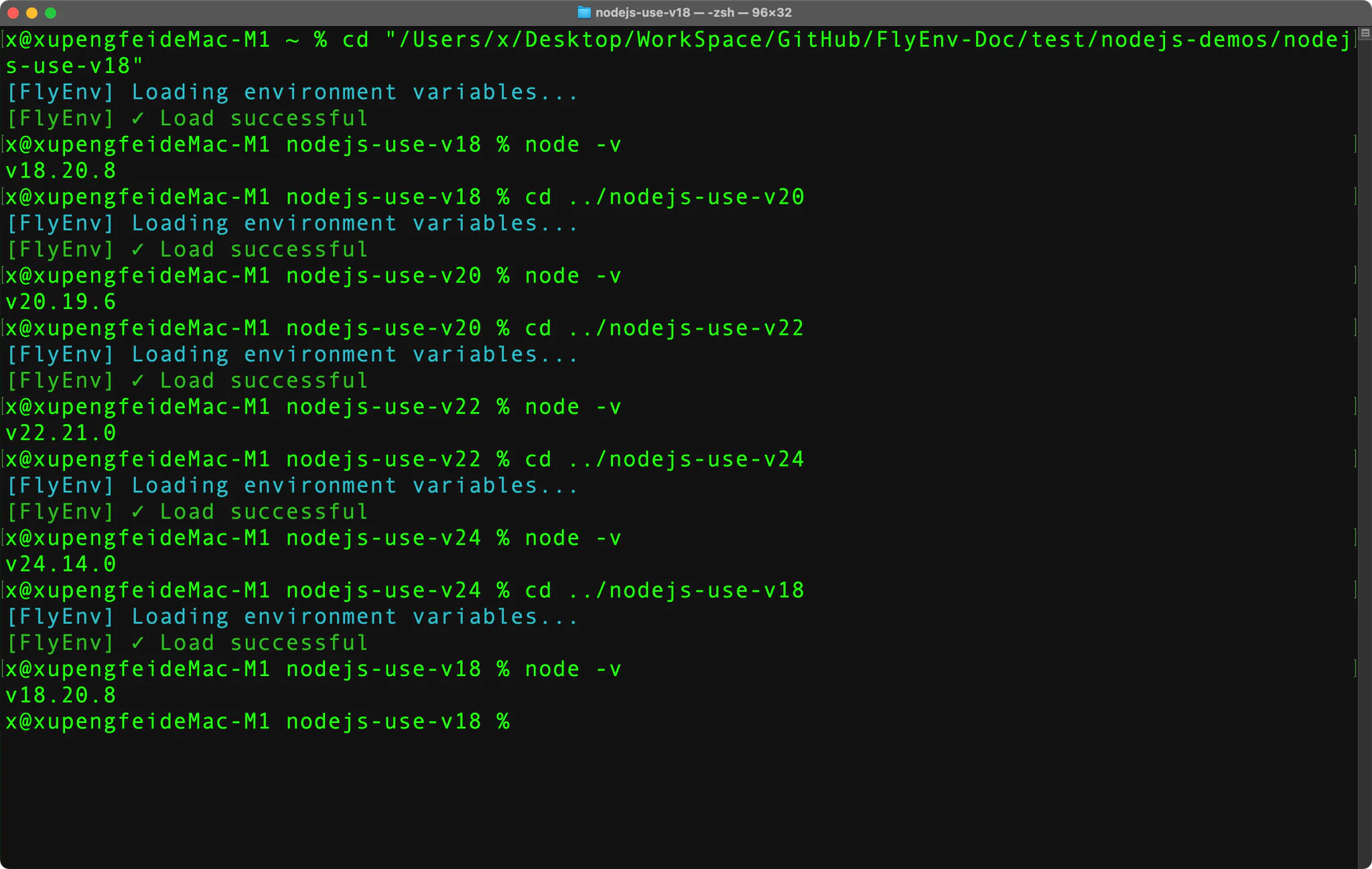
FlyEnv installs a small shell hook so your everyday terminal picks up project environments automatically. On macOS and Linux the helper script flyenv.sh is sourced from ~/.zshrc or ~/.bashrc; on Windows, FlyEnv integrates with the PowerShell profile instead, covering both the classic Windows PowerShell and the cross-platform pwsh editions.
- Directory-aware activation: the hook reacts to directory changes. When you enter a project folder that FlyEnv manages, it sources that project's
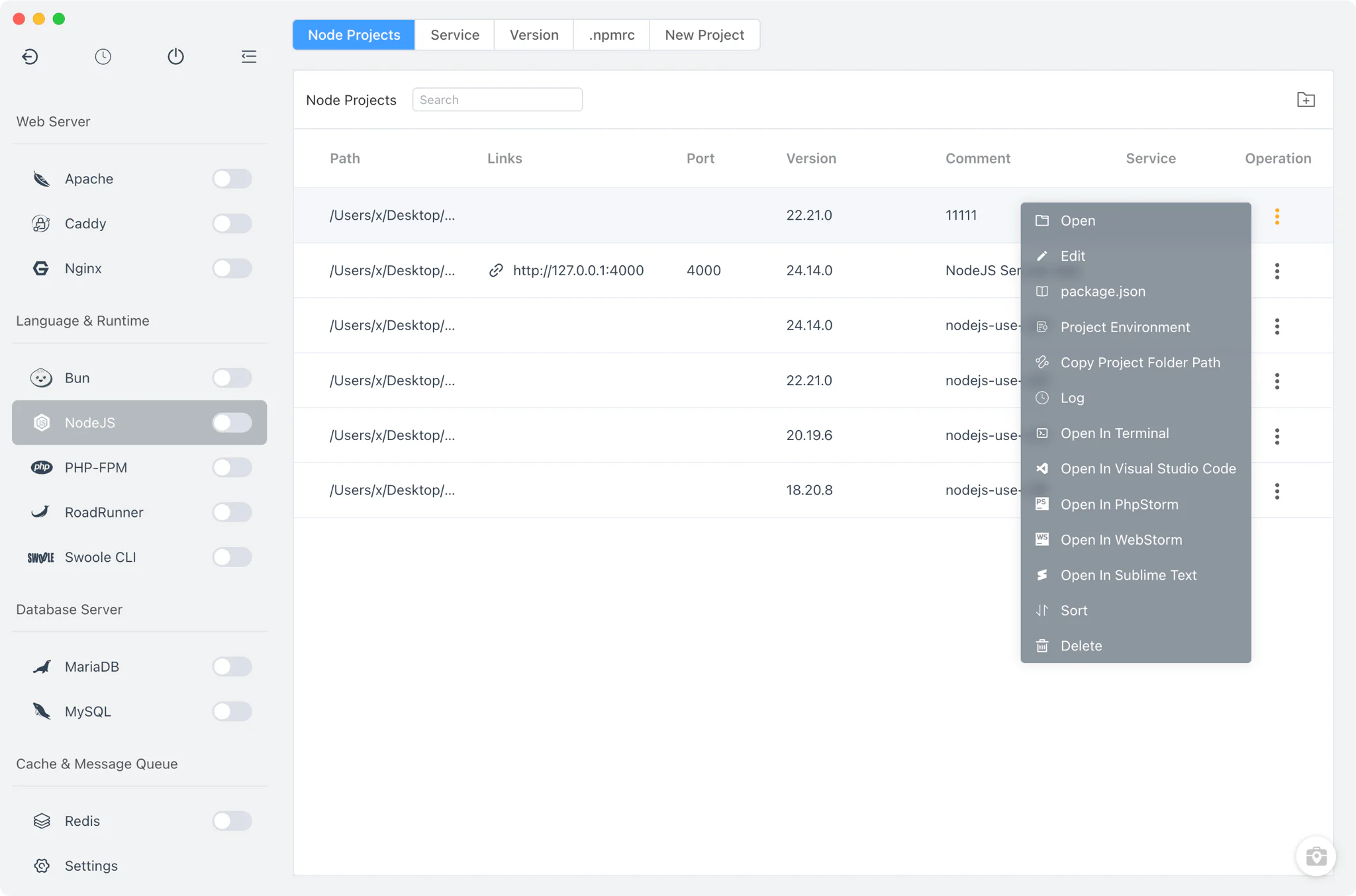
.flyenvfile; directories outside FlyEnv's synced whitelist are left untouched. .flyenvenvironment files: each registered project gets a.flyenvfile in its root that prepends the bound runtime's bin directories toPATH—export PATH="..."syntax on macOS and Linux,$env:PATH = ...on Windows. Every line is tagged with the project ID, so FlyEnv can rewrite the file idempotently whenever you change the binding. See Per-Project Runtime Environments for how bindings are created.- PATH control per version: from a language module's version table you decide which installed version occupies
PATH, and the table marks whether the current entry was placed there by FlyEnv or by another tool. - Step-by-step PATH setup: the system PATH environment guide walks through the whole flow with screenshots.
Open in Terminal
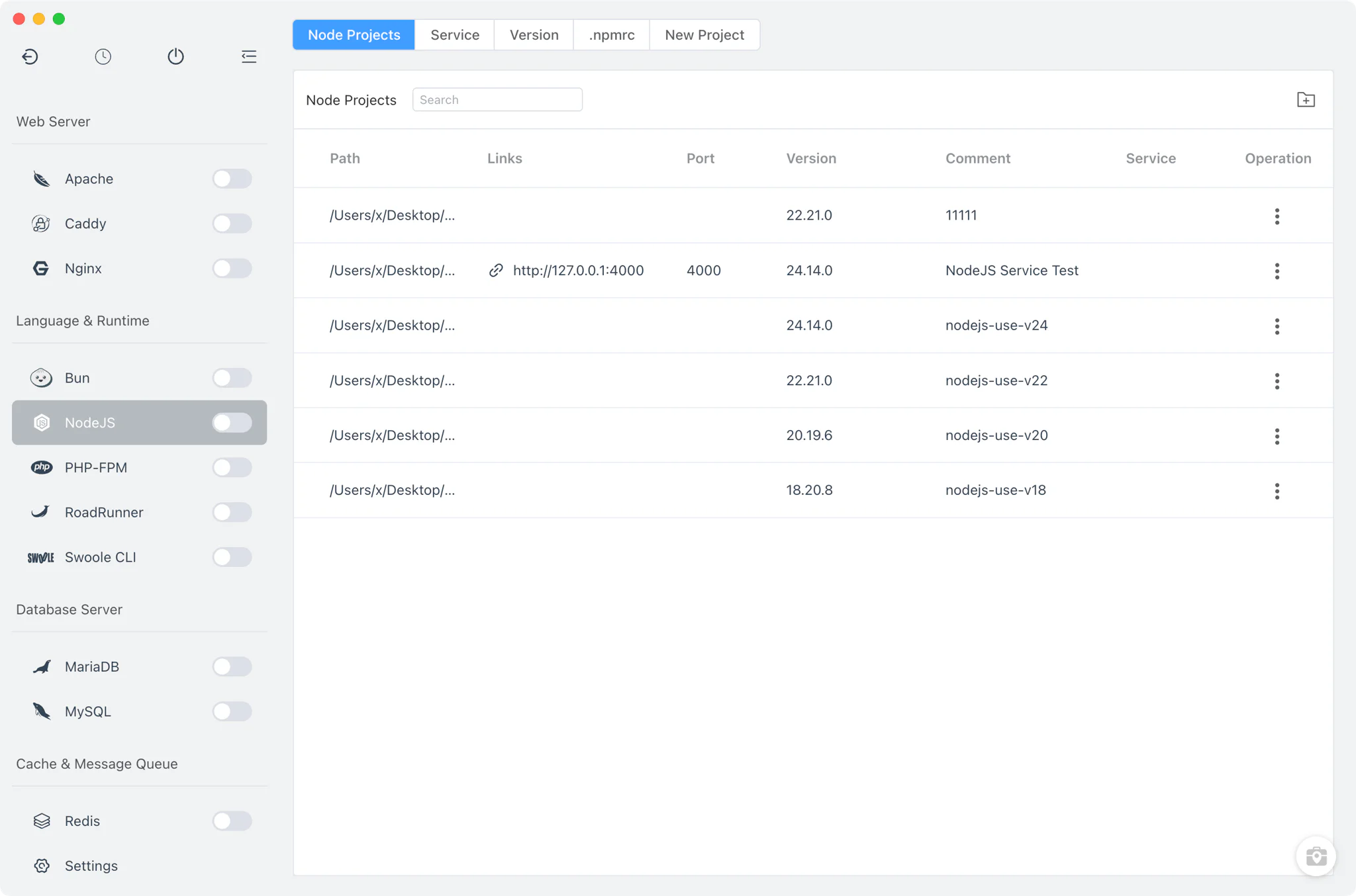
Sometimes a process belongs in a real terminal window — to watch its output, answer its prompts, or keep it alive after FlyEnv closes. Projects and services can be started exactly that way.
- Projects: enable the run-in-terminal option on a language project and its run command or run file opens in a system terminal window, with the project directory as the working directory and the project's environment applied.
- Platform-native launching: macOS drives Terminal.app through AppleScript, Linux launches through a bundled helper script, and Windows spawns a PowerShell window running an inline script — the same action, three native implementations.
- Custom modules and elevated starts: user-defined service modules offer the same terminal launch, and items that need sudo can fall back to opening the command in a terminal where the system password prompt works normally.
Embedded xterm terminals
For one-off, interactive workloads FlyEnv embeds xterm-based terminal sessions directly in its own window, so you see the genuine command output without leaving the app.
- One-click installs: runtimes and tools bootstrap through their official installers in an embedded terminal — rustup for Rust, GVM for Go, Podman via Homebrew on macOS and Linux, and the AI command-line tools' vendor scripts with FlyEnv's proxy environment injected.
- Package operations: building the PostgreSQL pgvector extension, pulling and running Ollama models, or installing n8n through npm all stream their real output into the embedded view.
- Command palettes: gateway-style modules such as OpenClaw and Hermes expose categorized command palettes whose entries execute in the embedded terminal, pre-filling commands that need arguments.
- Podman operations: container exec sessions and image or container actions open in a dedicated embedded terminal dialog.
System environment variables tool
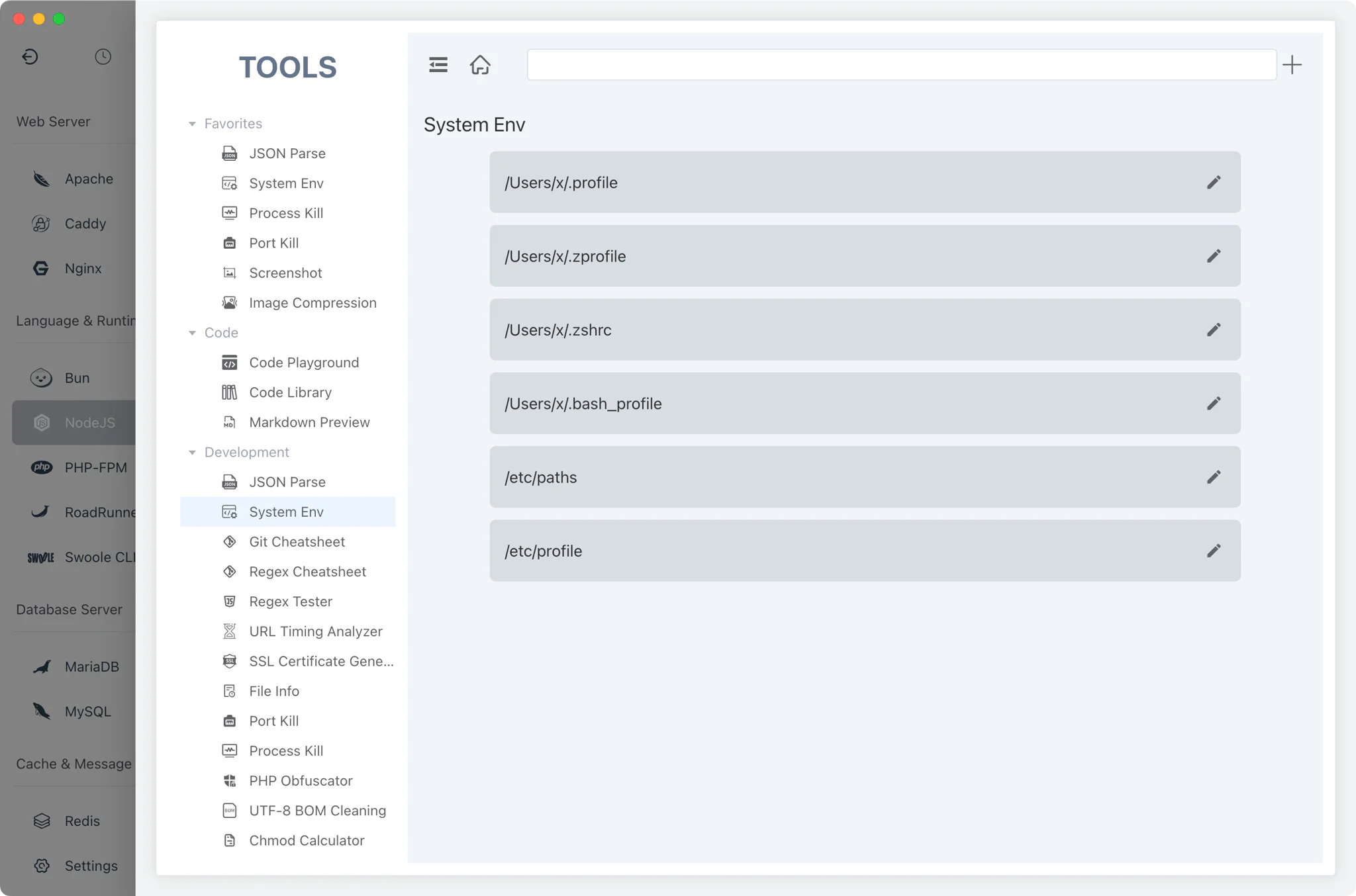
The Tools page includes a system environment variables utility whose shape follows the platform, so the settings that normally live behind OS dialogs or scattered shell files are reachable from the same window as your runtimes.
- On Windows — a PATH editor: the directories on your
PATHare listed in a table where you can add, edit, delete and reorder entries before saving — the companion workflow to the version-table toggles described above. A shortcut button opens the operating system's own environment-variables dialog when you need to touch more than PATH. - On macOS and Linux — the shell files themselves: the tool lists the startup files where environment variables are actually defined —
~/.zshrc,~/.bashrc,/etc/pathsand their relatives — and opens each one in an editor, or reveals it in the file manager. - Pairs with the shell hook: the files and PATH entries edited here provide the base environment layer, while
.flyenvfiles and the shell hook handle the per-project layer on top.
Related guides, solutions and demos
Continue with a practical guide, solution, demo, or community perspective.
Compatibility Notes
Terminal integration in FlyEnv is a set of capabilities spread across the app rather than a single standalone terminal module. The shell hook is installed for zsh and bash on macOS and Linux through the shell's rc files; on Windows the equivalent integration targets the PowerShell profile in both Windows PowerShell and pwsh editions, and other shells are not hooked. Automatic .flyenv loading applies only to project directories registered and whitelisted by FlyEnv. The terminal window used by open-in-terminal actions is the platform's own — Terminal.app on macOS, a terminal helper script on Linux, PowerShell on Windows — so its appearance and behavior follow the OS, not FlyEnv. Embedded xterm sessions exist for the specific install, run and exec tasks described above and are not a general-purpose shell. Treat the Download page and the in-app behavior of your platform as the source of truth for what is available.