Codex CLI in FlyEnv
Codex is OpenAI's open-source coding agent for the terminal — it takes natural-language tasks and edits, runs and reviews code inside your projects. FlyEnv gives the Codex CLI a management console: one-click installation through the official setup script, a visual form for config.toml, a Sessions table that resumes past conversations in your terminal, plus plugin and MCP server management. For the bigger picture of driving AI assistants from FlyEnv, see how FlyEnv works with AI.
Installation
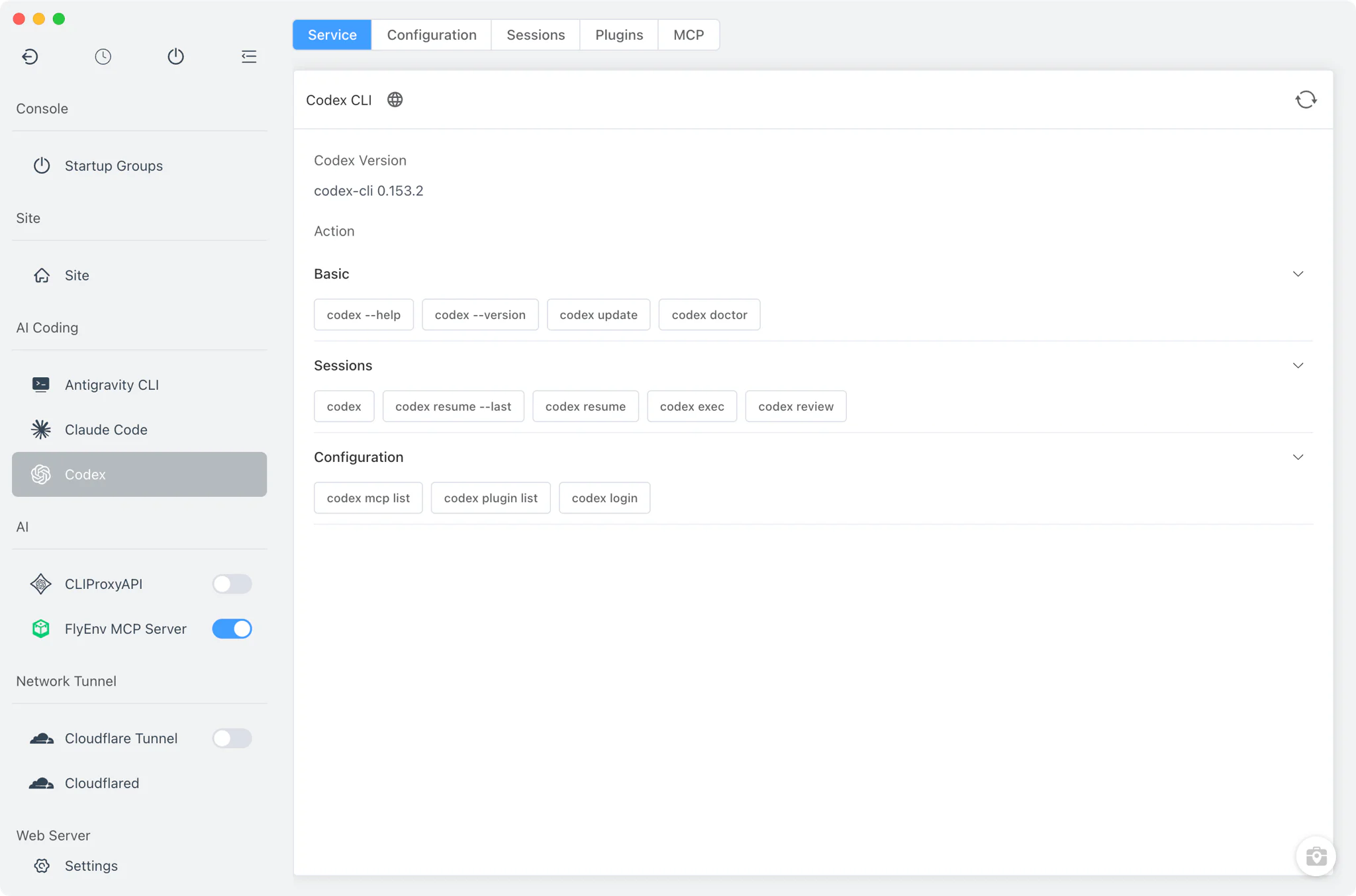
Codex is a command-line client, not a background service — FlyEnv does not start, stop or daemonize it, and there is no port or process to watch. The Service tab shows whether Codex is installed and which version is on your machine.
- Official install script, run for you: installation is a one-shot action that runs the vendor's own script —
curl -fsSL https://chatgpt.com/codex/install.sh | shon macOS and Linux,irm https://chatgpt.com/codex/install.ps1 | iexon Windows — inside FlyEnv's embedded terminal, so you watch the real output. FlyEnv's proxy environment is applied to the install automatically. - Automatic detection: FlyEnv finds the
codexbinary on yourPATHand in common install locations (Homebrew and standard bin directories, npm/yarn/pnpm/bun globals on macOS and Linux; npm and WinGet locations on Windows), so an installation you already have shows up without reinstalling. - Command cheat-sheet: a copy-to-clipboard reference of everyday commands —
codex exec,codex review,codex loginand more — is built into the page.
Configuration
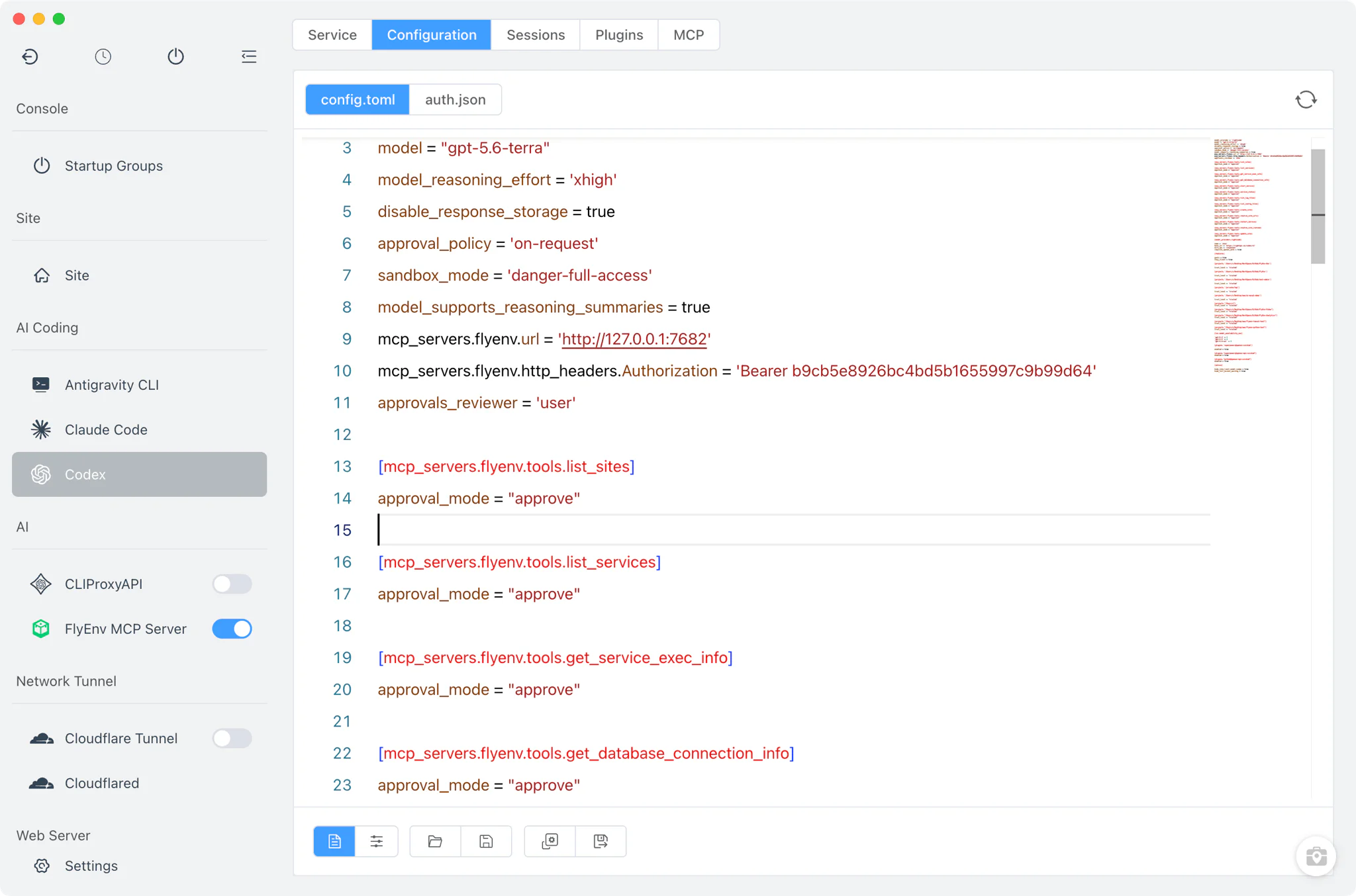
The Config File tab edits Codex's configuration directly; there is nothing to restart afterwards.
- Visual form for
config.toml: adjust~/.codex/config.tomlfrom a form instead of writing TOML by hand — model,model_reasoning_effort,approval_policyandsandbox_modeare all editable fields. - Raw editors: the full
config.tomlsource andauth.jsonare both editable as plain text for anything the form does not cover. - Custom home respected: if you point Codex elsewhere with
CODEX_HOME, FlyEnv reads and writes the configuration from that location instead.
Sessions
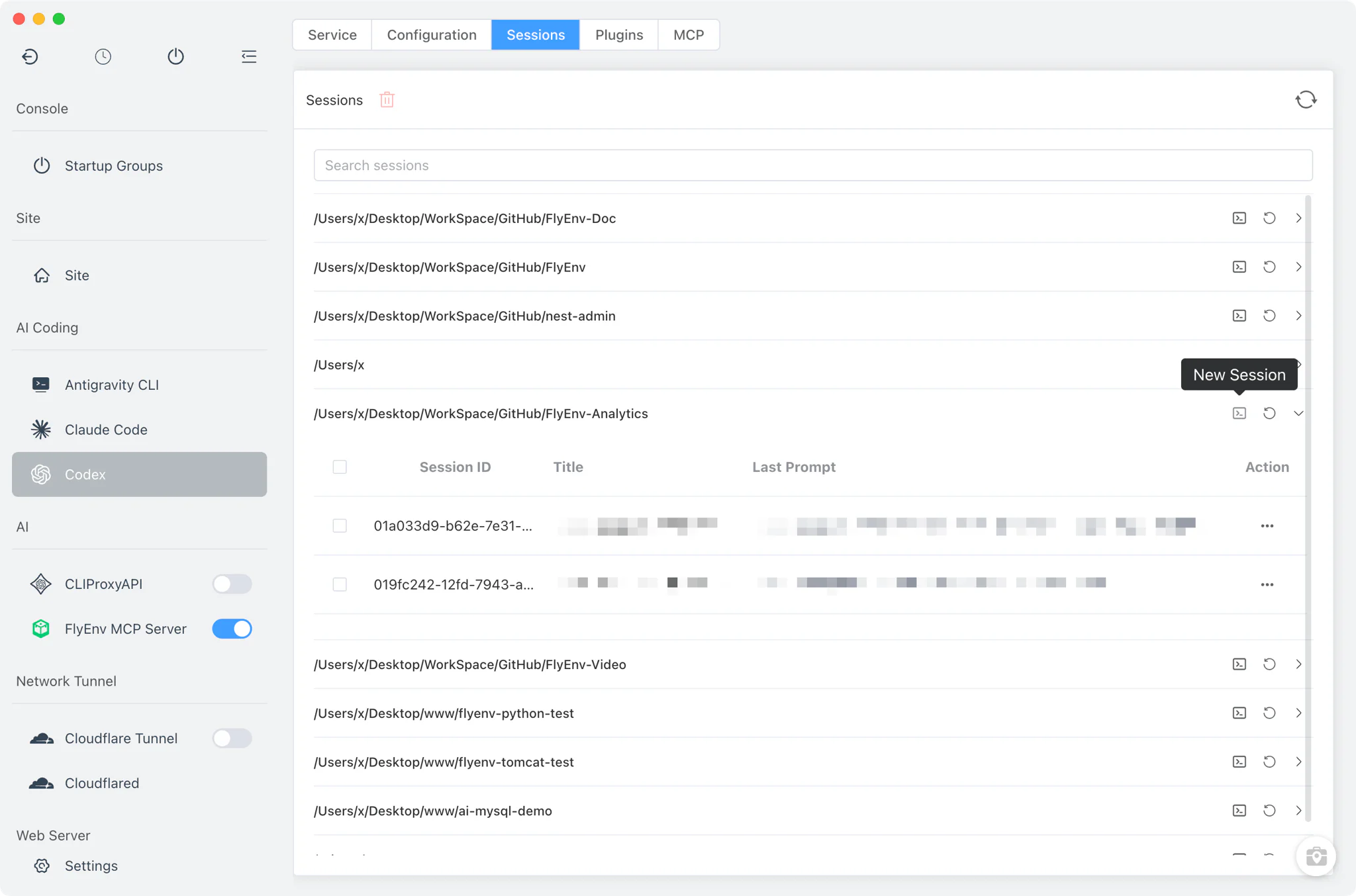
The Sessions tab reads Codex's history from the date-segmented .jsonl files under ~/.codex/sessions/ and groups them by working directory, so conversations from each project stay together.
- Resume where you left off: pick a session and FlyEnv opens your system terminal in the session's directory with
codex resume <id>— or jump straight back into the most recent one withcodex resume --last. - Start new conversations: run
codexfor any listed working directory from the same table. - Housekeeping: delete old sessions from the list when you no longer need them.
Sessions always run in an external system terminal window, never inside FlyEnv itself — FlyEnv prepares the command and the working directory, then hands the conversation over to your terminal.
Plugins
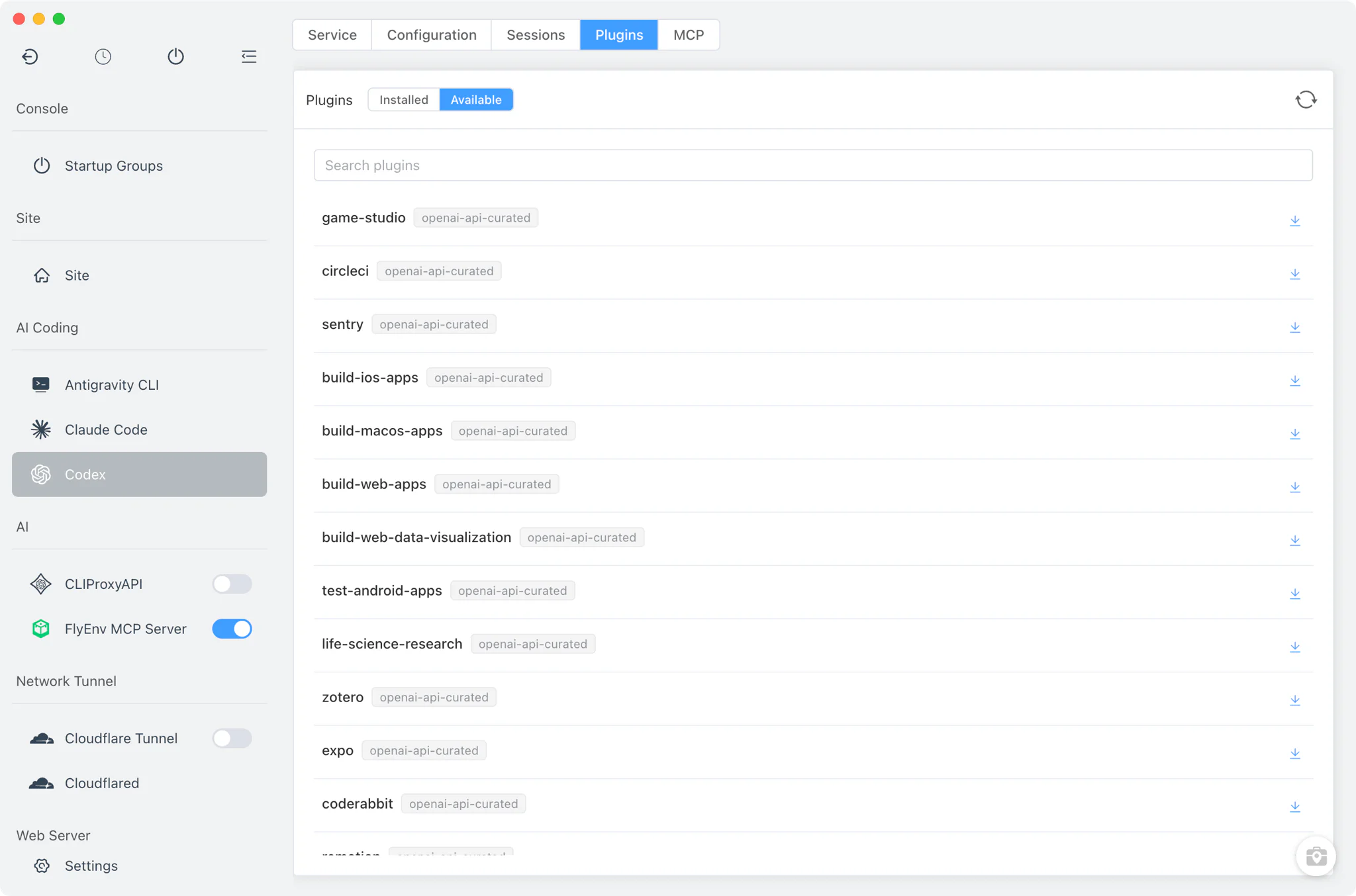
The Plugins tab shows the plugins Codex reports, listing both available and installed entries via codex plugin list --available --json. From the same tab you can install plugins in the embedded terminal and manage the ones already installed. Unlike a full plugin marketplace, Codex exposes no marketplace sources to add or remove, so FlyEnv manages plugins directly against the CLI.
MCP servers
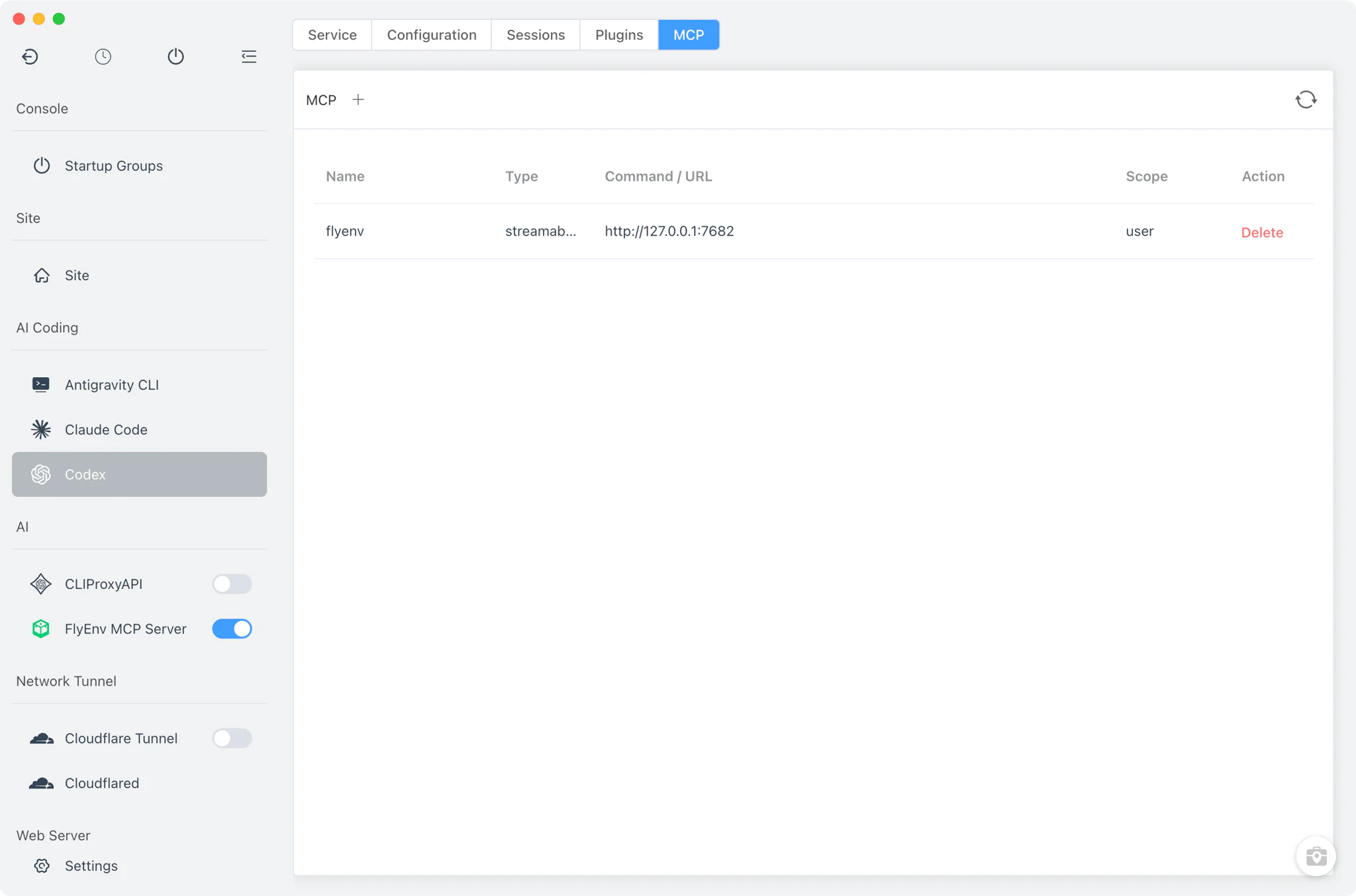
The MCP tab manages the Model Context Protocol servers Codex can call, with list, add and remove actions — see the MCP and AI workspace guide for how MCP servers plug AI coding tools into your local environment.
- Written into
config.toml: HTTP MCP servers you add are stored undermcp_serversin~/.codex/config.toml, keeping everything in one configuration file. - Remote client enabled automatically: adding an HTTP server also turns on
features.rmcp_client = trueso Codex can reach remote MCP endpoints. - One-click FlyEnv registration: FlyEnv's own MCP Server can register itself into this list from its Client Config tab.
Related guides, solutions and demos
Continue with a practical guide, solution, demo, or community perspective.
Compatibility Notes
Codex runs as an interactive CLI in your own terminal; FlyEnv manages its installation, configuration, session history, plugins and MCP servers, but the conversations themselves always happen in the external system terminal, on all supported platforms. Installation uses the vendor's official script, so what gets installed — and whether the install succeeds — depends on that script and your network. Detection covers PATH plus common install locations; an unusually placed binary may need a standard install first. There is no multi-version management for Codex, and the configuration paths described above follow CODEX_HOME when it is set. For the platforms FlyEnv itself supports, check the Download page. FlyEnv manages other AI coding CLIs the same way — see the Claude Code and Kimi modules.