Built-in DNS Server in FlyEnv
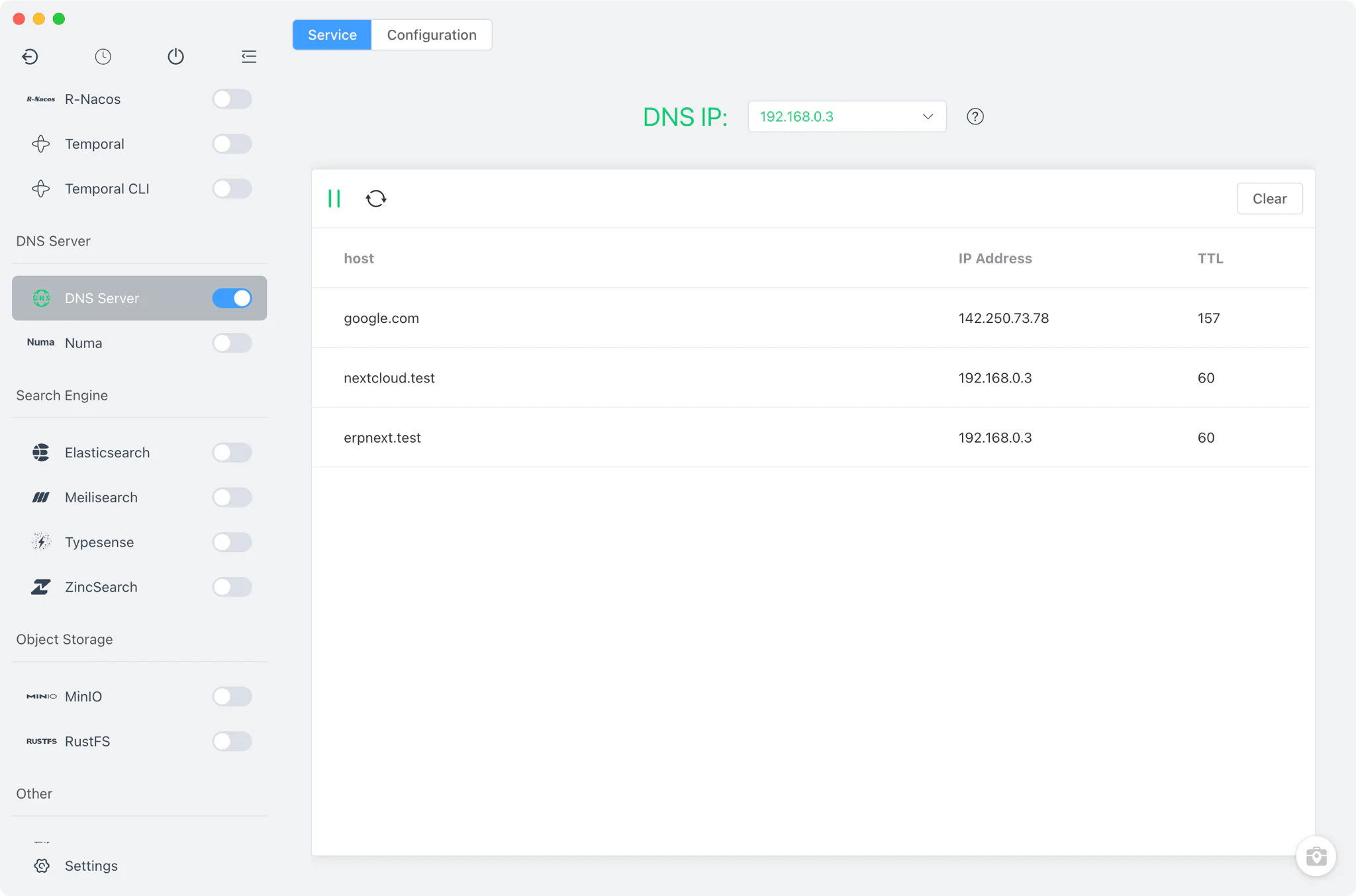
FlyEnv ships its own DNS server, implemented in Node.js directly inside the app — there is no external binary to install and no version to manage. It listens on port 53 and answers for every site domain you create in FlyEnv, so once your system points at it, local domains work without touching the hosts file. A live query log on the Service tab shows each lookup as it happens.
How resolution works
When a query arrives, the server looks the name up in a single in-memory map built from several sources, and asks the internet only when nothing matches:
- FlyEnv site domains: every host name and alias from your local sites is resolved automatically to your primary local IP address. The list is watched live, so a newly created site resolves immediately — no restart, no manual mapping.
- System hosts file: entries from the OS hosts file join the same map; the file is re-read at most every 60 seconds, so outside edits are picked up on their own.
- Static map in
dns.json: aresolveIPmap in the configuration file pins specific names to fixed addresses of your choice. - Conflict order: when the same name appears in more than one source, the site domain wins over the hosts file, which wins over
resolveIP. An exact name match answers first; if none exists, wildcard patterns such as*.testin the map are tried, so whole domain suffixes can be covered by a single rule. - Upstream forwarding: anything that matches neither an exact name nor a wildcard is forwarded to public resolvers — 1.1.1.1 and 8.8.8.8 by default (AliDNS and 114DNS among the defaults in the Chinese locale) — so the server can act as the machine's only DNS without breaking normal browsing. If ad-blocking DNS resolution is what you are after instead, the Numa module provides that flavor of local DNS.
Point your operating system's DNS setting at the local address FlyEnv binds to, and all of this applies system-wide. The host management guide covers the site side of the setup.
Live query log
The Service tab is more than a start/stop switch — it doubles as a traffic monitor for the server.
- Query table: every lookup is shown as a row with the requested host, the IP it resolved to, and the TTL returned.
- Full lifecycle control: start, stop and restart the server from the same toolbar, right next to the log.
- One-click clear: wipe the table when you want a clean view while debugging a specific domain.
Because the log updates as queries arrive, it is the quickest way to confirm that a browser or device is actually using FlyEnv as its resolver.
Configuration
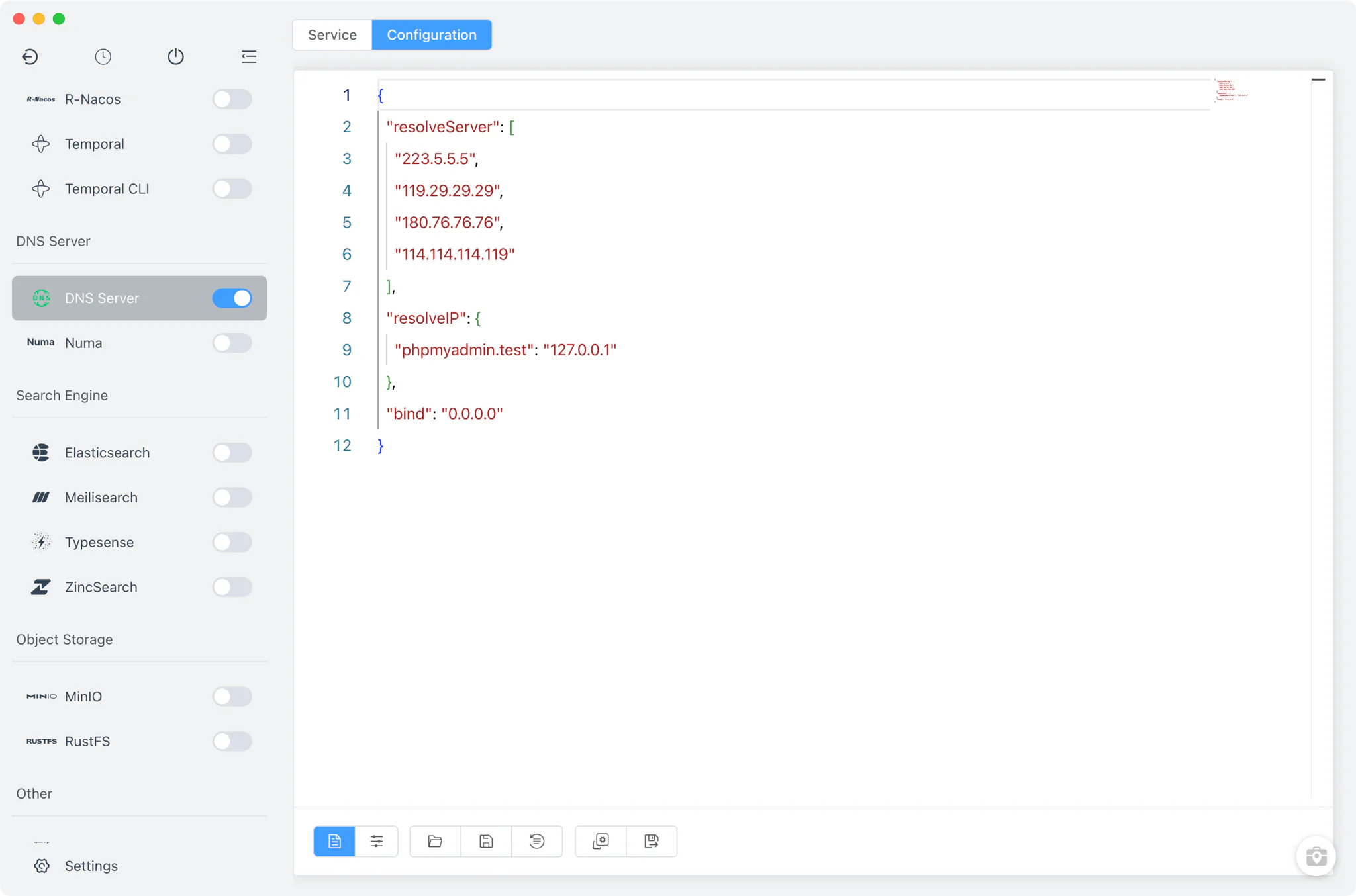
The DNS server keeps its settings in a single JSON file, dns.json (with dns.default.json alongside as the factory reference). The Config File tab offers two ways to change it:
- Bind IP dropdown: the one visual setting — choose which local address the server listens on. The default
0.0.0.0accepts queries on every interface, which is what you want when other devices on the network should also resolve your site domains; picking a specific IP restricts it to that interface. - Raw JSON editor: for everything else, edit the file directly — including the
resolveIPstatic map that fixes individual names to chosen addresses.
Related guides, solutions and demos
Continue with a practical guide, solution, demo, or community perspective.
Compatibility Notes
The built-in DNS server runs on macOS, Windows and Linux, serving both UDP and TCP on port 53. Port 53 is a privileged port on Unix-like systems, so running the server there can require elevated permission depending on the platform, and no other resolver (such as another local DNS tool) can hold the port at the same time — if the bind fails, starting the server simply reports an error. The server answers queries only while it is running, and query history is shown live in the Service tab without being written to log files. For the exact behavior of a given release, treat the in-app module and the Download page release notes as the reference.