Local MariaDB Development with FlyEnv
MariaDB is an open source relational database that began as a fork of MySQL and stays broadly compatible with it, so WordPress and most other applications written for MySQL run on it unchanged. Teams often pick it as a drop-in MySQL replacement. FlyEnv turns MariaDB into a managed local service you control from one window: install multiple versions, run mariadbd with an editable my-<version>.cnf, watch the error and slow logs, and reach your data through phpMyAdmin or the built-in Manage drawer. Everything runs against the real MariaDB binaries, so what you test locally matches what you deploy.
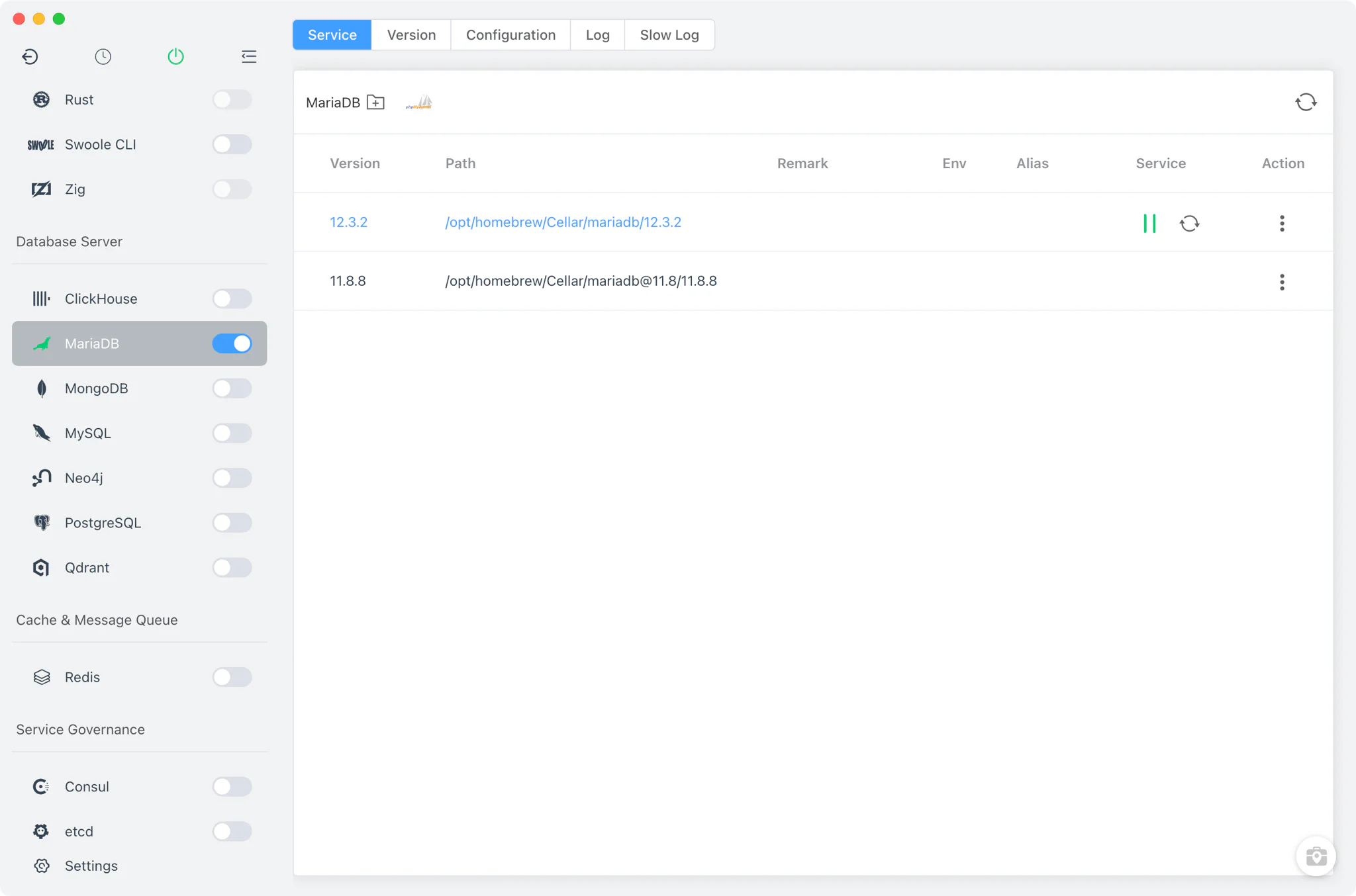
MariaDB version management
Install and keep multiple MariaDB versions side by side from MariaDB → Version Manager, and pick which one the service runs.
- Install sources per platform: Homebrew (
mariadb,[email protected]) and MacPorts on macOS, Homebrew on Linux, and a static online list of ready-made packages on Windows. - Custom versions: add any directory containing your own MariaDB installation; FlyEnv scans it and lists those builds next to the managed versions.
- One current service version: the Service tab runs a single selected version as the MariaDB service; starting another version stops the previous one.
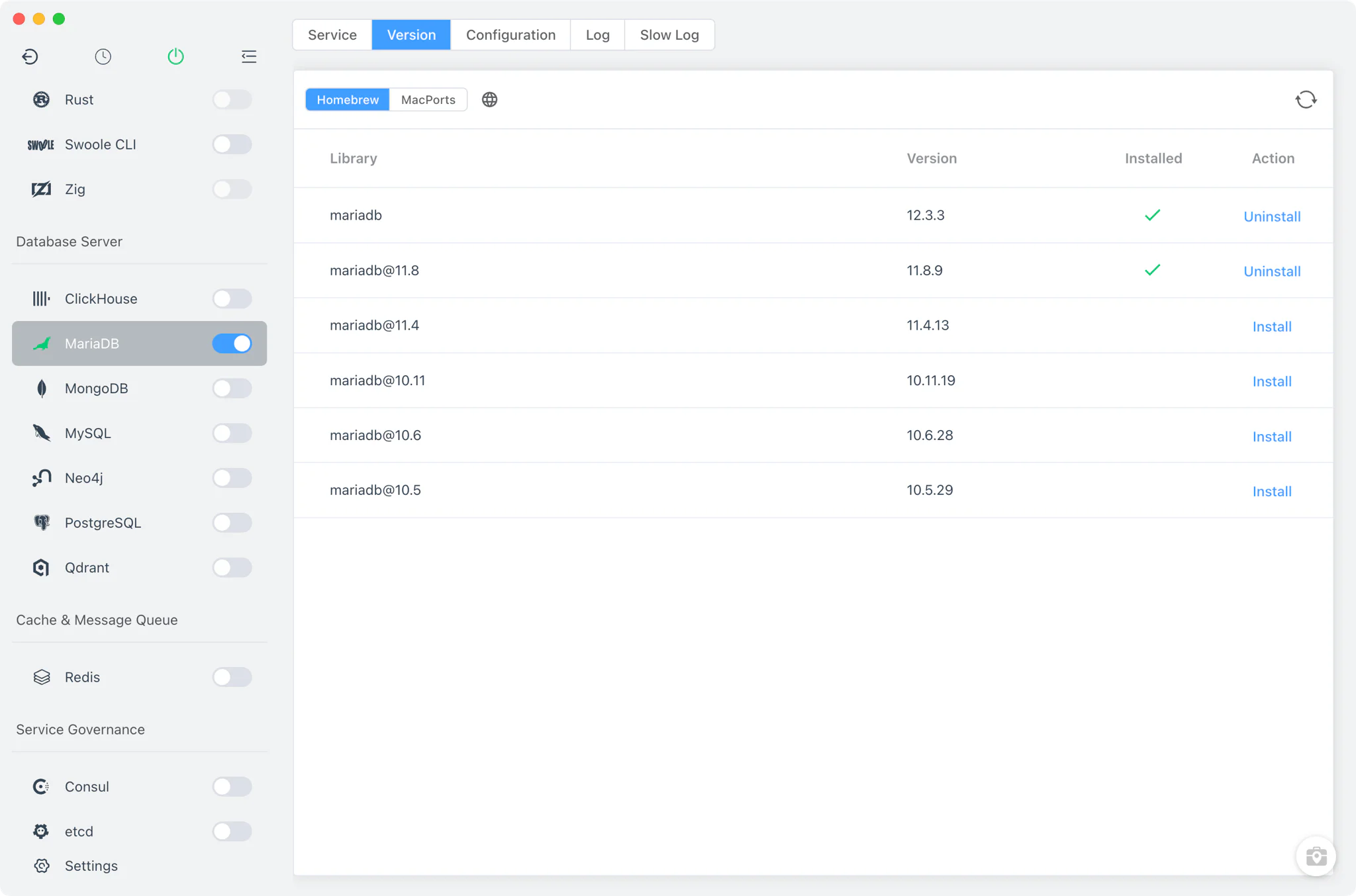
Service and configuration
FlyEnv runs the real mariadbd binary in the foreground — not mariadbd-safe — launched with --defaults-file=my-<version>.cnf --port=.... The port defaults to 3306 and comes from the configuration file. On Windows the service is stopped cleanly through mariadb-admin.exe ... shutdown.
Each version gets its own my-<major.minor>.cnf under FlyEnv's MariaDB directory, editable from the Config File tab:
- Common settings form: adjust frequently changed options under the
[mariadbd]section from a visual form instead of editing the file by hand. - Raw editor: switch to the full source view for anything the form does not cover.
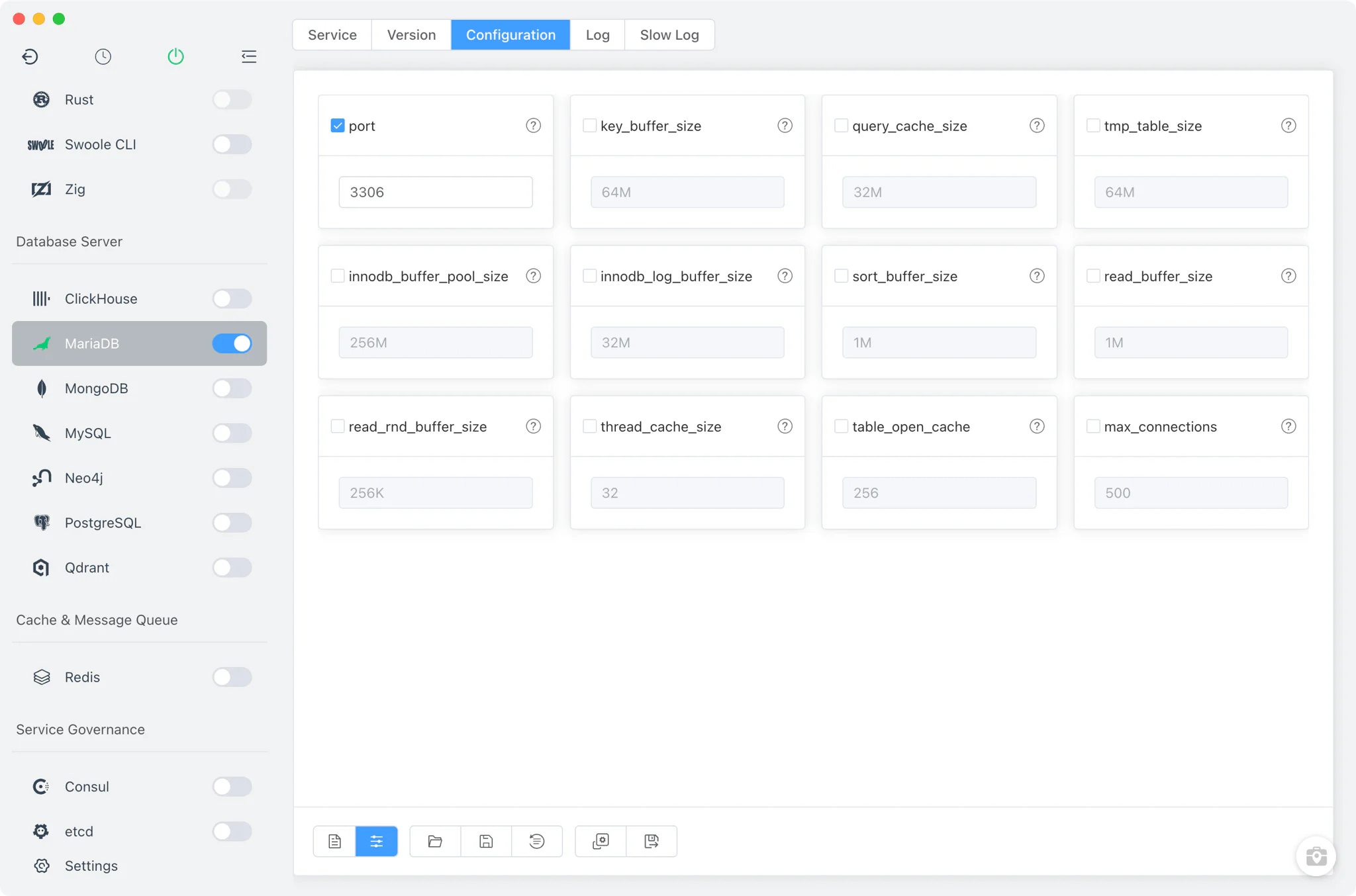
Logs
Two dedicated tabs — Log and Slow Log — bring the server's error.log and slow.log into FlyEnv. Check the error log first whenever a version refuses to start; once slow query logging is enabled in the configuration, the slow log records every query that crosses the long-query threshold — handy when profiling a local application against realistic data.
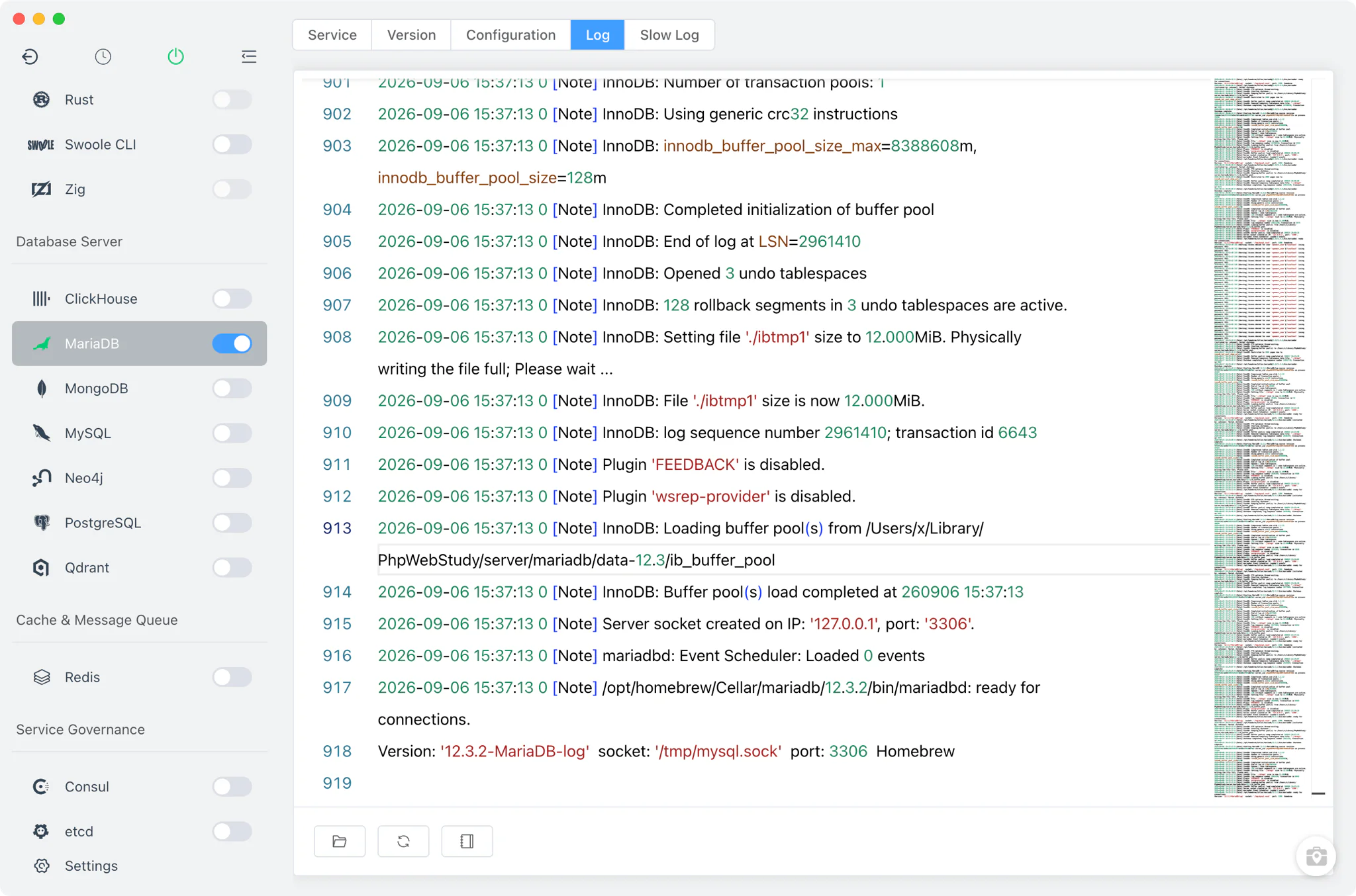
phpMyAdmin
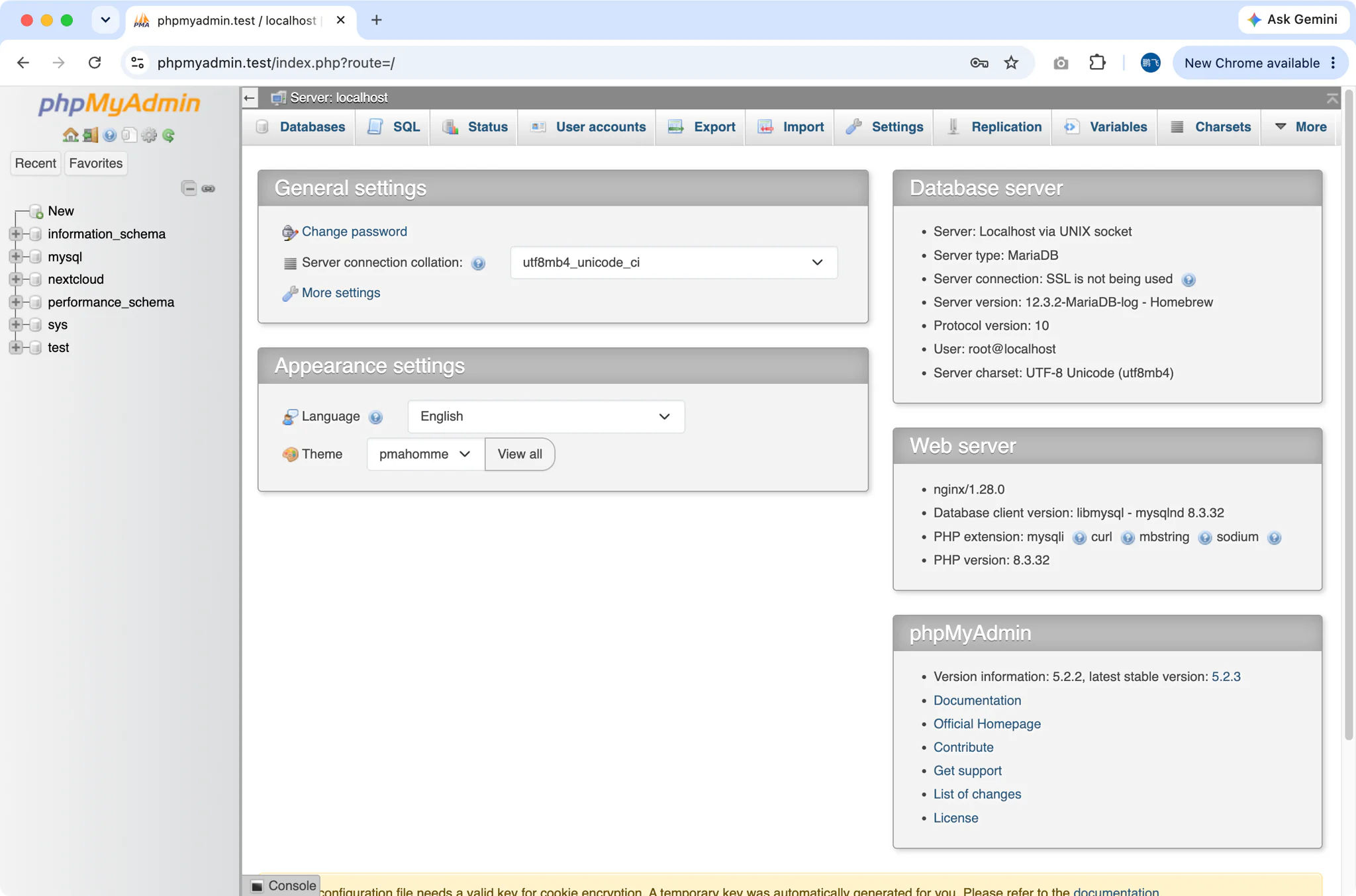
The phpMyAdmin button in the Service toolbar sets up a full phpMyAdmin site in one step: FlyEnv downloads phpMyAdmin, creates a local site served by your web server and PHP version, and opens it in the browser. It works against the running MariaDB service, so you get a familiar web UI for browsing tables and running queries without installing anything manually.
Manage drawer
For day-to-day work there is no need to leave the app: the per-version Manage drawer talks to the running server directly.
- Add database: create a new database from the database list.
- Root password: change the root password for the instance — the default root password on fresh installs is
root. The database user and password guide covers this in more detail. - Backups: dump any database with
mariadb-dumpinto a backup directory you choose, straight from the drawer.
Related guides, solutions and demos
Continue with a practical guide, solution, demo, or community perspective.
Compatibility Notes
The MariaDB module runs one version at a time; unlike the MySQL module, it has no Group feature for multiple concurrent instances. FlyEnv manages the local MariaDB runtime, its configuration files and its data directories; it does not guarantee that every MariaDB version is available on every operating system or install source. The versions offered in Version Manager depend on your platform (Homebrew and MacPorts on macOS, Homebrew on Linux, static packages on Windows) and on what those sources publish, and phpMyAdmin additionally requires a FlyEnv web server and PHP version to be running. Treat the in-app version list and the Download page as the source of truth for what can be installed on your machine.