Kimi CLI in FlyEnv
Kimi is Moonshot AI's command-line coding agent, powered by the Kimi models. FlyEnv gives the Kimi coding CLI a dedicated management page: install it from the Service card, edit config.toml through a visual form, resume or export past Sessions, read Kimi's own log files without leaving the app, and manage HTTP/SSE MCP servers. It is one of several AI coding clients FlyEnv manages — alongside Claude Code and OpenCode — and the AI assistant workflow guide shows how these modules fit into day-to-day development.
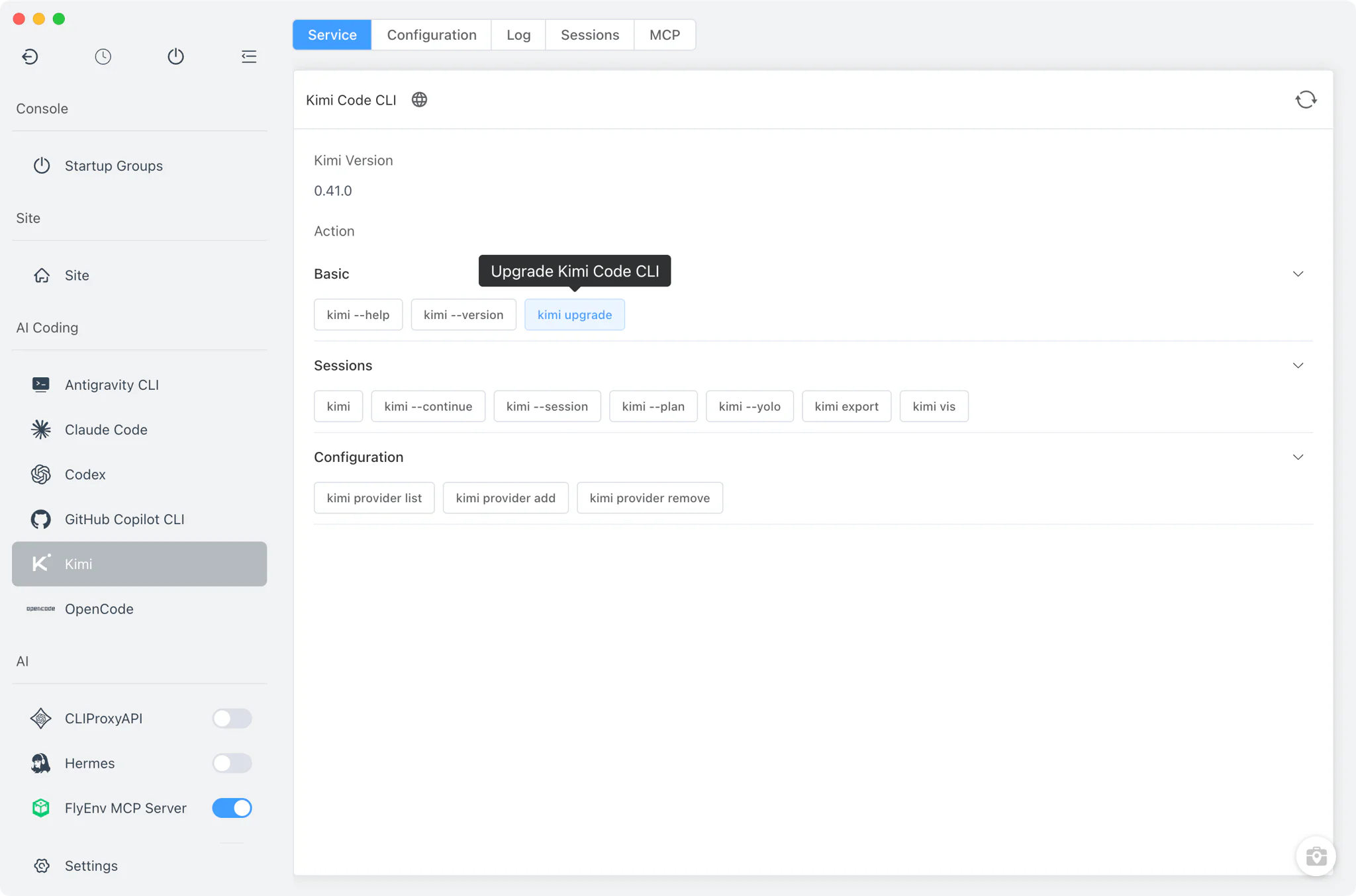
Installation
Kimi is not a background service — there is no daemon to start or stop, and no version manager. The module detects an existing installation on your PATH and in the usual install locations, and shows the detected version in the Service card.
- One-click install: FlyEnv runs the official install script in its embedded terminal, so you watch the real output as it happens —
curl -fsSL https://code.kimi.com/kimi-code/install.sh | bashon macOS and Linux,irm https://code.kimi.com/kimi-code/install.ps1 | iexon Windows. - Command cheat-sheet: the Service card offers copyable quick commands such as
kimi --plan,kimi --yolo,kimi visandkimi provider list/add/remove, so common invocations are always one click away. - Launch from FlyEnv: sessions open in your external system terminal — FlyEnv hands off
kimi,kimi --session "<id>"orkimi --continueto the OS terminal rather than hosting the chat itself.
Configuration
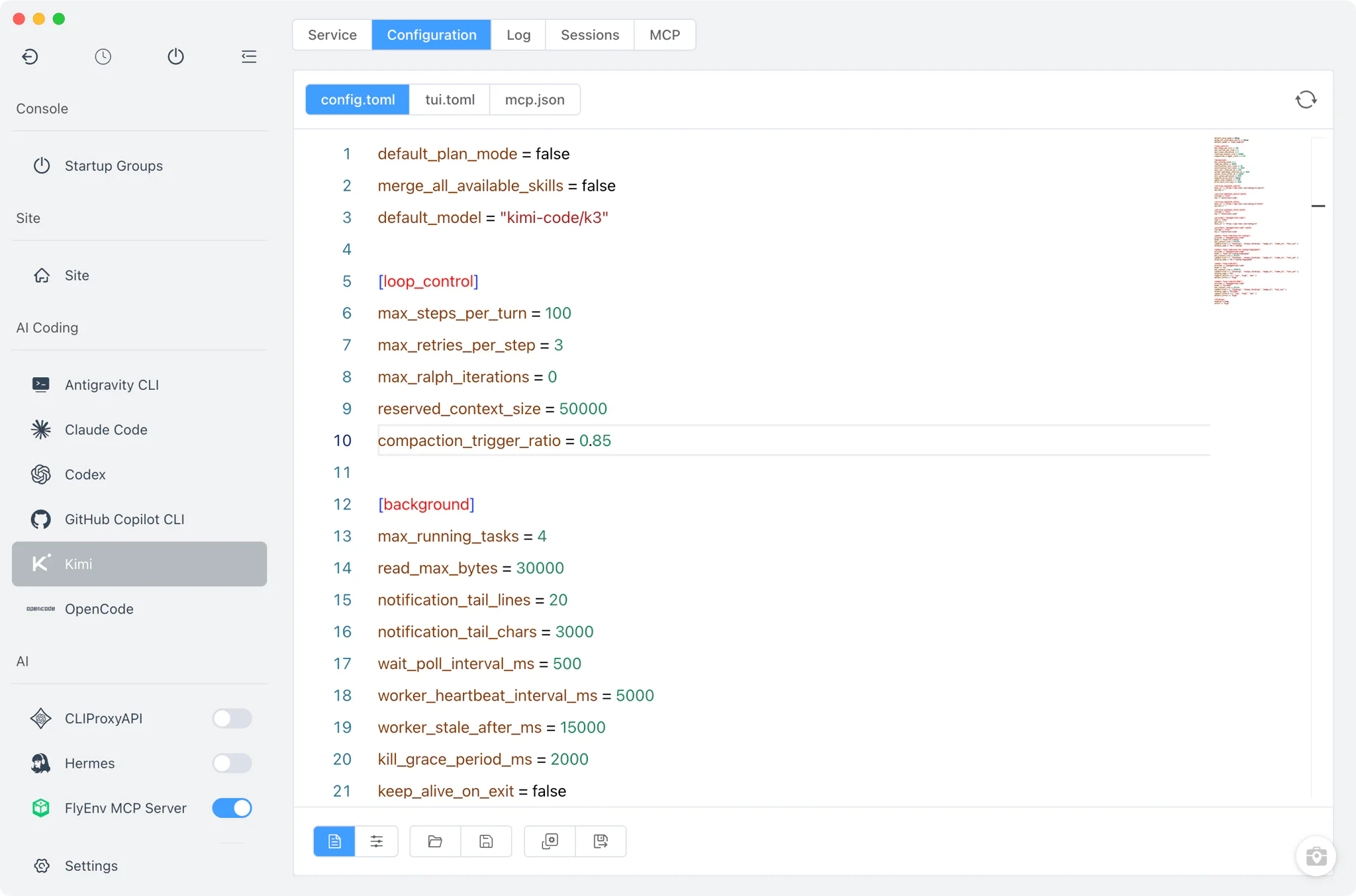
The Config File tab edits the files under Kimi's config home (~/.kimi-code/, overridable via KIMI_CODE_HOME): config.toml, tui.toml and mcp.json.
- Visual form for
config.toml: adjust the defaults that matter most —default_permission_mode,default_thinking,default_plan_modeandtelemetry— from form fields instead of editing TOML by hand. - Raw editor: every file can also be opened in the full source editor for anything the form does not cover.
Sessions
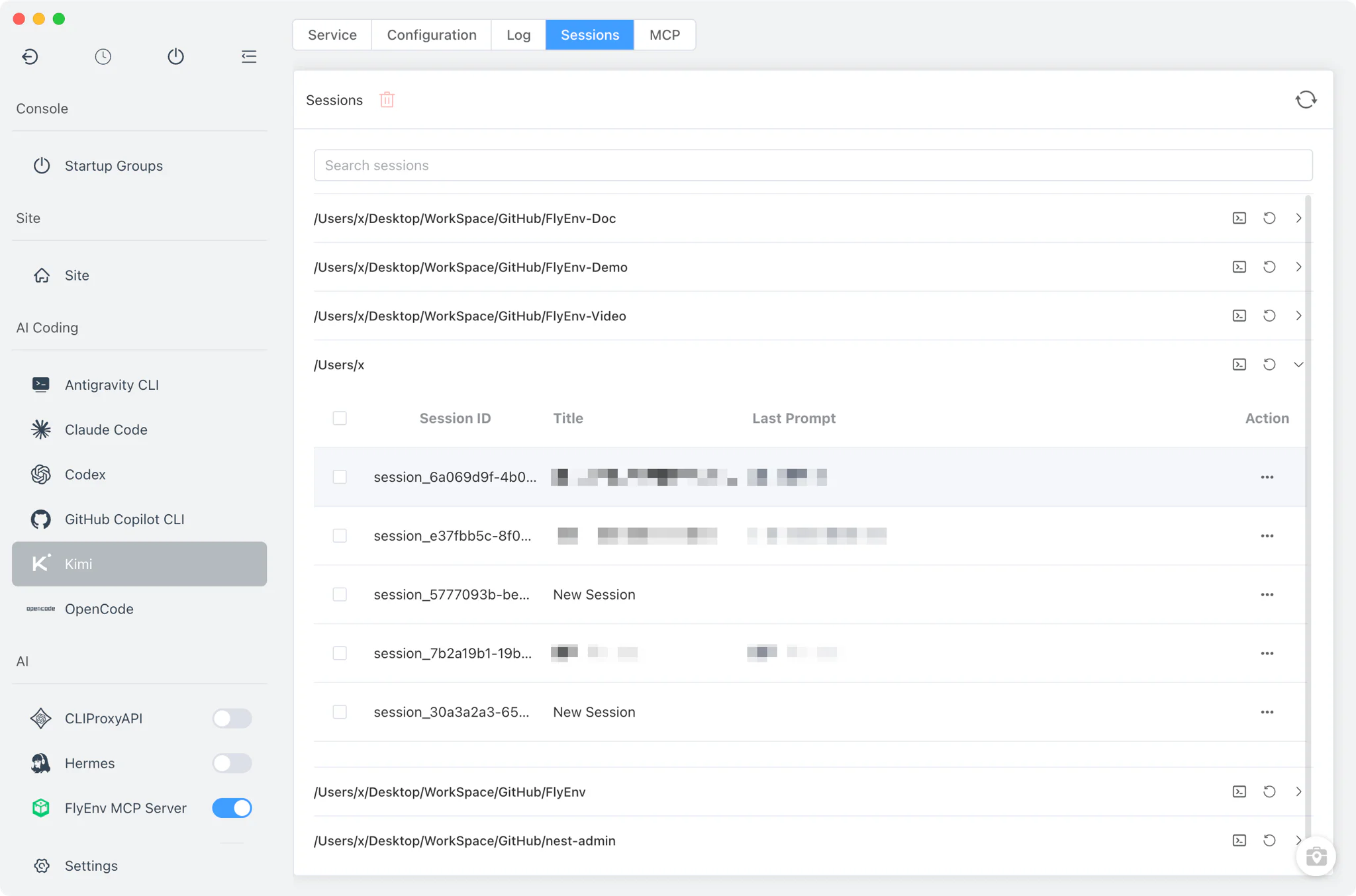
The Sessions tab reads the session store at ~/.kimi-code/sessions/ and lists every recorded conversation, grouped by working directory.
- Resume where you left off: pick a session and FlyEnv opens it in an external system terminal with
kimi --session "<id>";kimi --continuejumps straight back into the most recent one. - Export: Kimi is the one AI client in FlyEnv with a built-in export action — it runs
kimi export "<id>"in the embedded terminal so you can save or share a session transcript. - Housekeeping: delete sessions you no longer need directly from the table.
Logs
Kimi is the only AI coding CLI module in FlyEnv with a dedicated Log tab. It collects every *.log file under ~/.kimi-code/logs/ into the shared log viewer, so when the CLI misbehaves you can read its own log output in place instead of hunting through the config directory.
MCP servers
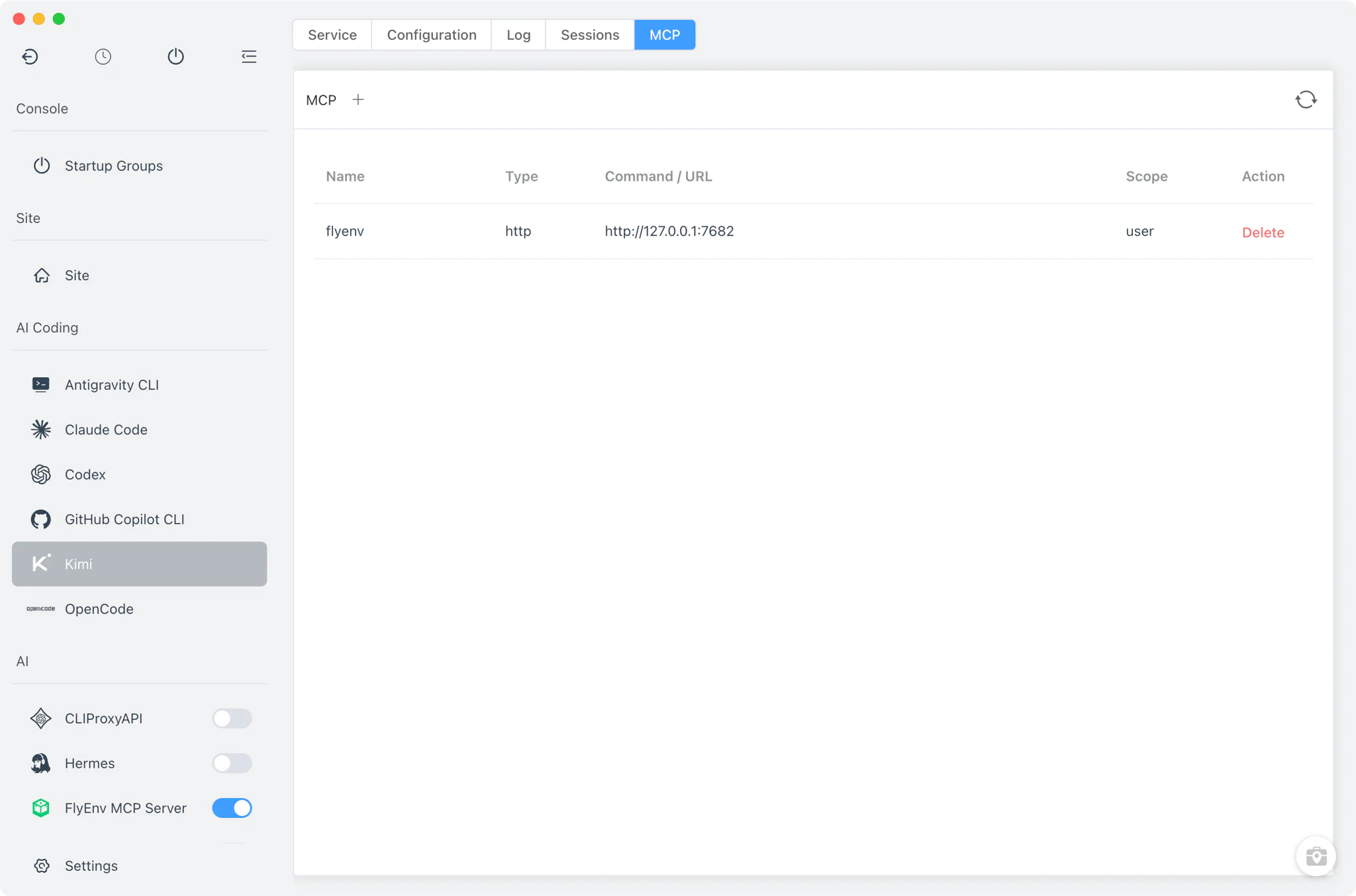
The MCP tab lists the servers registered for Kimi and lets you add or remove entries — the MCP and AI workspace guide shows how MCP servers extend AI coding tools. Kimi accepts HTTP/SSE MCP servers only — stdio servers are rejected by design — and FlyEnv writes additions into mcp.json in the config home, the same file the CLI reads. FlyEnv's own MCP Server can register itself here with one click from its Client Config tab.
Related guides, solutions and demos
Continue with a practical guide, solution, demo, or community perspective.
Compatibility Notes
The Kimi module manages the CLI's files and configuration; it does not run Kimi as a background service, and interactive sessions always happen in your system's own terminal, not inside FlyEnv. Installation goes through the vendor's official script, so availability on a given platform follows what that script supports — check the Download page for the FlyEnv platforms covered. MCP support is limited to HTTP and SSE transports because Kimi itself does not read stdio MCP config files.