Custom Modules in FlyEnv
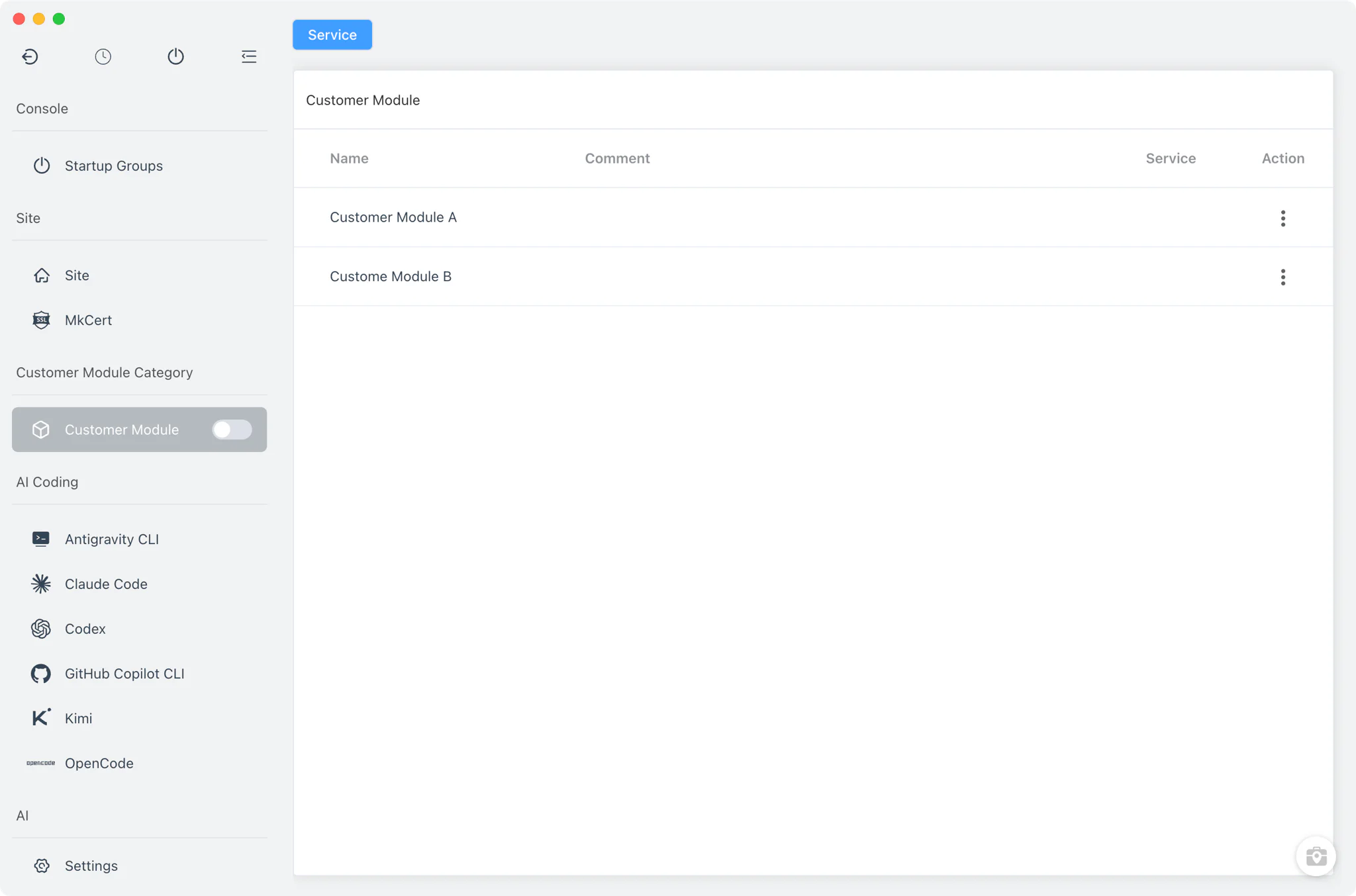
FlyEnv ships with many built-in modules, but it cannot cover every tool a developer might run locally. A custom module closes that gap: you describe your own service once, and FlyEnv gives it a sidebar entry, a service page with start/stop/restart controls, and tabs for its configuration and log files — the same working experience as a built-in module.
Creating a Module
Custom modules are defined in Settings → Modules. Each module you create becomes a first-class entry in the FlyEnv sidebar with its own page.
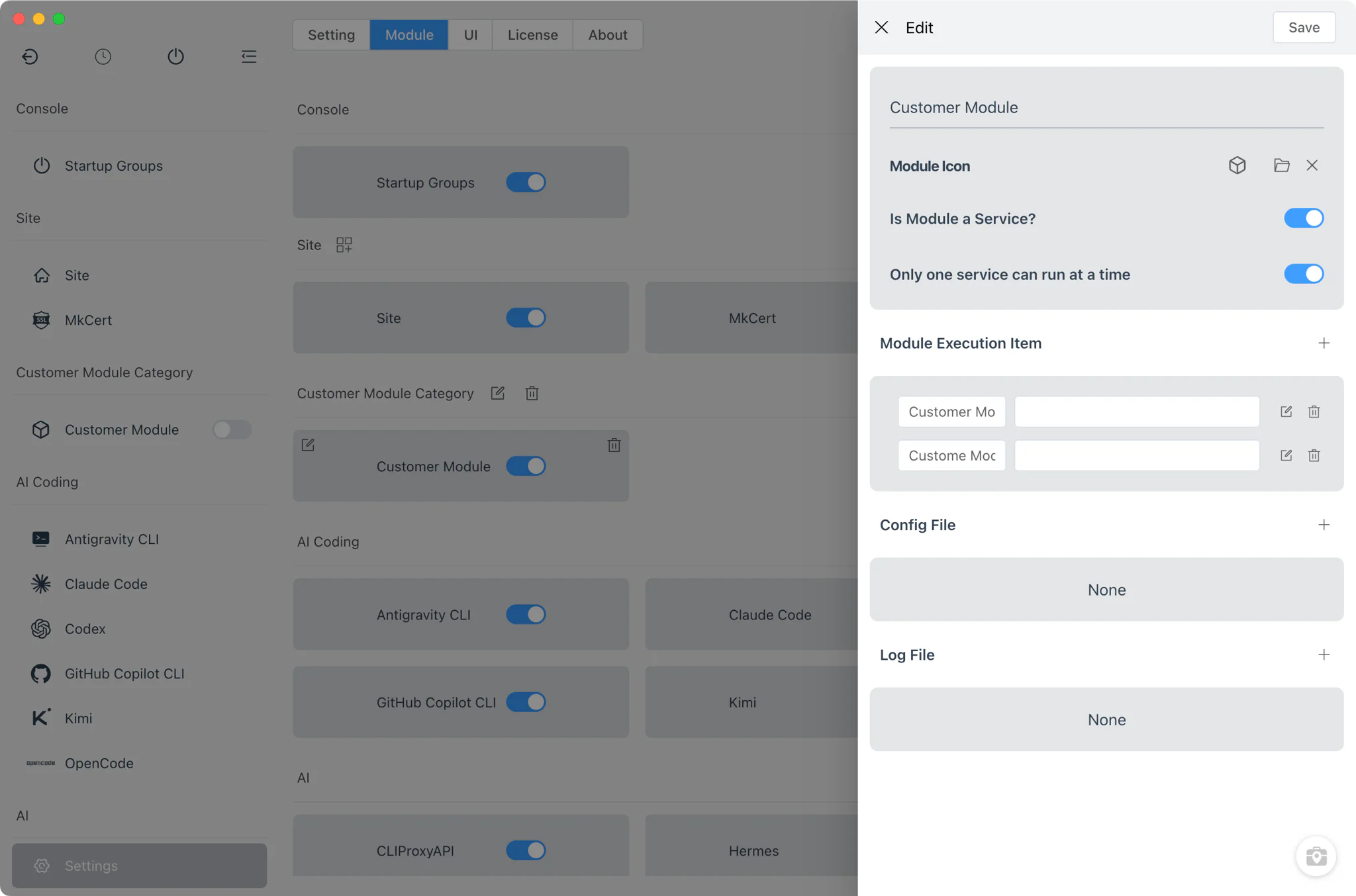
- Identity: give the module a label and an icon so it is easy to recognize in the sidebar.
- Service switch: decide whether the module runs managed services. When enabled, FlyEnv adds lifecycle controls and tracks each item's process.
- Single-instance mode: mark the module so only one of its items runs at a time — useful for tools that bind a fixed port. Starting an item then automatically stops the others first, and FlyEnv remembers which item you started last.
- Config and log file lists: declare the module's configuration files and log files up front; each one becomes a tab on the module's page.
Hiding a custom module from the sidebar stops its running services, so a hidden module never leaves stray processes behind. The custom modules guide walks through a complete example built around etcd.
Exec Items
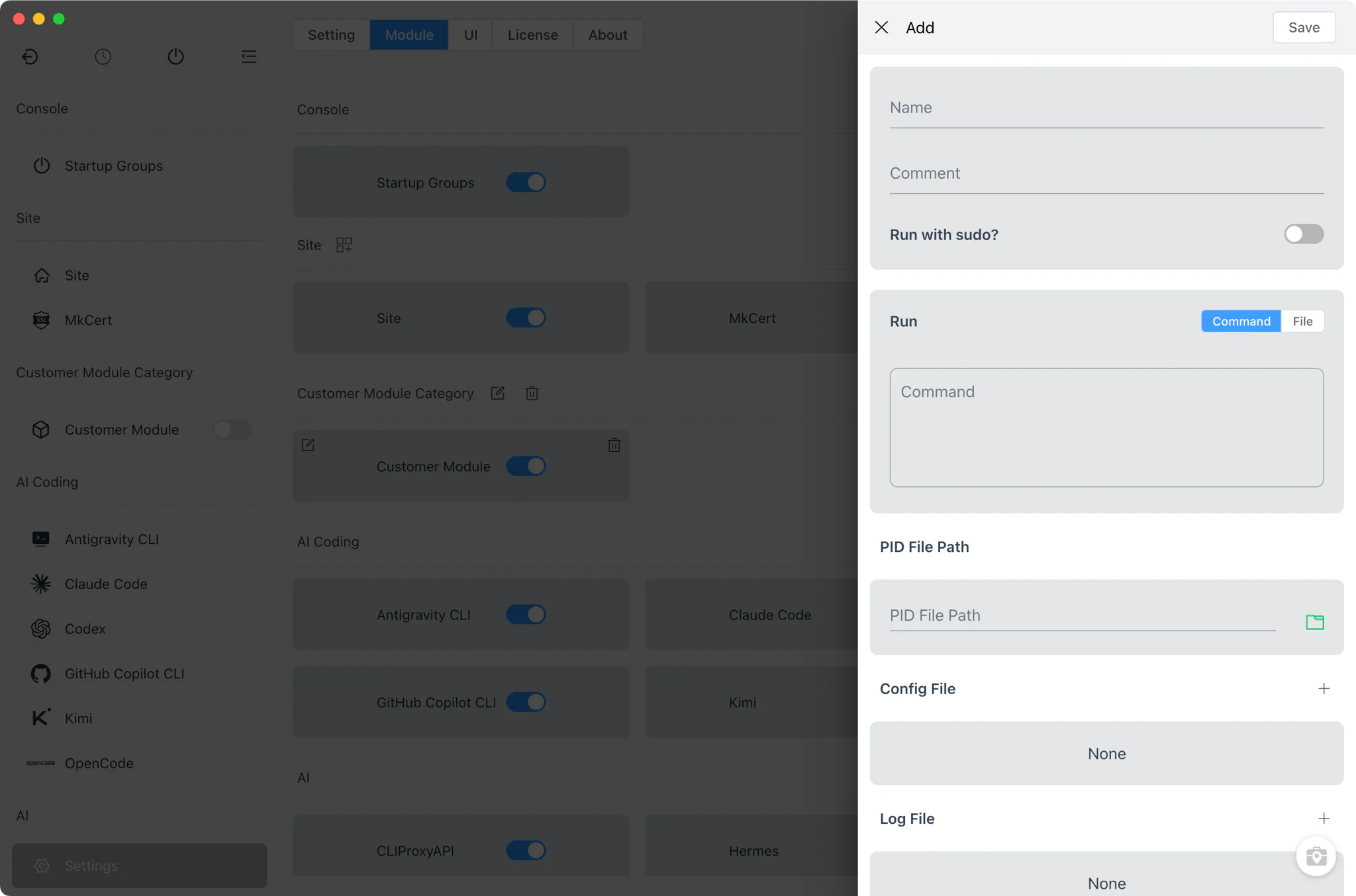
A module holds one or more exec items — the individual commands that make up the service, such as different versions or configurations of the same tool. The Service tab lists them with start, stop and restart buttons.
Each item defines:
- Command or file: either a shell command line typed directly, or a script file chosen from disk that FlyEnv executes.
- Name and comment: keep similar items distinguishable in the list.
- Run with sudo: for commands that need elevated privileges, FlyEnv prompts for the password, with an "open in Terminal" fallback when interactive elevation is required.
- PID file path: the pid file lets FlyEnv track whether the item is running and stop it cleanly — on Unix, stop sends SIGTERM followed by SIGINT to the recorded pid.
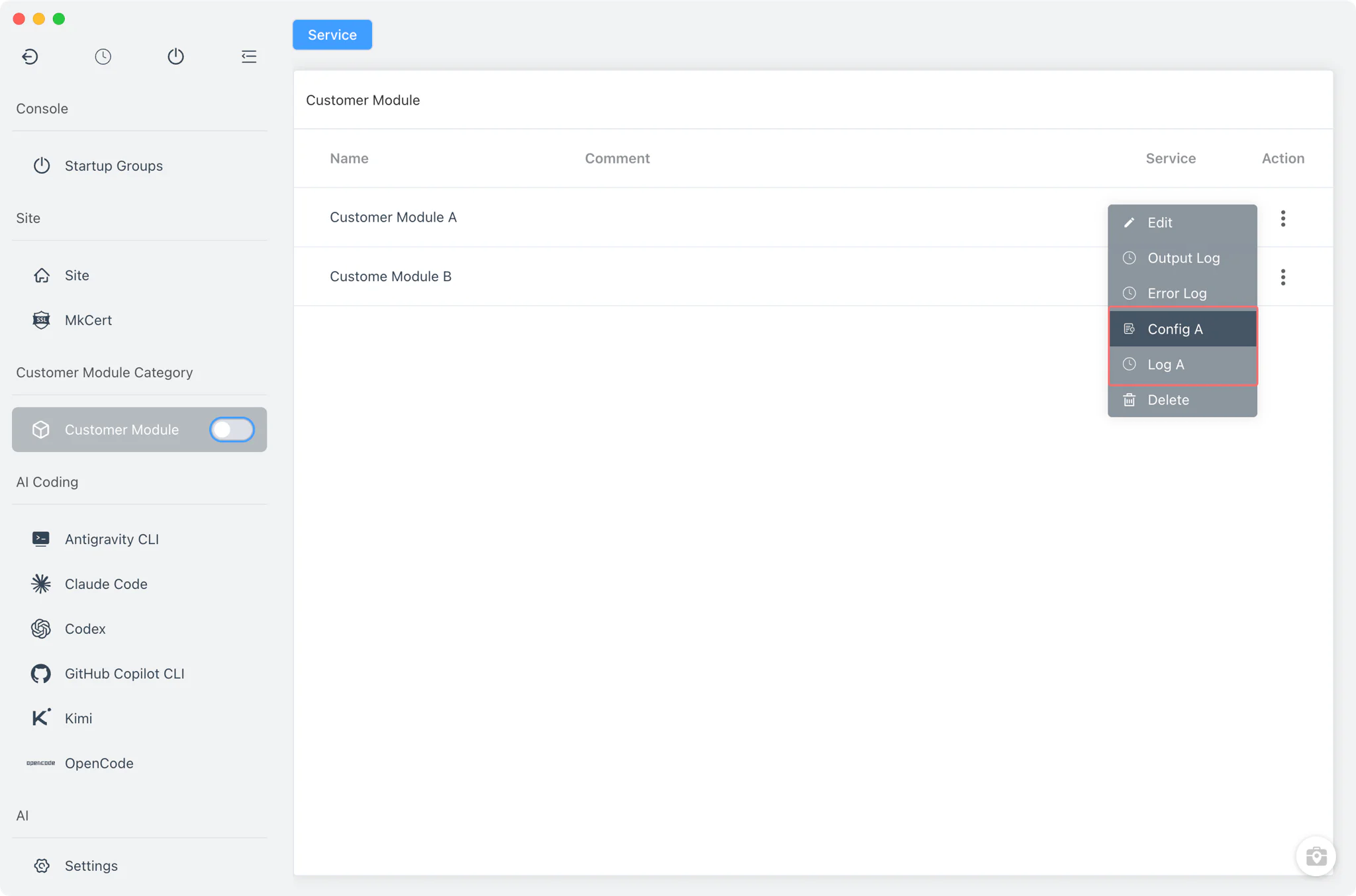
- Per-item config and log files: each item can attach its own configuration and log files, opened from the item's operation popup.
Items normally run headlessly in the background; where a process needs a visible session, FlyEnv can launch it in a real terminal window instead (Terminal.app on macOS, a terminal script on Linux) — the same terminal integration the rest of the app uses.
Config and Log Tabs
The module page is built dynamically from what you declared: a Service tab with the item list, plus one tab per declared configuration file and one per log file.
- Config tabs: open each declared file in a raw editor inside FlyEnv, so you adjust the service's configuration without hunting for the file on disk.
- Log tabs: watch each declared log file directly in the app.
- Built-in output capture: for every started item, FlyEnv automatically records its standard output and standard error to
<BaseDir>/module-customer/<id>.out.logand.error.log, so there is always a log to inspect even if you declare none yourself.
Related guides, solutions and demos
Continue with a practical guide, solution, demo, or community perspective.
Compatibility Notes
Custom modules wrap commands and scripts you provide; FlyEnv does not install or version the underlying tool — there is no version manager, no online download source and no admin web UI for a custom module, so the binary itself must already exist on your machine — and be resolvable on your system PATH or referenced by absolute path. Accurate service state depends on the pid file you configure, so the command should actually write its pid to that path. Terminal launching differs by platform (AppleScript on macOS, a shell script on Linux), and behavior around elevated privileges follows the host operating system's rules. Custom modules are available on every platform FlyEnv runs on — see the Download page for supported operating systems — and treat what your own command or script supports as the real boundary of what the module can do.