Cron Jobs in FlyEnv
FlyEnv's Cron Jobs module turns the operating system's own scheduler into a visual tool: you define a name, a five-field cron expression, a shell command and a working directory, and FlyEnv installs the job into your user crontab on macOS/Linux or into Task Scheduler on Windows. Each execution is wrapped by a generated script that records output, exit code and duration, so every job keeps a browsable run history without any extra setup. The module lives in the sidebar as a console-type entry; if you have just installed FlyEnv, the getting started guide shows how modules are opened from the sidebar.
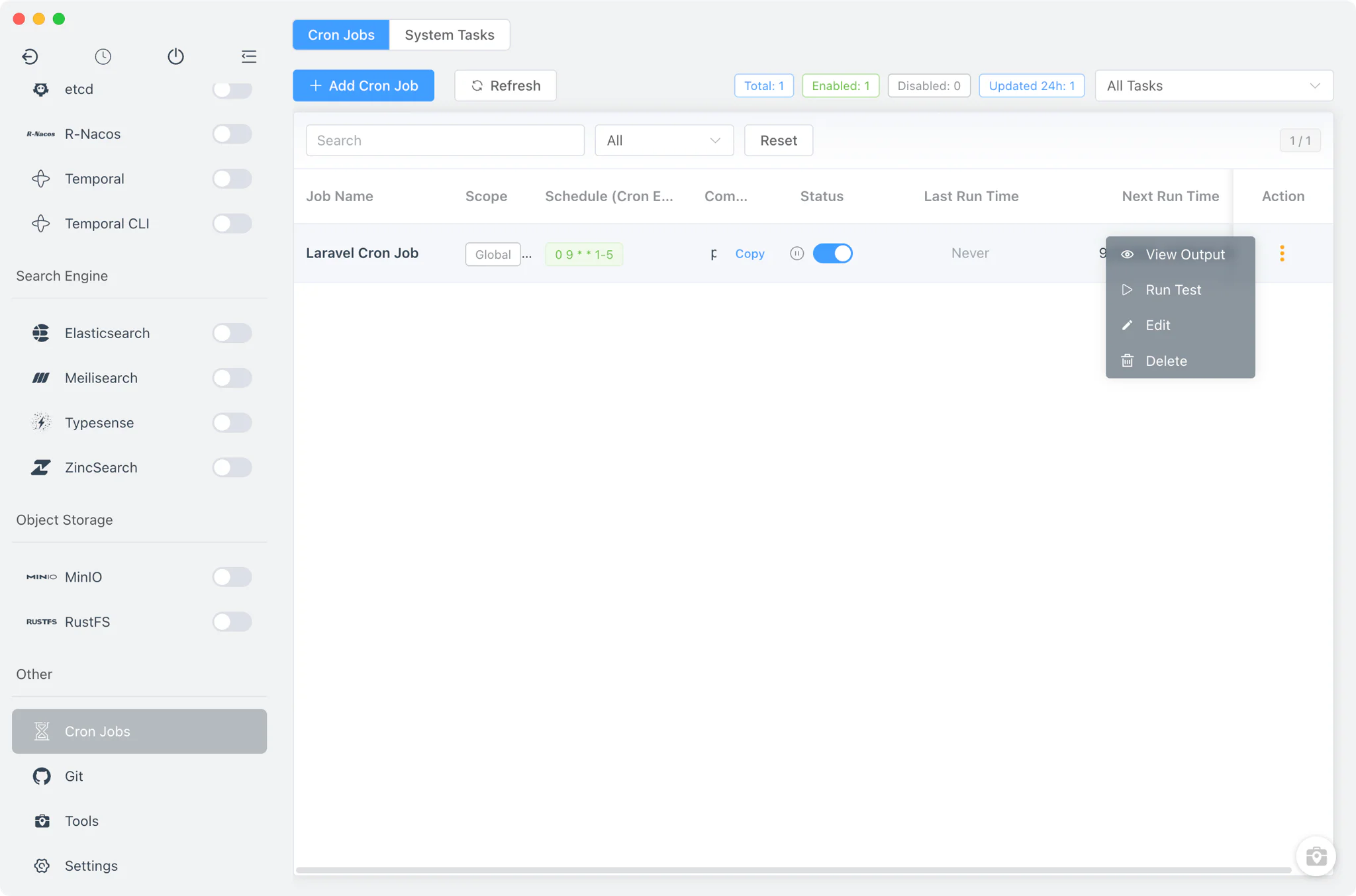
Creating jobs
Click Add on the Cron Jobs tab to open the job editor.
- Name and enable switch: every job has a display name and can be toggled on or off without deleting it.
- Expression with live validation: the five-field cron expression is checked as you type, with a preview of what the schedule means, quick preset tags and a schedule helper picker so you do not have to memorize field order.
- Command presets: the command textarea offers ready-made starting points for common stacks —
php artisan schedule:run(the classic Laravel scheduler entry point; see running Laravel on FlyEnv for the surrounding setup), node, python and bash — which you then adapt to your project. - Working directory and scope: a job can be global or bound to a specific site; for site-scoped jobs the working directory auto-fills from that site's root in your local sites list.
- Test-run before scheduling: a test-run button inside the job editor executes the command immediately in its working directory and shows the captured output, exit code and duration, so quoting or path mistakes surface before the job ever reaches the scheduler.
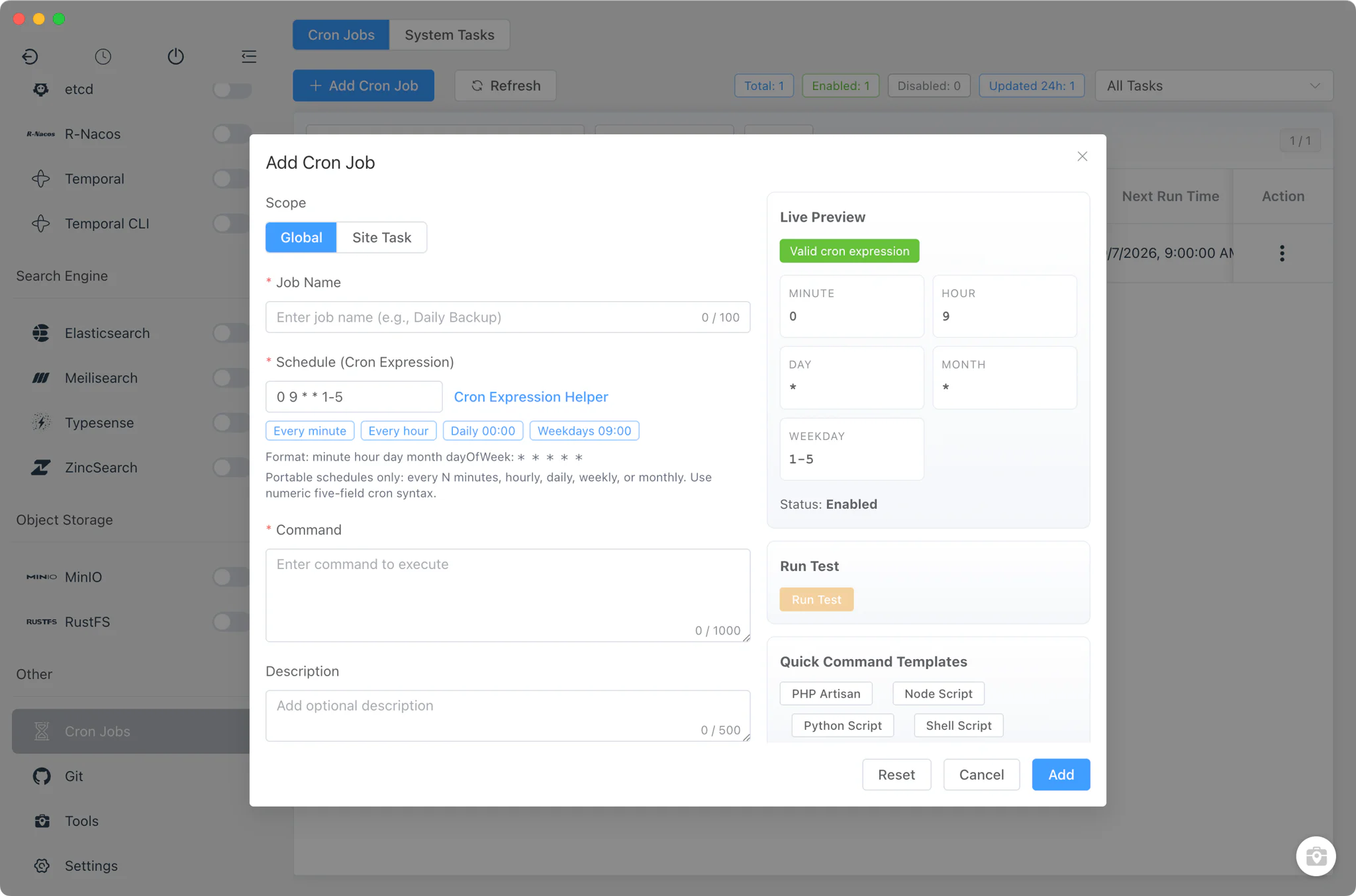
OS scheduler integration
FlyEnv does not run its own background daemon — jobs are installed into the scheduler the operating system already provides, which means they keep running even when FlyEnv is closed.
- macOS and Linux: the job is written into your user crontab inside a
# FlyEnv Cron Start/End <id>marker block, so FlyEnv entries are easy to tell apart from anything you added by hand. - Windows: each job becomes a Task Scheduler entry named
FlyEnv-Cron-<id>that invokes a base64-encoded PowerShell wrapper. - Generated wrapper scripts: instead of calling your command directly, the scheduler entry runs a wrapper that captures stdout, stderr, exit code and duration into JSON-lines logs, and holds a lock file so a slow run never overlaps with the next one.
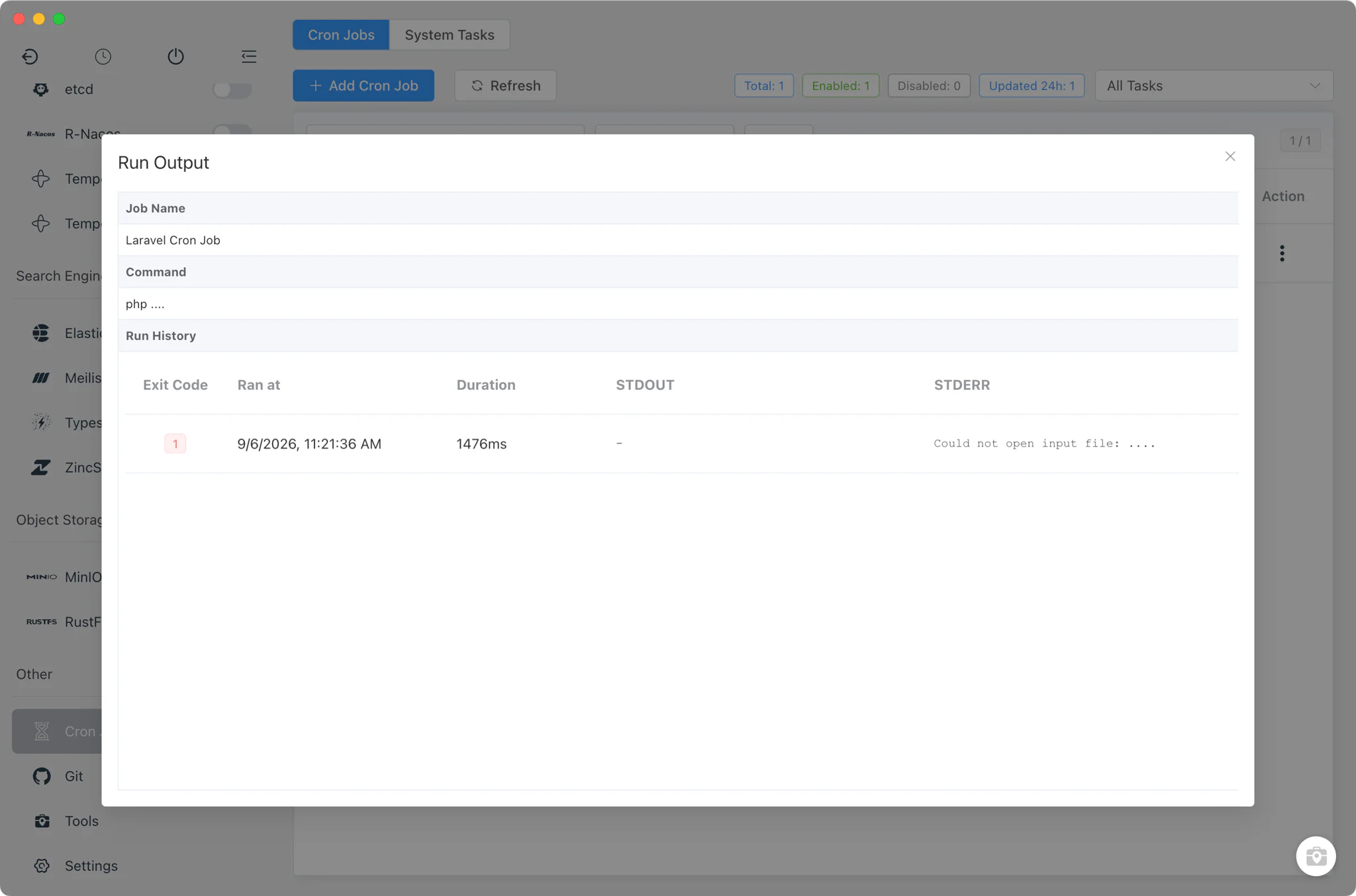
Run history and run-now
Every execution leaves a record, whether it fired on schedule or was started by hand.
- Per-job run history: each job keeps up to its 50 most recent runs, viewable from the job row with the captured output, exit code and how long the run took.
- Run now: a manual trigger on each row executes the job immediately through the same wrapper, which is the fastest way to confirm a schedule behaves before waiting for the next tick.
- Failure visibility: because the wrapper records the exit code and stderr, a failing command shows up in the run history instead of vanishing into a system log you never check.
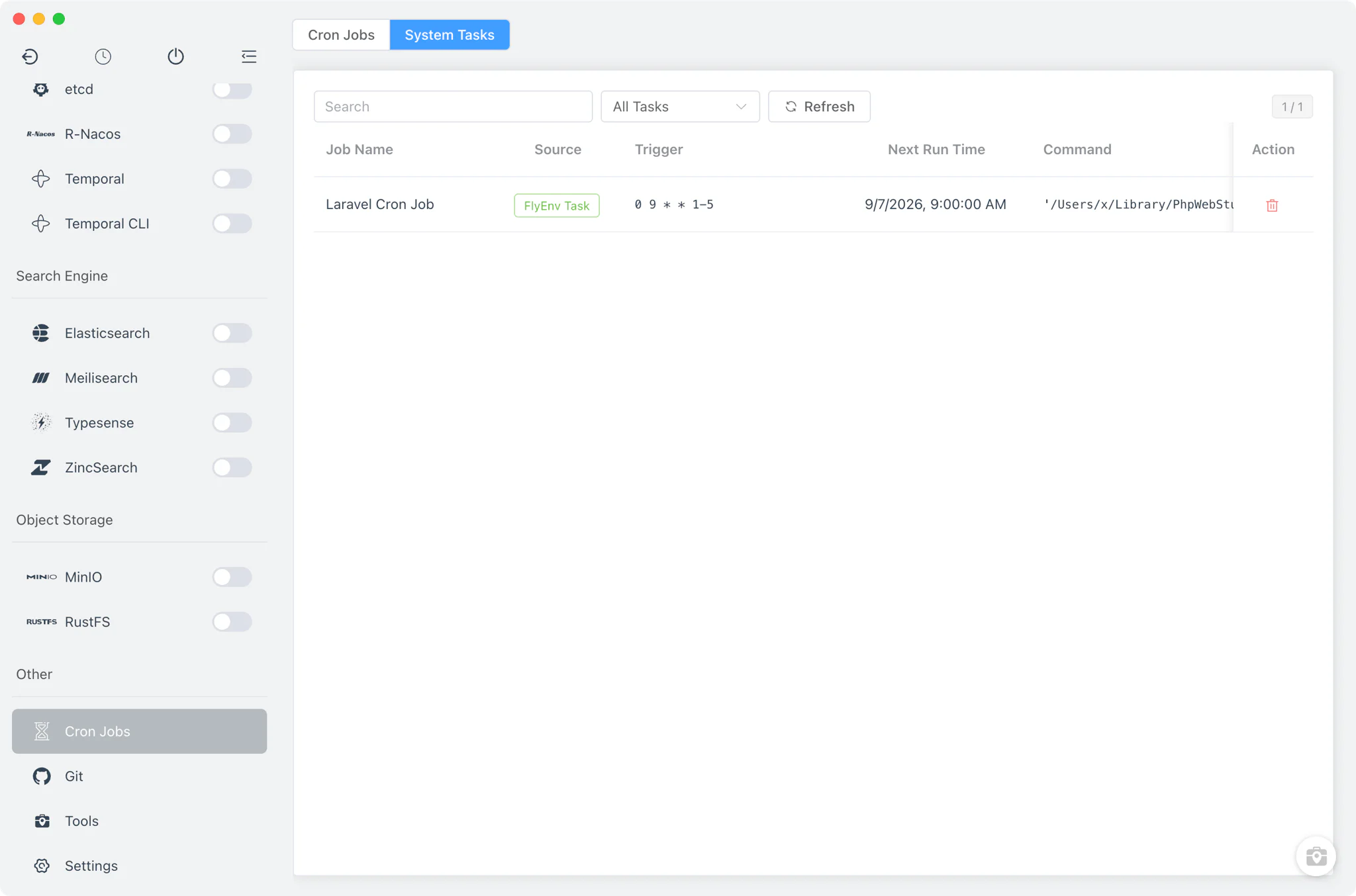
System Tasks tab
The second tab, System Tasks, is a read window into the real OS scheduler.
- It lists the actual entries present on your machine — user crontab lines on macOS/Linux, registered tasks on Windows.
- Entries that FlyEnv created are tagged as FlyEnv-owned, so you can see at a glance which tasks belong to the module and which came from other software.
- FlyEnv-owned entries can be deleted directly from this tab, giving you cleanup control without opening
crontab -eor the Windows Task Scheduler console.
Related guides, solutions and demos
Continue with a practical guide, solution, demo, or community perspective.
Compatibility Notes
The module edits the scheduler of the current OS user: the user crontab on macOS and Linux, and Task Scheduler on Windows. Jobs therefore run under your user account with its permissions, and expression support follows the classic five-field cron format — there is no seconds field and no @reboot-style extensions. Job definitions are stored in FlyEnv's own cron-jobs.json; the run history cap is 50 entries per job. Which platforms a given FlyEnv release ships for is listed on the Download page.