Local Python Development with FlyEnv
Python is a general-purpose programming language used for web backends, scripting, data analysis, automation and machine learning. FlyEnv's Python module combines version management with a project runtime workflow: install the interpreters you need, decide which one your terminal resolves to, and bind a specific Python to each project. When an app should stay running, FlyEnv can run it as a managed project service with its own port and environment variables, and built-in templates scaffold common Python frameworks in one step.
Python version management
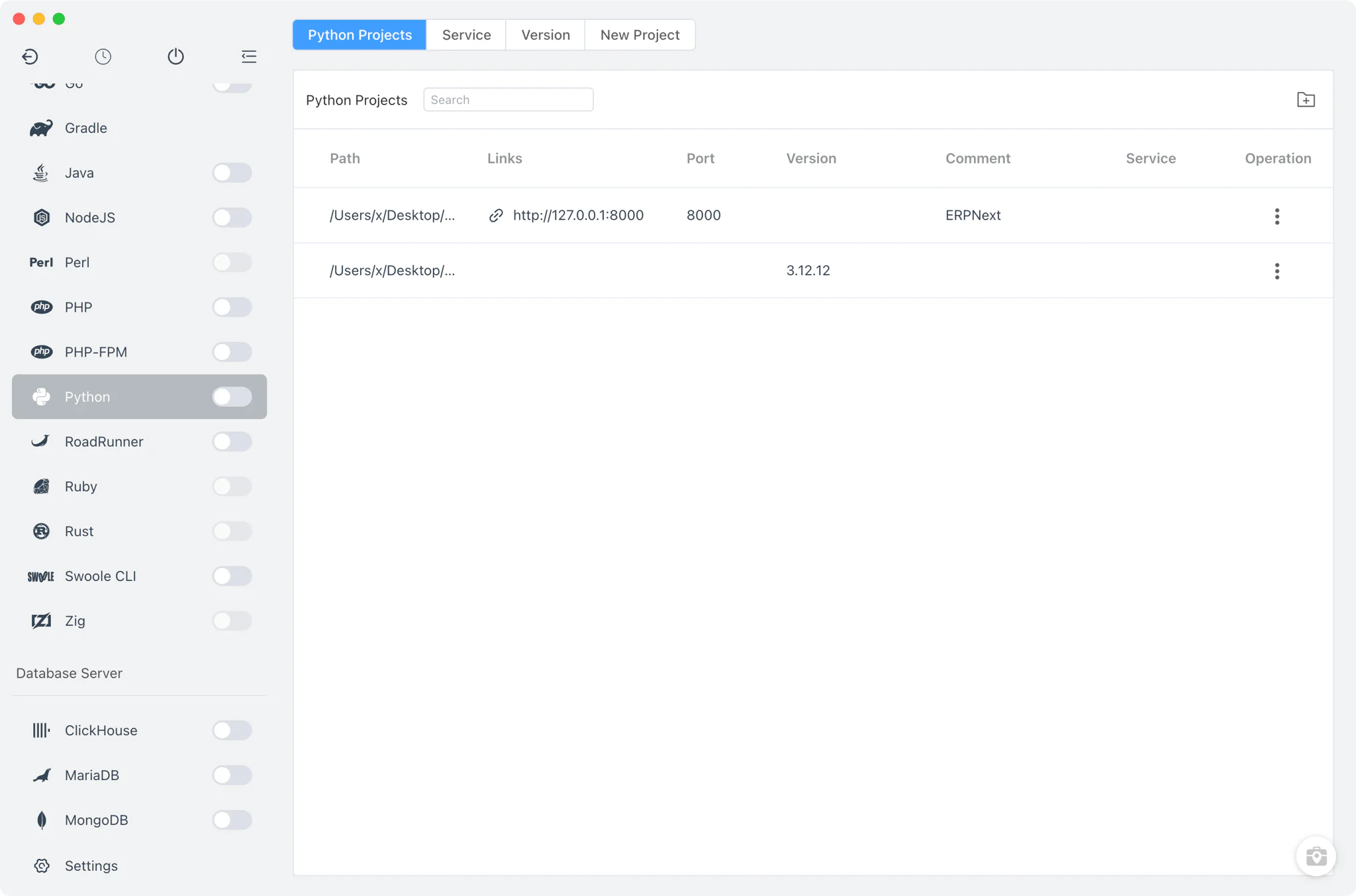
Install and manage multiple Python versions side by side from Python → Version Manager. FlyEnv discovers interpreters from several sources, so versions you already have appear next to versions it manages.
- macOS: install Python directly from the Version Manager via Homebrew or MacPorts; FlyEnv also auto-scans the MacPorts framework directory (
/opt/local/Library/Frameworks/Python.framework/Versions) for interpreters already installed there. - Linux: install Python via Homebrew.
- Windows: FlyEnv downloads official Python installer packages from its online list, extracts and installs them into the app directory, and bootstraps pip automatically, so a fresh install is ready to use.
- Custom directories: point FlyEnv at any directory containing your own Python build to list it next to the managed versions.
Command-line version switching
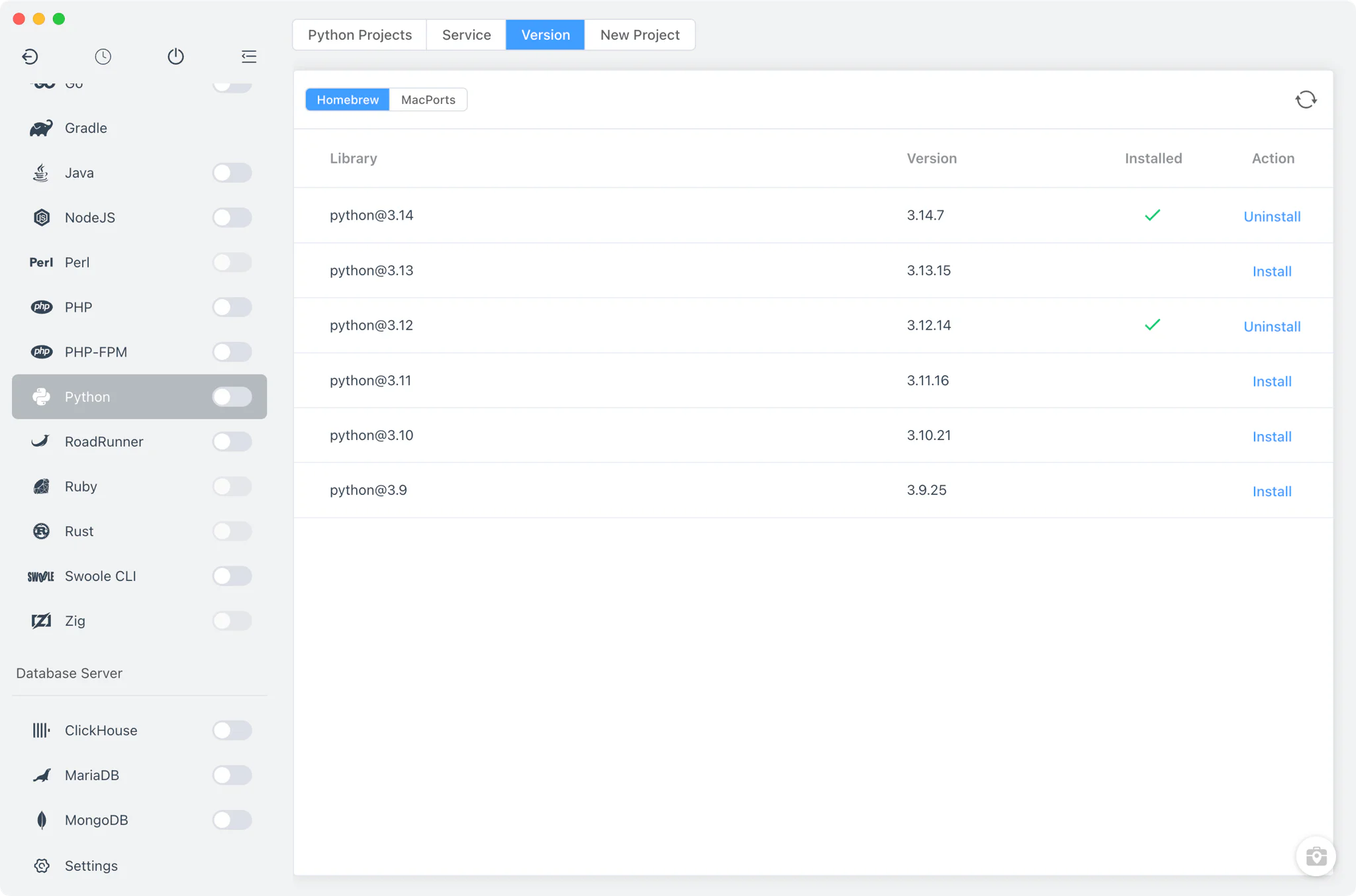
The Service tab controls which Python version your terminal commands resolve to. Despite the name, this tab is about version and PATH management, not long-running service processes — the Python module itself does not run a background service.
- PATH switching: select the version whose bin directory FlyEnv places on your
PATH, sopythonandpipresolve to it in new terminals. - Alias and remark: give each installation a short alias and note, so similar builds stay distinguishable in the version list.
Project-level Python runtimes
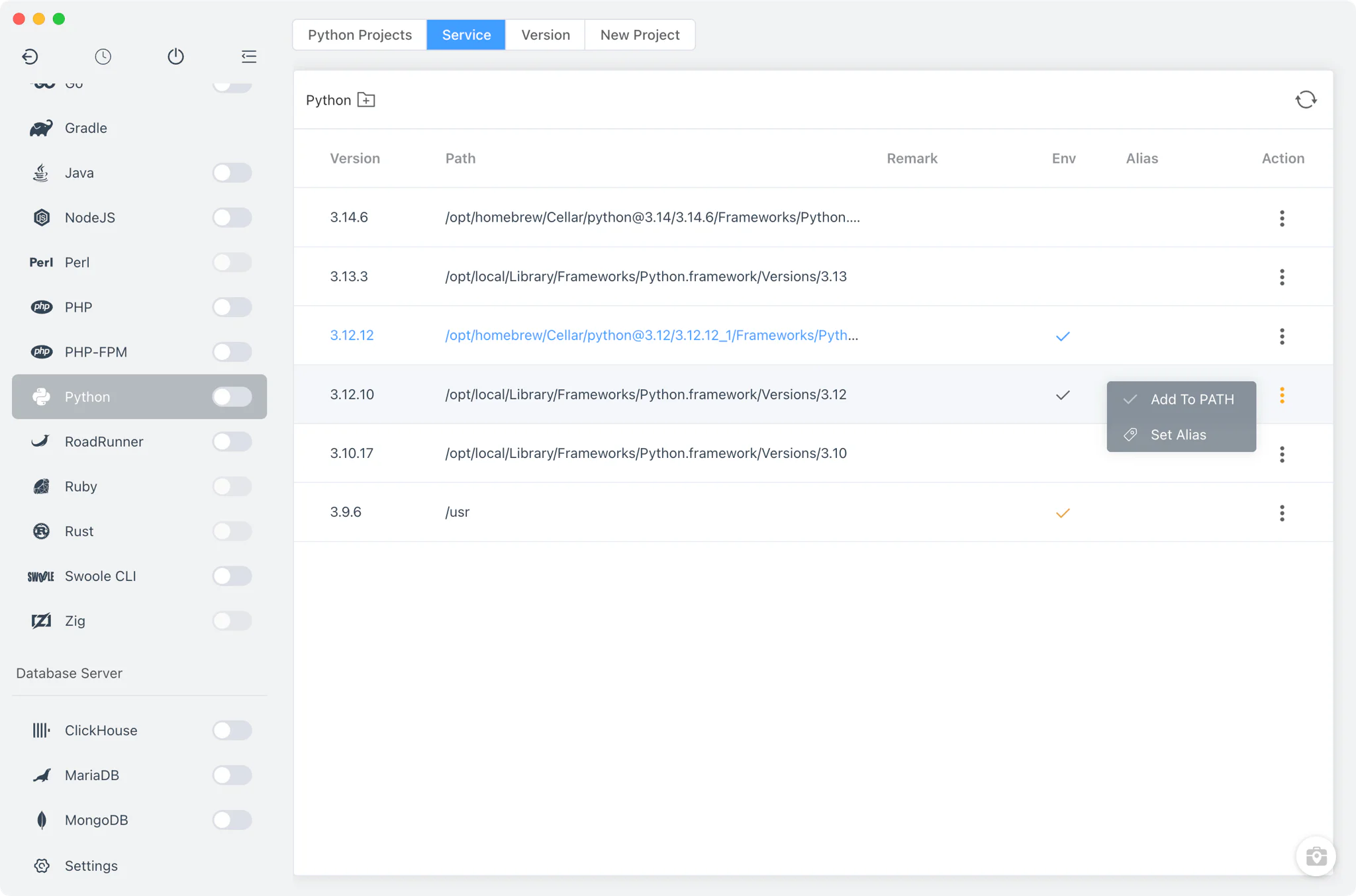
Different projects often need different Python versions. In Python → Projects, register each project folder and bind it to its own interpreter.
- Per-project runtime: the selected Python is stored in a
.flyenvfile inside the project directory, so terminals and editors launched from FlyEnv load the right environment automatically. The project-level runtime environment guide explains how the shell integration works. - Run as service: turn on Run as service in the project editor when the app should stay running. Configure the start command, a TCP port, and environment variables directly or through an env file; FlyEnv shows start and stop controls in the project list alongside the app's output logs.
- Open in tools: jump from a project row into a terminal or an IDE with the project environment loaded, including Open in PyCharm.
For a full walkthrough of the project-service model across Python, Node.js and Go, see Deploy Node.js, Python & Go Without Docker.
New project templates
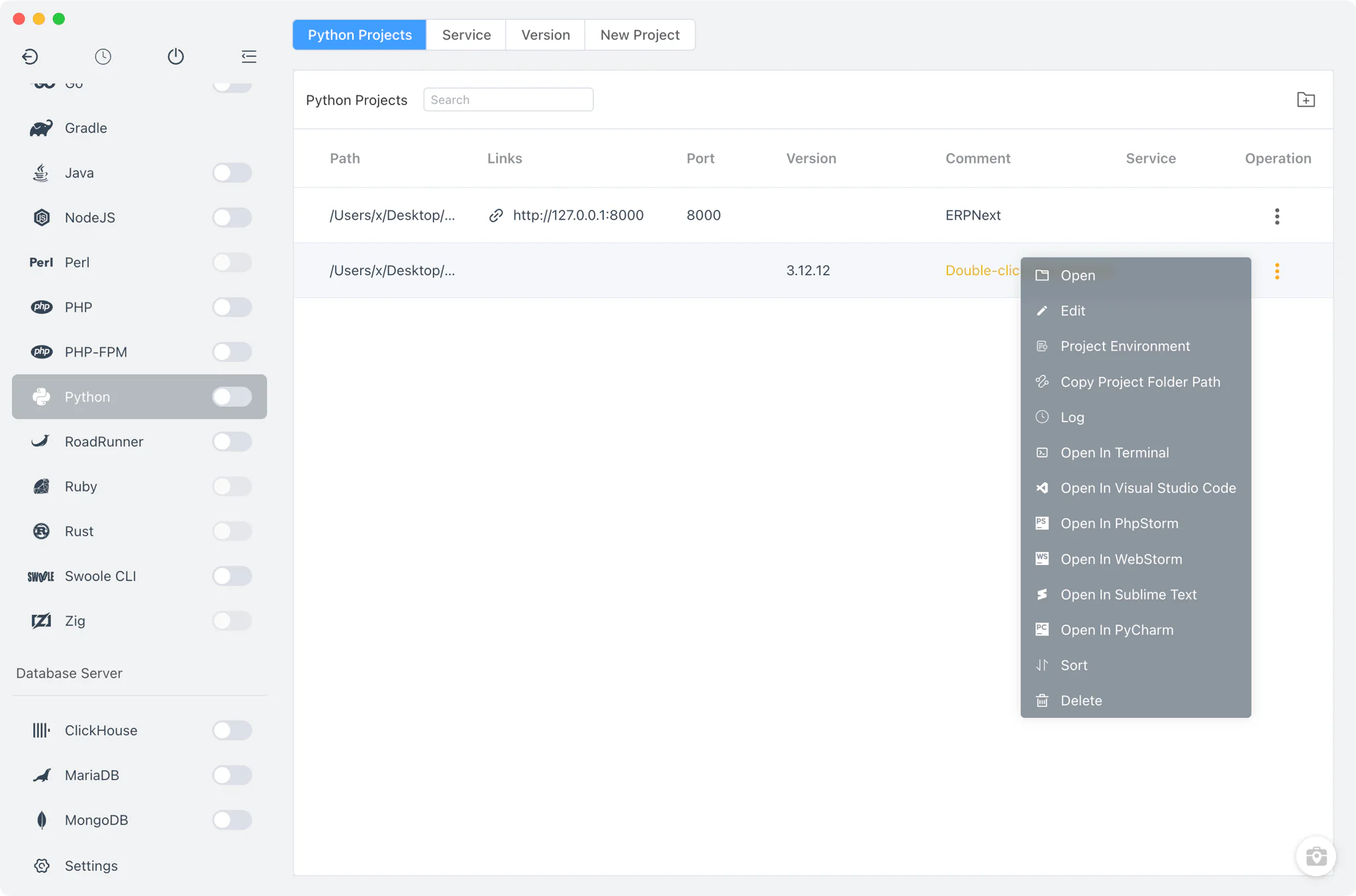
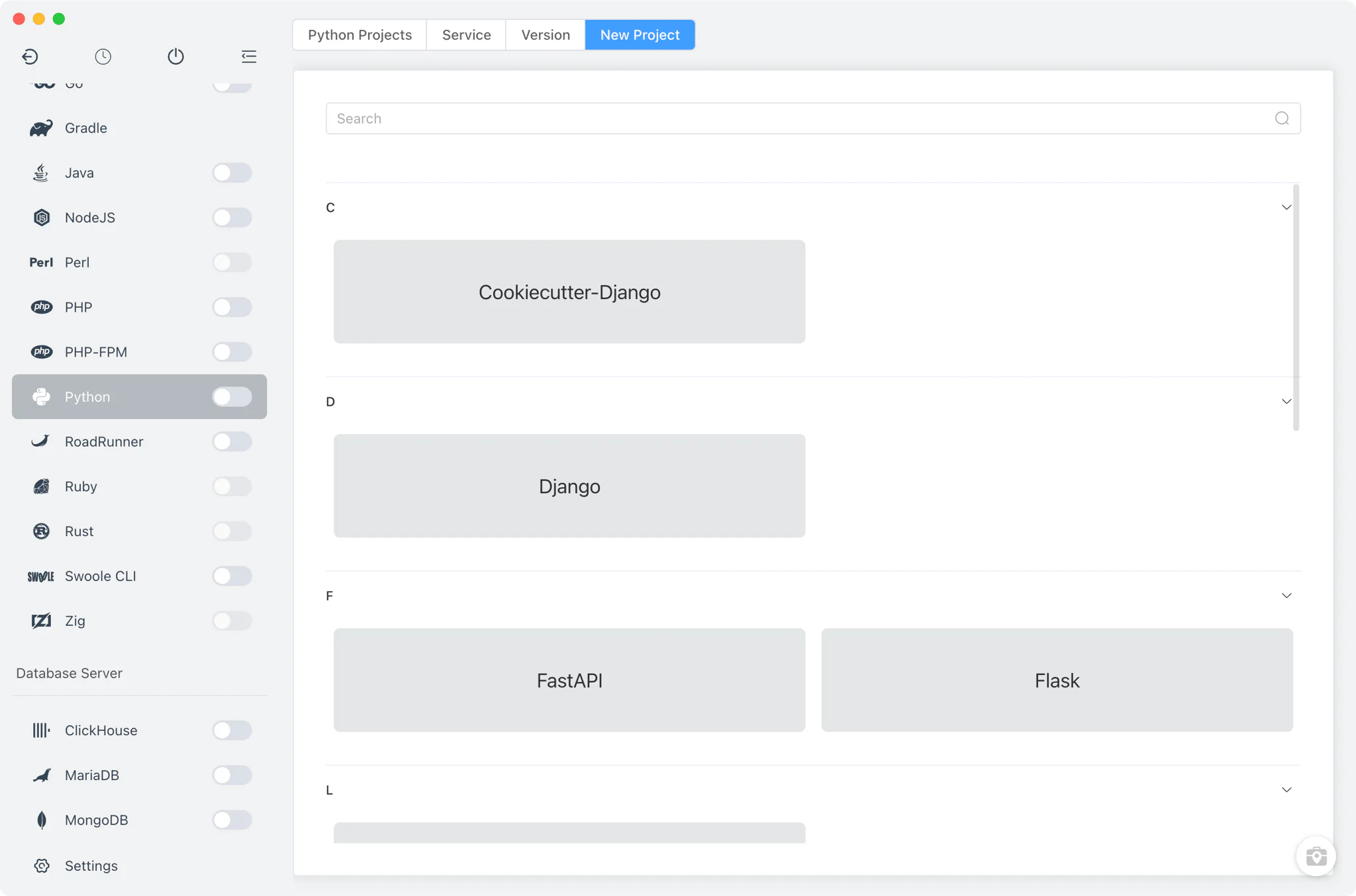
Python → New Project scaffolds common Python applications without leaving the app. FlyEnv runs the framework's creation command in its embedded terminal with per-OS pip or uv commands, so you see the real output while the project is created.
Supported templates: FastAPI, Django, Flask, Streamlit, Masonite, uv, Wagtail, Sanic, Litestar, Mezzanine and PDM. The linked solution pages show each framework running as a complete local stack with a database and a browser-facing site.
Related guides, solutions and demos
Continue with a practical guide, solution, demo, or community perspective.
Compatibility Notes
FlyEnv manages the local Python runtime selection and project process entry; it does not guarantee that every Python version, framework template or third-party package is available on every operating system. Package installation and dependency management remain the project's responsibility. Verify your project's requirements against the installed interpreter, and treat the Download page and current release notes as the source for supported packages.