FlyEnv MCP Server
FlyEnv ships a built-in MCP server that lets AI coding assistants operate your local stack — list and control services, inspect logs and configs, read site and database connection details — through a governed interface. The server speaks MCP over Streamable HTTP on 127.0.0.1:7682 by default, authenticates with a Bearer token, and exposes 18 tools with per-tool approval policies. Every call lands in an Audit Log, so you always know what an assistant did. The AI coding workspace guide shows the full setup in a real project.
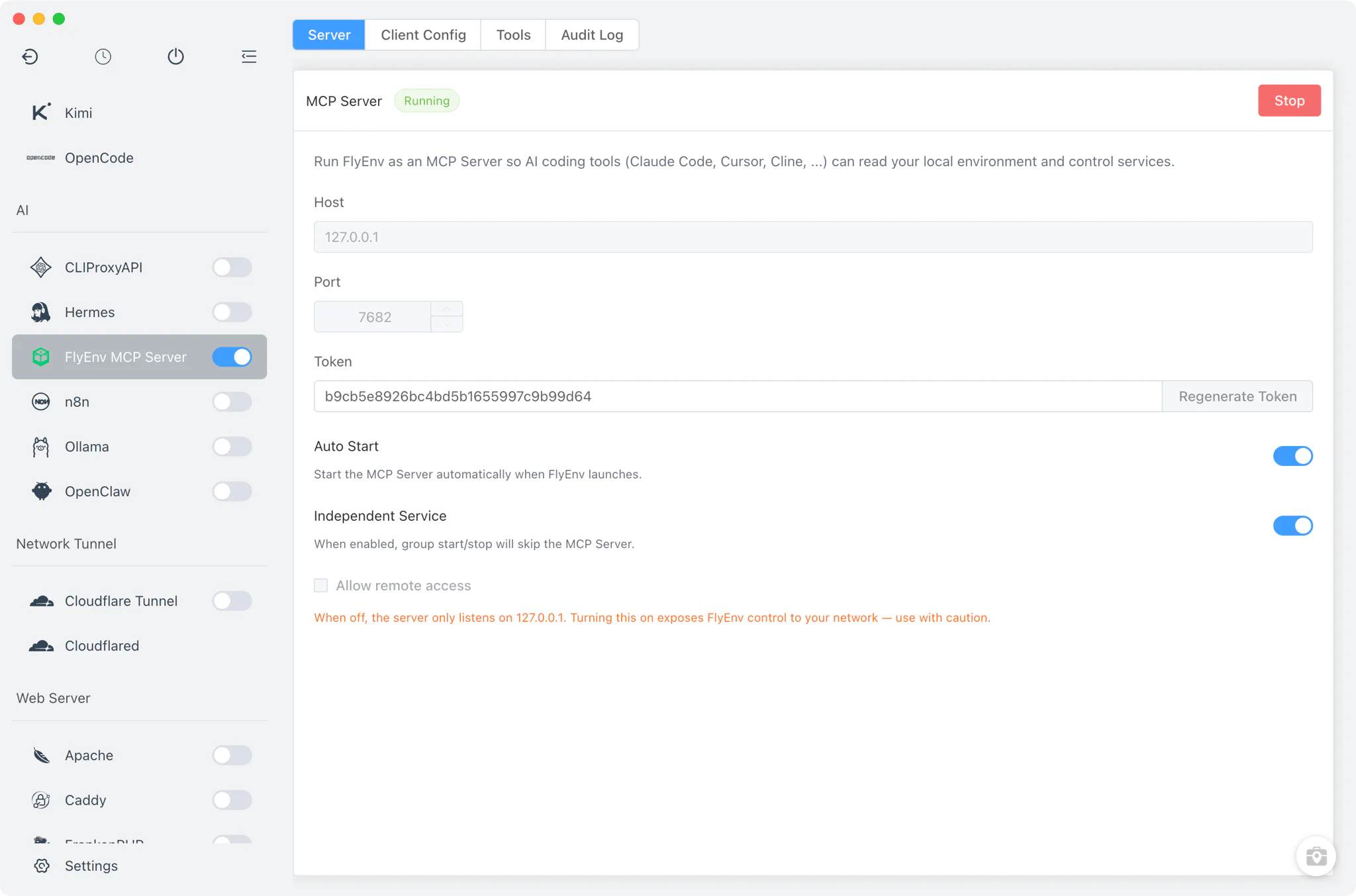
Service options
The server runs inside the FlyEnv app itself, so there is nothing to install — the Service tab only controls how it listens and when it starts.
- Bind host and port: the default address is
127.0.0.1:7682; the port accepts any value from 1024 to 65535. Non-loopback binding is rejected unless you explicitly enable remote access, which triggers a warning dialog first. - Bearer-token authentication: clients must present the generated token on every request. Regenerate it with one click to revoke all existing clients at once.
- Auto-start on launch: the server can come up automatically whenever FlyEnv opens, so your assistants are never left pointing at a dead endpoint.
- Independent service: FlyEnv MCP Server is excluded from the global "start all" group, so bulk-starting your stack never brings the AI interface up unintentionally.
- stdio bridge: for clients that prefer stdio, FlyEnv copies a
flyenv-mcp-stdio.mjsbridge script into its data directory, ready to be executed by an external Node.js runtime.
Client Config
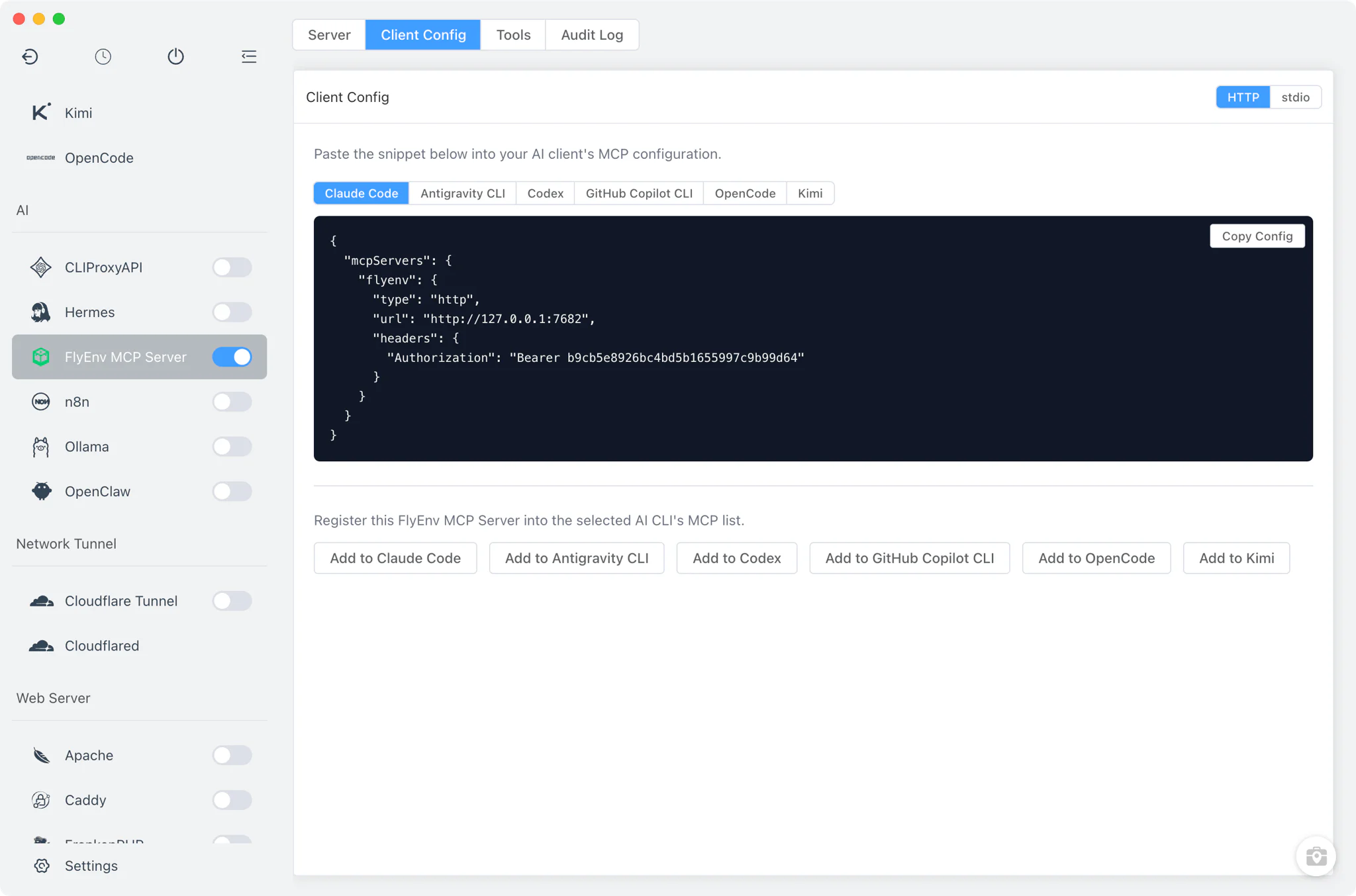
The Client Config tab wires the server into the six AI CLI tools FlyEnv already manages: Claude Code, Antigravity CLI, Codex, GitHub Copilot CLI, OpenCode and Kimi.
- One-click registration: an "Add to client" button per tool writes the
flyenvserver entry straight into that CLI's own MCP configuration — no manual file editing, whether the client is Codex, OpenCode or Kimi. - Copyable snippets: ready-made JSON or TOML blocks in both HTTP and stdio variants, for pasting into clients you configured yourself or tools outside FlyEnv's management.
- Pairs with the managed CLIs: each of these assistants has its own FlyEnv module — see Claude Code for an example of the install, session and plugin management they get.
Tools
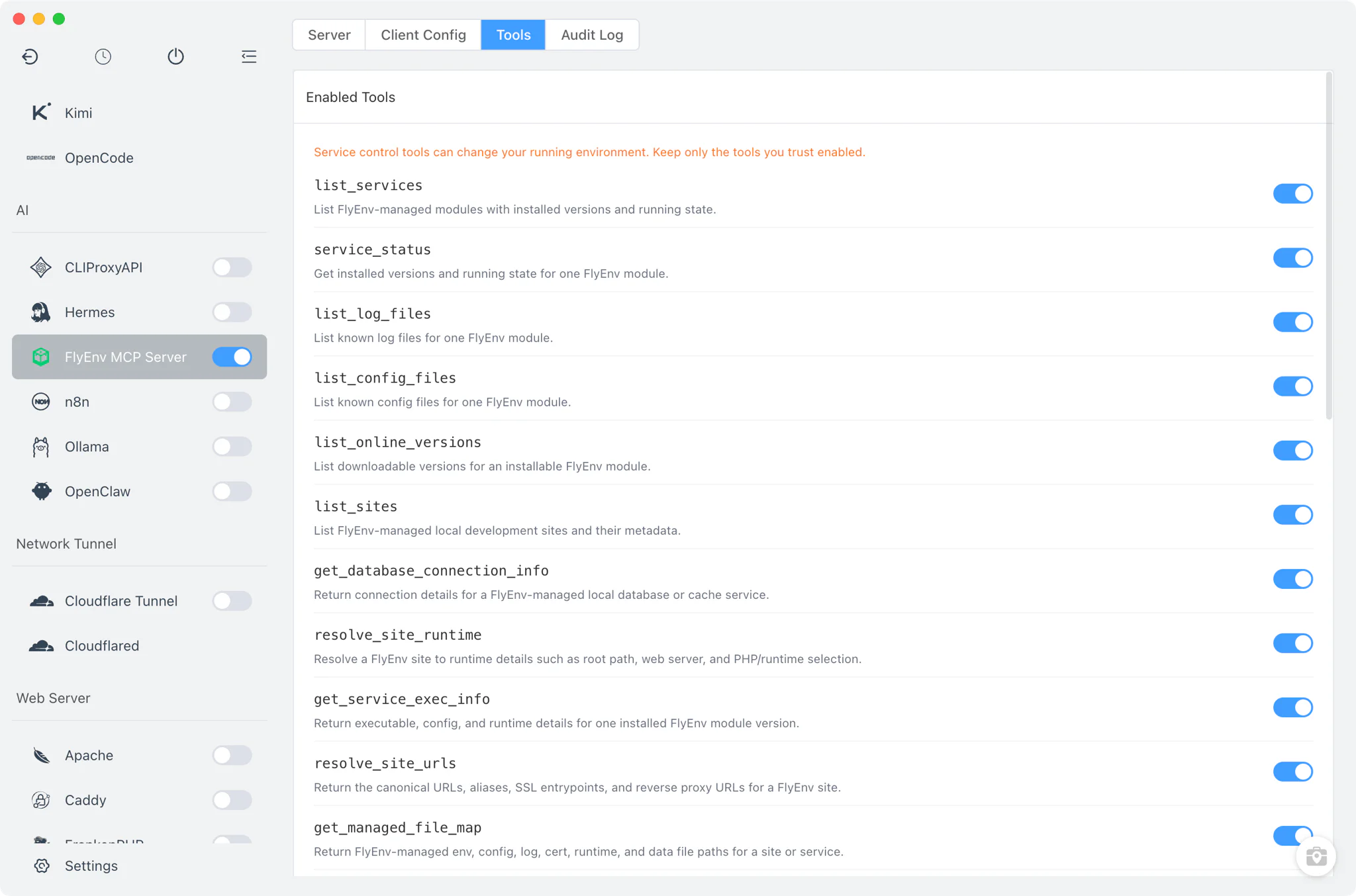
The Tools tab lists the 18 tools the server exposes and decides which of them an assistant may use.
- Read tools — inventory and inspection:
list_services,service_status,list_sites,resolve_site_runtime,resolve_site_urls,get_database_connection_info,get_service_exec_info,get_managed_file_map,list_log_files,list_config_filesandlist_online_versions. - Action tools — changes to your environment:
start_service,stop_service,restart_service,create_site,update_site,delete_siteandinstall_service. - Per-tool enable switch: turn any individual tool off to remove it from what clients can call at all.
- Approval policies for risky tools: the 7 lifecycle, site-write and install tools each carry an auto/confirm policy — default is confirm, so sensitive operations wait for your approval unless you deliberately relax it.
Audit Log
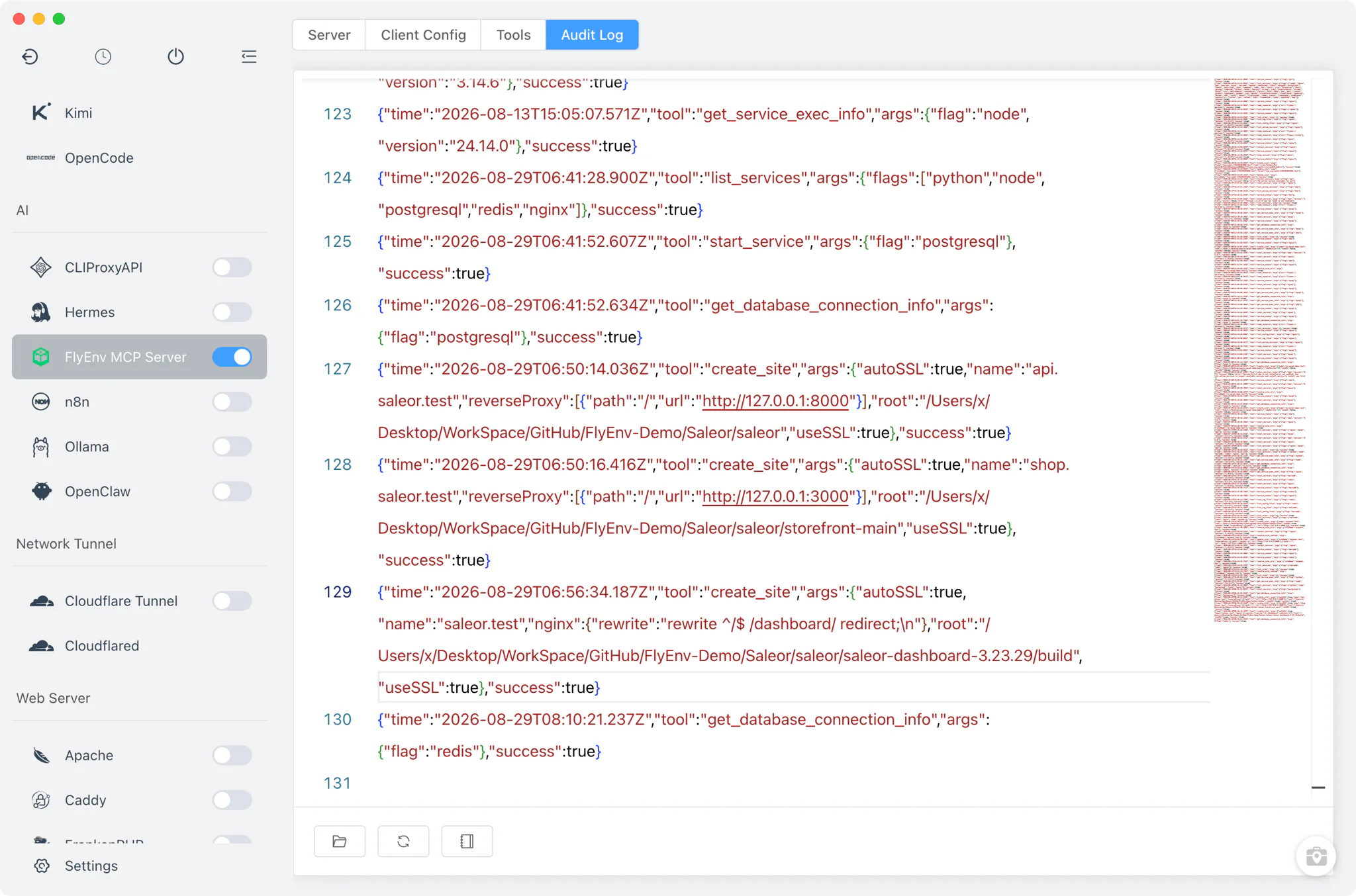
The Audit Log tab is a live viewer over audit.log in FlyEnv's MCP data directory — a JSON-lines record of every tool call the server processes.
- Full call history: each entry captures which tool ran and with what, giving you a reviewable trail of everything your AI assistants touched — essential context when you work with AI assistants day to day.
- Secret masking: tokens and passwords are masked before they reach the log, so reviewing or sharing the file does not leak credentials.
Related guides, solutions and demos
Continue with a practical guide, solution, demo, or community perspective.
Compatibility Notes
The FlyEnv MCP Server runs in the app's main process, which sets its hard boundaries: it only exists while FlyEnv is running, so quitting the app takes the endpoint down for every connected client. It behaves the same on macOS, Windows and Linux, with no platform-specific differences. The stdio bridge depends on an external Node.js runtime to execute the generated flyenv-mcp-stdio.mjs script. Remote access stays off unless you enable it deliberately — binding to anything other than loopback requires the explicit opt-in and passes through a warning dialog.