SQL Server in FlyEnv
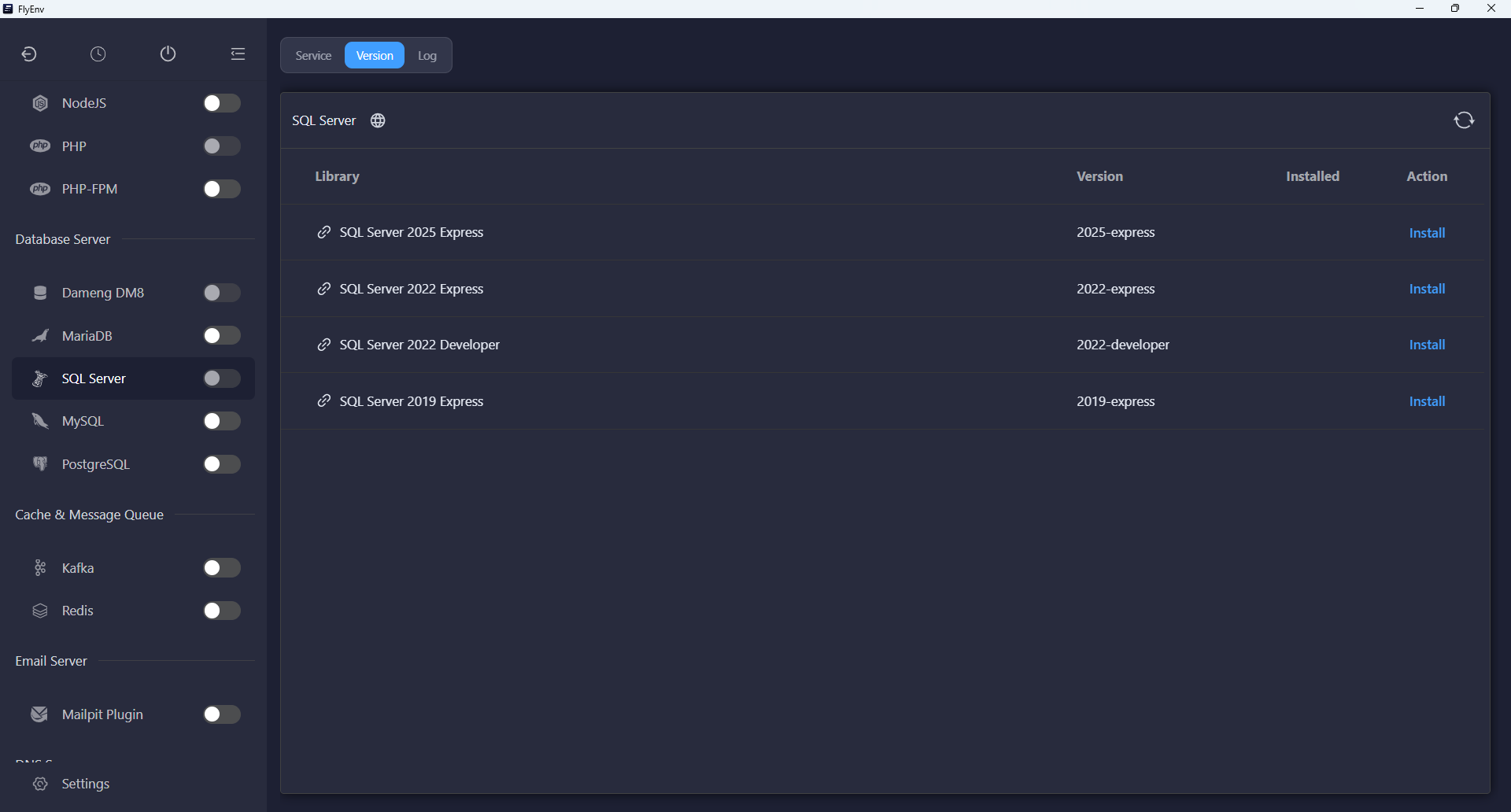
The SQL Server plugin adds Microsoft's database engine to FlyEnv, with Service, Version Manager and Log tabs. Install SQL Server from Settings → Plugin Market, then open its sidebar entry to install and manage the database software.
The plugin supports x64 Windows and x64 Ubuntu 22.04 or 24.04. It does not provide a macOS or ARM64 runtime. Installation and service behavior differ between Windows and Ubuntu.
Version management
Open Version Manager to refresh the available releases and install a version for your platform.
- Windows: the catalog offers Express and Developer entries for selected SQL Server releases. FlyEnv downloads official Microsoft installation media and runs SQL Server Setup to install a named instance.
- Ubuntu: FlyEnv reads the Microsoft package repositories available for your Ubuntu release, verifies the package checksum and unpacks the engine into its managed runtime directory. A repository must be available for a version to appear.
Installation progress appears in the module. Once installation finishes, the instance is listed in Service; installing it does not mean the database is already running.
Windows services and configuration
FlyEnv uses native Windows service controls to start and stop the selected instance. Instances installed by the plugin use Manual service startup, so the database starts when requested. Installation and service preparation may require Windows administrator approval; follow any restart notice before starting a newly installed instance.
The service action menu includes Configuration Management, which opens the SQL Server Configuration Manager for the selected release. Use that native tool for SQL Server service and network configuration. The plugin's Ubuntu sa password and port form is not used for Windows setup.
For eligible plugin-managed instances, Repair permissions can restore access needed by FlyEnv's service and log operations. If the log viewer reports access denied, run that action and refresh the log.
Ubuntu settings and first start
Ubuntu runs the unpacked engine through Bubblewrap, keeping its writable system and database files inside FlyEnv's data directory. Install the bubblewrap package and ensure the system permits unprivileged user namespaces before starting the service.
Use the settings button on the Service tab to set the initial sa Password and Port. The default port is 1433. The password must contain at least eight characters and include three of uppercase letters, lowercase letters, digits and symbols. FlyEnv requests these settings during installation if the initial password is missing.
The password initializes the built-in sa account on first start. Editing this setting later does not reset an existing database account. Use the service controls to start, stop or restart the installed engine.
Logs and runtime removal
The Log tab follows the selected instance's database error log. On Ubuntu, it falls back to startup output or error logs when the engine log has not been created yet. These views help identify first-start failures and configuration or permission problems.
On Ubuntu, Version Manager can remove a plugin-managed unpacked runtime after confirmation and service shutdown; database files are stored separately. Windows software removal uses SQL Server's own installation tools.
Plugin availability does not guarantee every SQL Server release will run on every supported OS version. Use the in-app version list and installation diagnostics for your machine. Return to the Plugin Market to manage the integration itself.