GitHub Copilot CLI in FlyEnv
GitHub Copilot CLI is GitHub's AI coding agent for the terminal, part of the Copilot product family. FlyEnv gives it a dedicated management page: one-click installation, a raw editor for its JSON config files, a Sessions browser with resume and cleanup, a Skills list with per-skill actions, and MCP server management. Copilot stays a normal terminal tool — FlyEnv organizes everything around it. For the broader workflow of driving FlyEnv from AI assistants, see FlyEnv Work With AI.
Installation
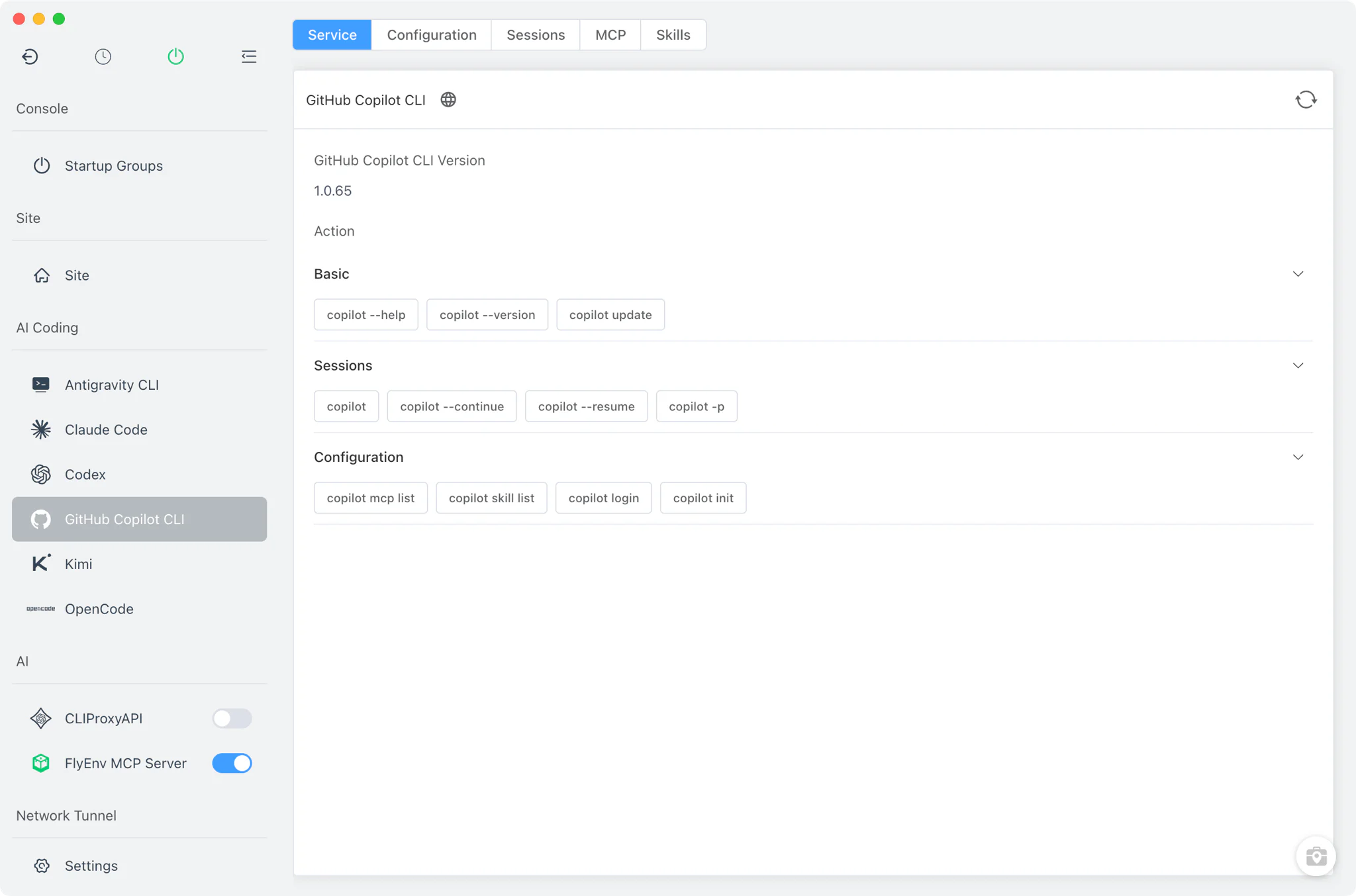
The GitHub Copilot CLI → Service tab detects an existing copilot binary and shows its version, or offers a one-click install when none is found.
- Single cross-platform command: installation runs
npm install -g @github/copilot, the same command on macOS, Linux and Windows, so a working Node.js/npm setup is the only prerequisite — FlyEnv's Node.js version management can provide one if needed. - Embedded terminal: the npm command runs in FlyEnv's built-in terminal, with FlyEnv's proxy environment variables applied, so you watch the real install output instead of a silent progress bar.
- Existing installs recognized: FlyEnv scans
PATHplus common global install locations — npm, yarn, pnpm, bun and volta global bin directories among them — so a Copilot CLI you installed yourself is picked up without reinstalling. - Command cheat-sheet: copyable shortcuts for everyday commands such as
copilot login,copilot init,copilot skill listandcopilot mcp listsit right on the Service card.
Configuration
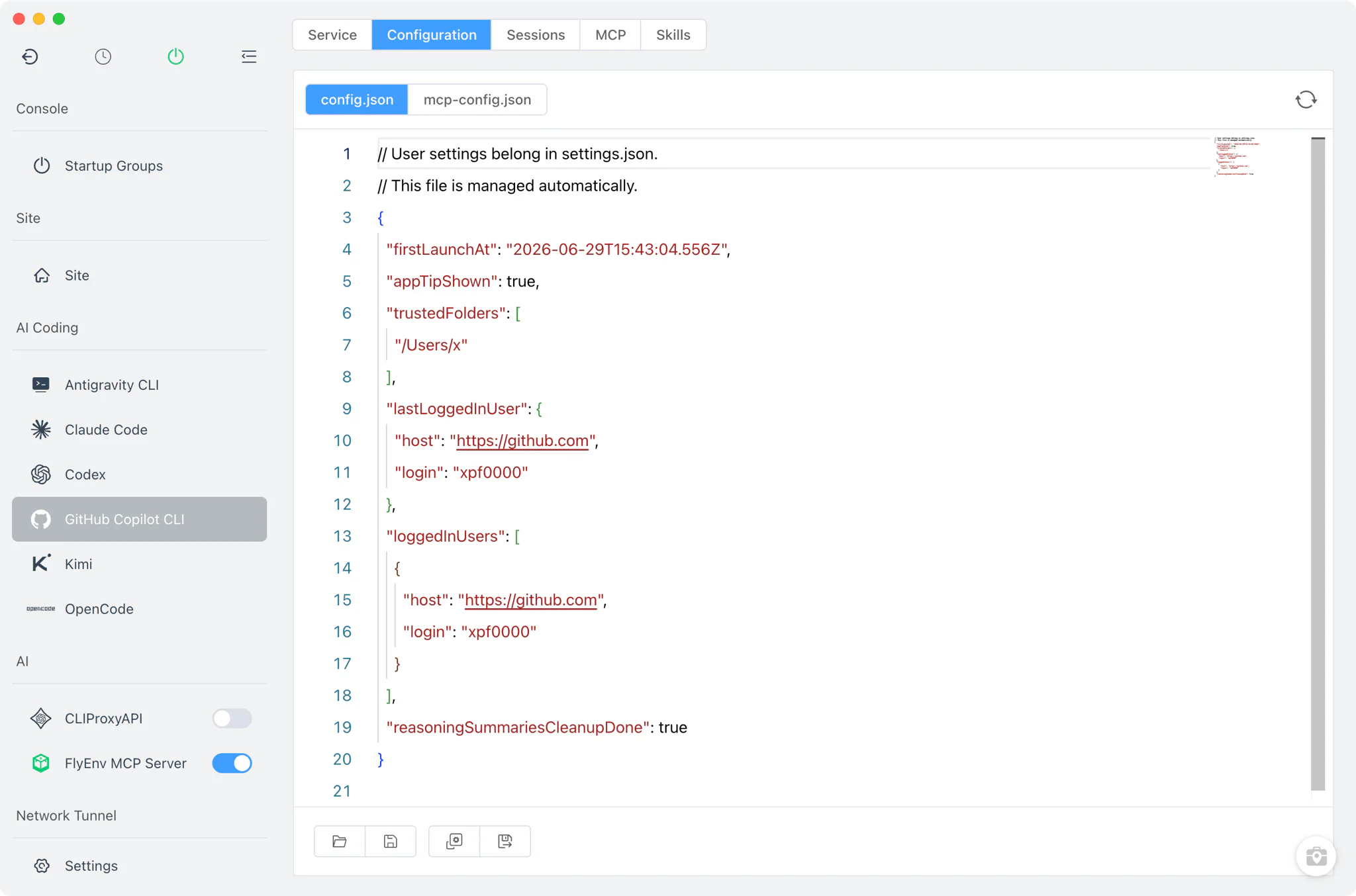
The Config File tab edits Copilot CLI's configuration as raw JSON — there is no visual settings form for this module.
- Two files:
~/.copilot/config.jsonfor the main configuration and~/.copilot/mcp-config.jsonfor MCP server definitions, both opened in the full editor. - Custom home respected: if you relocate the Copilot home with the
COPILOT_CONFIG_DIRenvironment variable, FlyEnv follows it and edits the files at their real location. - Nothing is rewritten for you: FlyEnv opens the files as they are on disk; Copilot CLI itself owns their schema and defaults.
Sessions
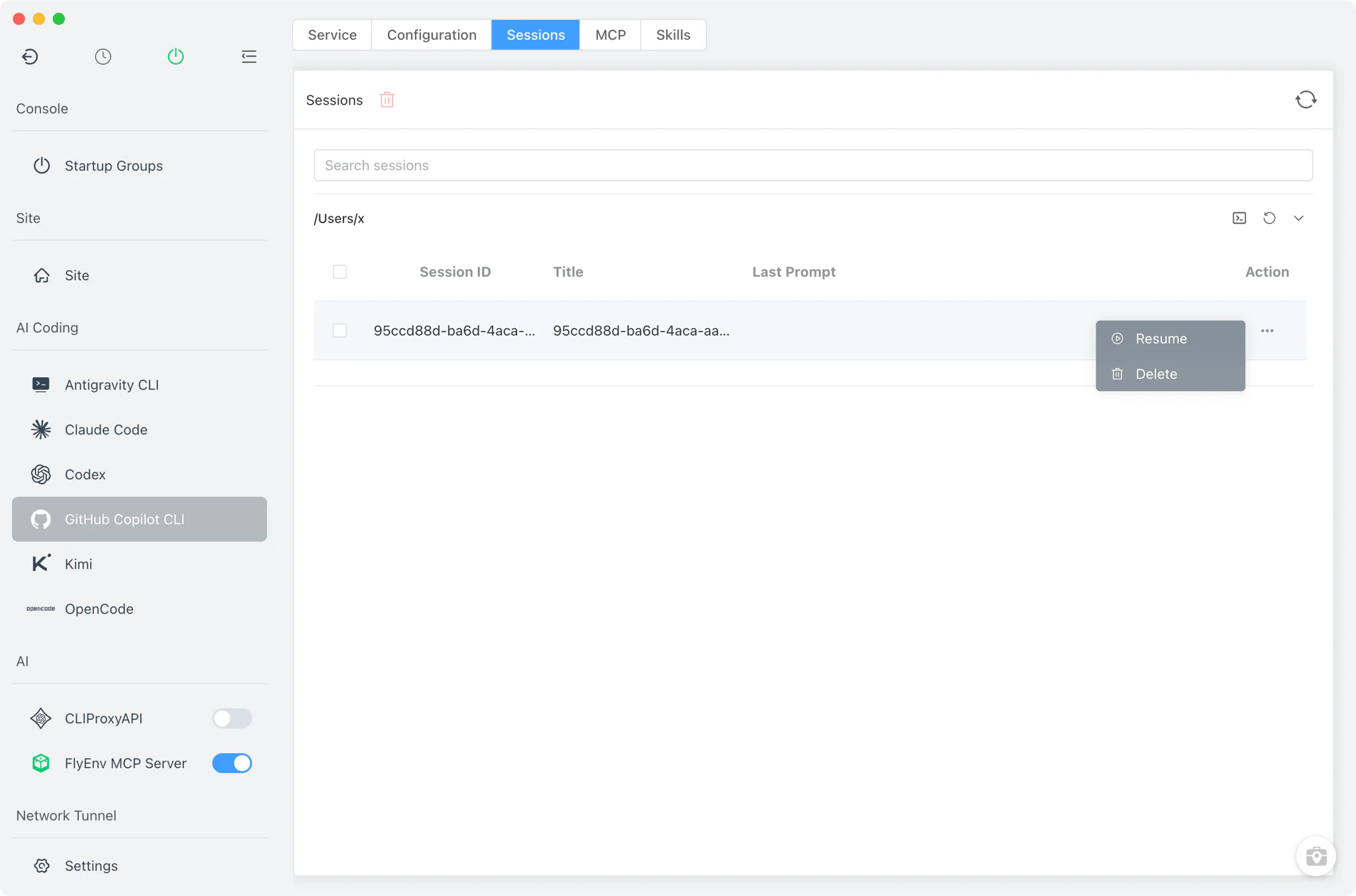
Copilot Sessions are read from the CLI's own SQLite store at ~/.copilot/session-store.db, so titles and prompts are displayed cleanly, grouped by working directory.
- Resume where you left off: the run and resume actions open your system's external terminal in the session's working directory and launch
copilot --resumeorcopilot --continue— the interactive conversation itself always happens in that terminal, not inside FlyEnv. - Clean deletion: removing a session also removes its
session-state/<id>directory, so no orphaned state is left behind.
Skills
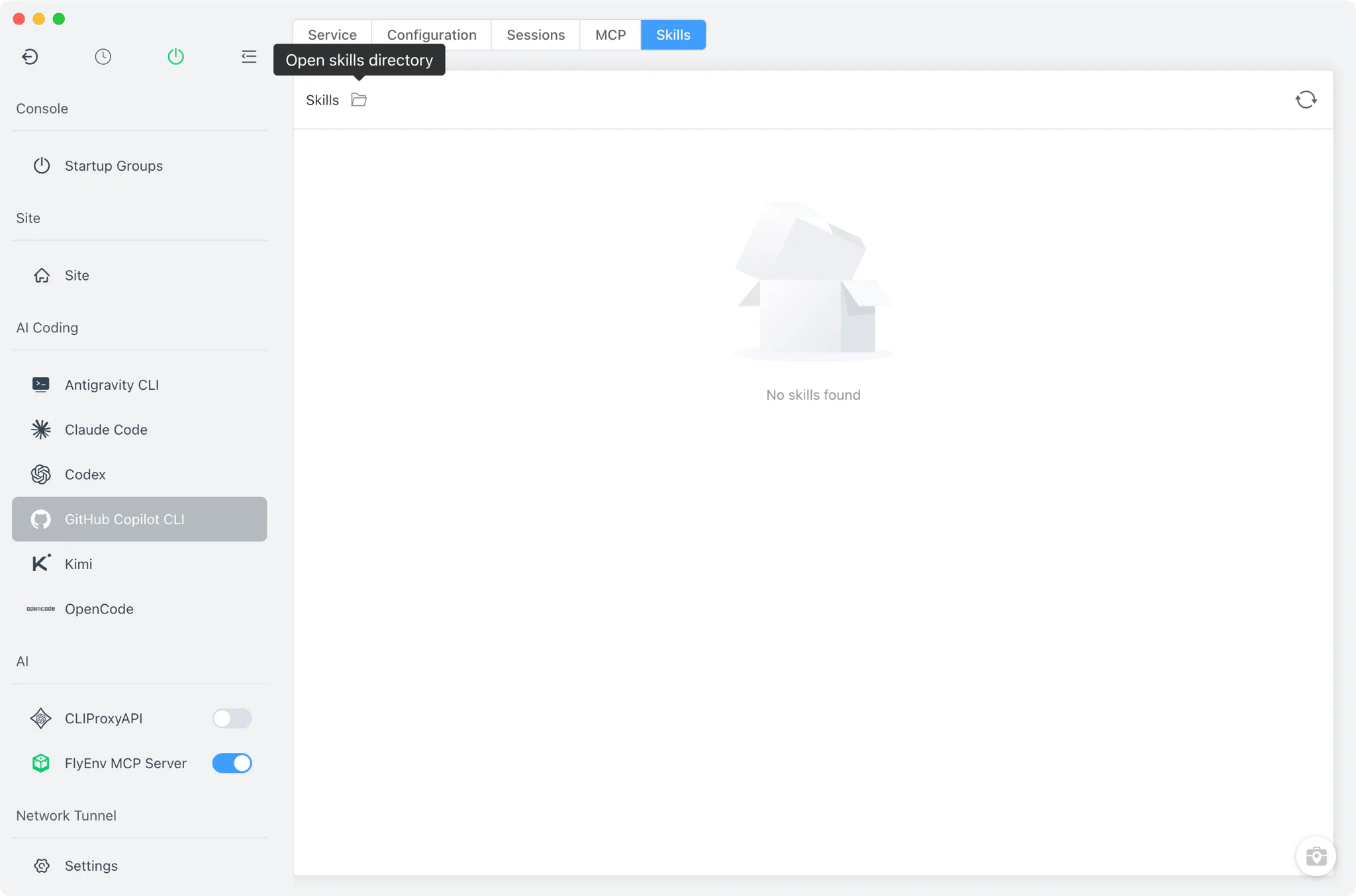
The Skills tab lists the Skills known to Copilot CLI by querying the CLI directly with copilot skill list --json, with each skill's name suffixed by its source — unlike the Antigravity CLI module, which reads its skill folders straight from disk, this list always comes from the CLI itself.
- Per-skill actions: open the skill's directory, reveal the skill file in your file manager, or preview its contents without leaving FlyEnv.
- Always current: because the list comes from the CLI rather than a cached snapshot, newly added Skills appear as soon as
copilot skill listsees them.
MCP servers
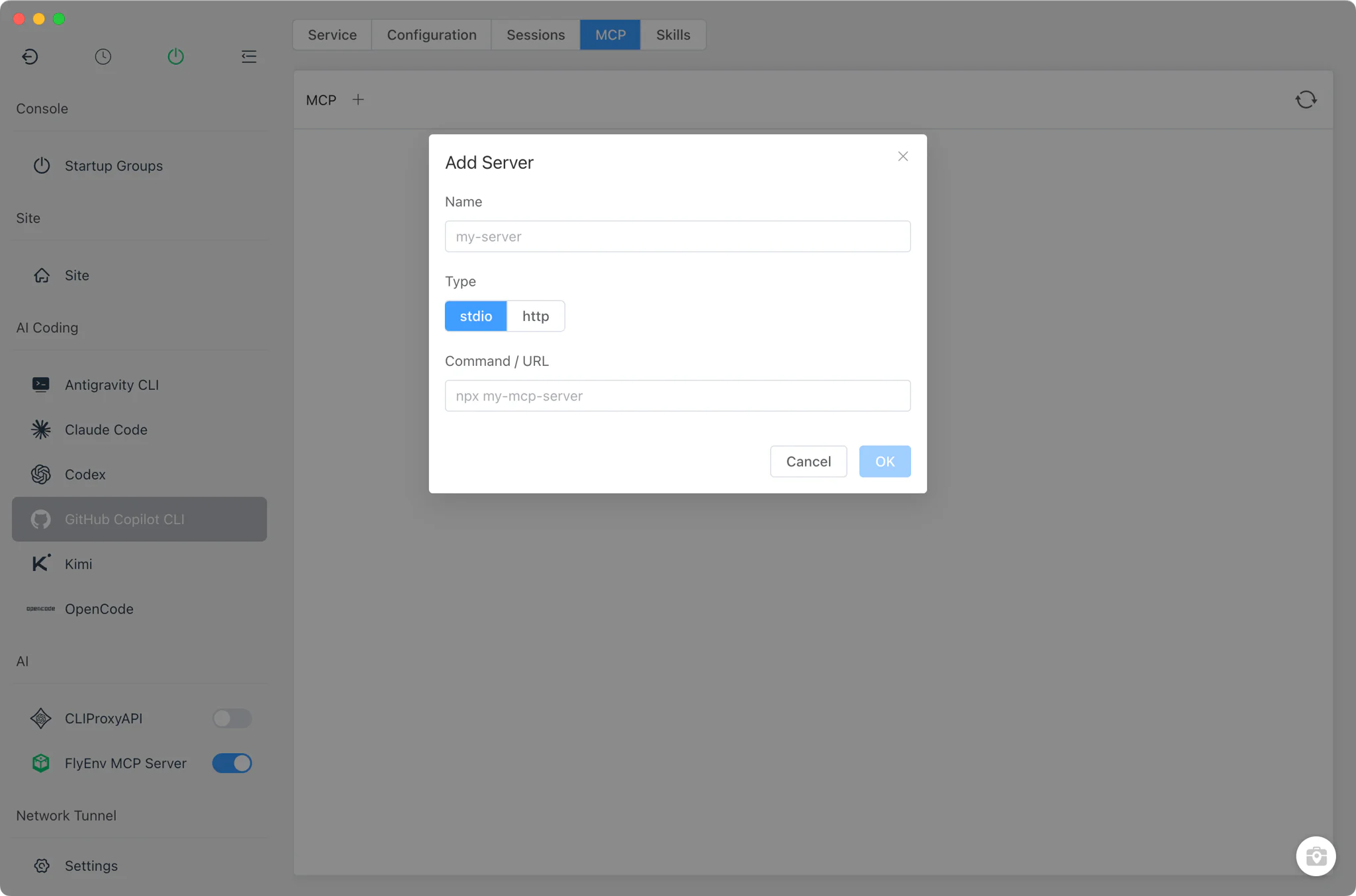
The MCP tab manages the MCP servers Copilot CLI connects to, backed by the ~/.copilot/mcp-config.json file.
- List, add, remove: see the currently registered servers and add or remove entries from the UI; changes are written back to the MCP config file.
- Works with FlyEnv's own MCP server: the FlyEnv MCP Server module can register itself into Copilot CLI's MCP list, letting Copilot inspect and operate your local services and sites.
- Verify in the terminal: the
copilot mcp listquick command on the Service card is the fastest way to confirm what the CLI actually loaded.
Related guides, solutions and demos
Continue with a practical guide, solution, demo, or community perspective.
Compatibility Notes
GitHub Copilot CLI is not a background service: FlyEnv adds no start/stop switch, port or process lifecycle for it, and every interactive session runs in an external system terminal. Installation is npm-based and identical on macOS, Linux and Windows, which means Node.js with npm must be present first — if you need one, install it from FlyEnv's Node.js module or grab FlyEnv itself from the Download page. Configuration is exposed as raw JSON only; there is no visual form, and questions about individual keys belong to Copilot CLI's own documentation. Session data lives in the CLI's SQLite store under ~/.copilot (or wherever COPILOT_CONFIG_DIR points), and FlyEnv only reads and deletes what Copilot CLI has written there.