Flutter Development with FlyEnv
Flutter is Google's open source UI toolkit for building cross-platform mobile, web and desktop apps from a single Dart codebase. FlyEnv covers the whole local Flutter setup in one module: installing and switching Flutter SDK versions straight from Google's official release list, a parsed Flutter Doctor snapshot, a Command Center for everyday Flutter and Dart commands, guided project creation and editing, and an Android toolchain checker with automatic fixes.
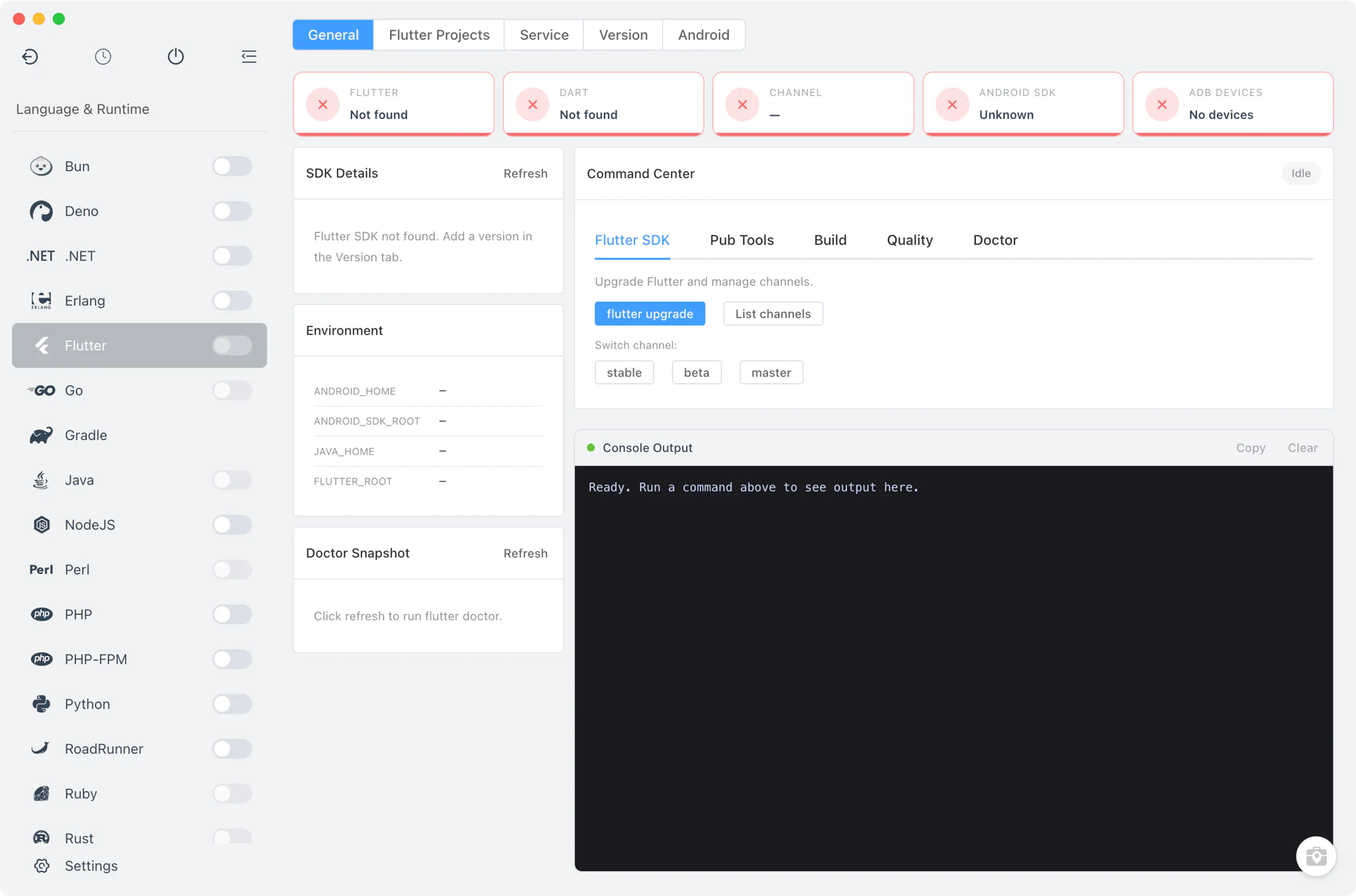
Flutter SDK version management
The Version Manager tab installs Flutter SDKs from the Static source only — Homebrew and MacPorts are not offered for Flutter.
- Official release list: versions are fetched directly from Google's official
releases_{macos,linux,windows}.jsonfiles hosted onstorage.googleapis.com/flutter_infra_release, not from a third-party index. - Stable and beta channels: a channel selector filters the list to the stable and beta channels, and on macOS the list is architecture-aware so Apple Silicon and Intel machines each get the right archive.
- Git checkout handling: after an SDK archive is unpacked, FlyEnv runs
git initinside the SDK directory, because Flutter expects its SDK to live in a git checkout. - PATH switching: the Service tab lists every discovered SDK and lets you add a version to your terminal
PATHor remove it, showing whether the current entry was set by FlyEnv or by another tool.
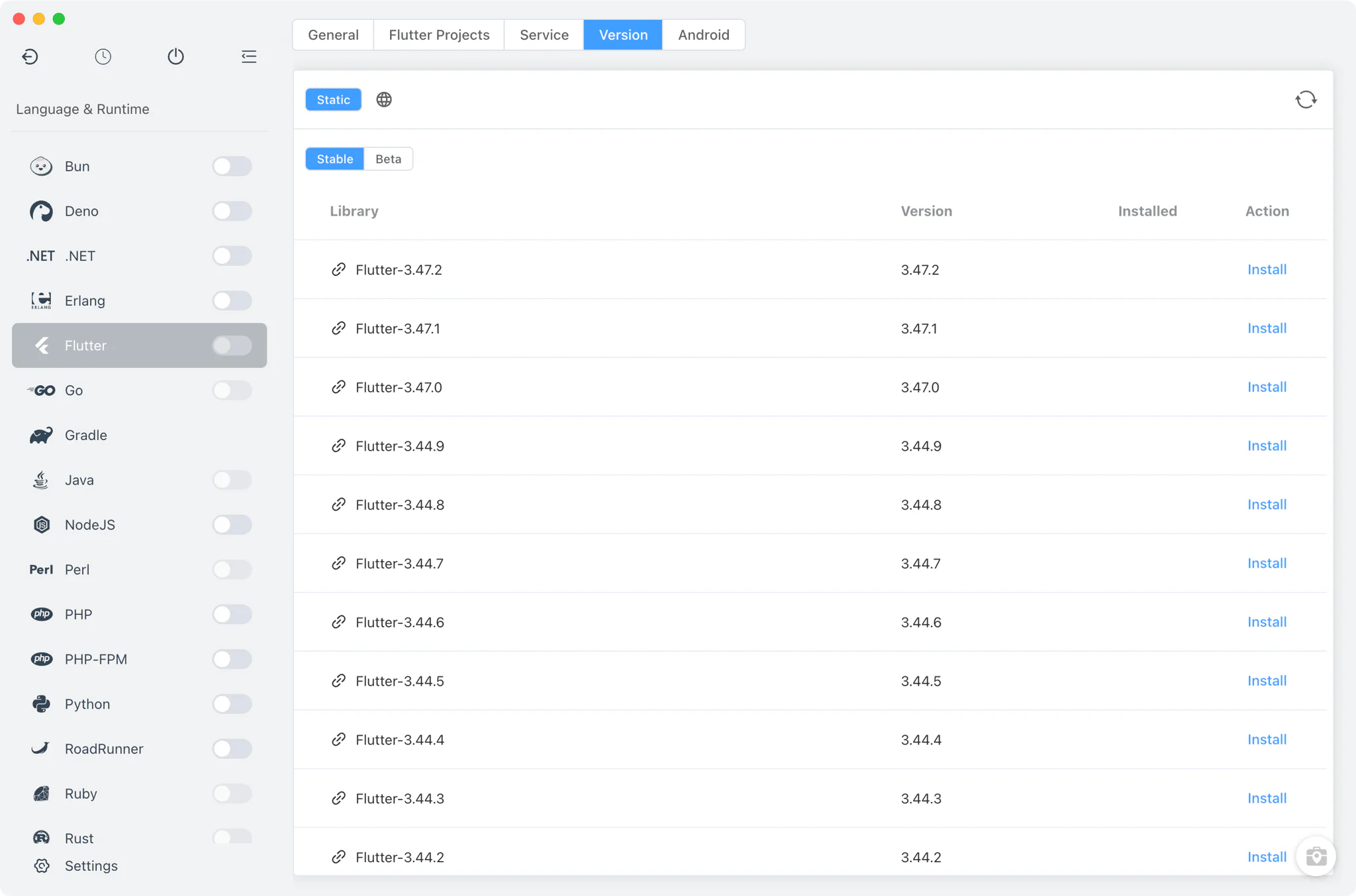
SDK status and Flutter Doctor
The General tab is the dashboard for your Flutter environment.
- Status cards: at a glance, see the Flutter version, the bundled Dart version, the current channel, the Android SDK state and the number of connected ADB devices.
- SDK details panel: shows the SDK version, channel and source — whether it was found on
PATH, in a default location, in a custom directory, or installed by FlyEnv — along with the search directories that were scanned. Discovery coversPATH,FLUTTER_ROOT,~/development/flutter,~/flutter,/opt/flutter,/usr/local/flutter, common Windows locations such as scoop and AppData paths, your custom directories, and FlyEnv's own managed SDK folders. - Flutter Doctor snapshot: a parsed view of the
flutter doctor -voutput, so you can read the full diagnostic without opening a terminal.
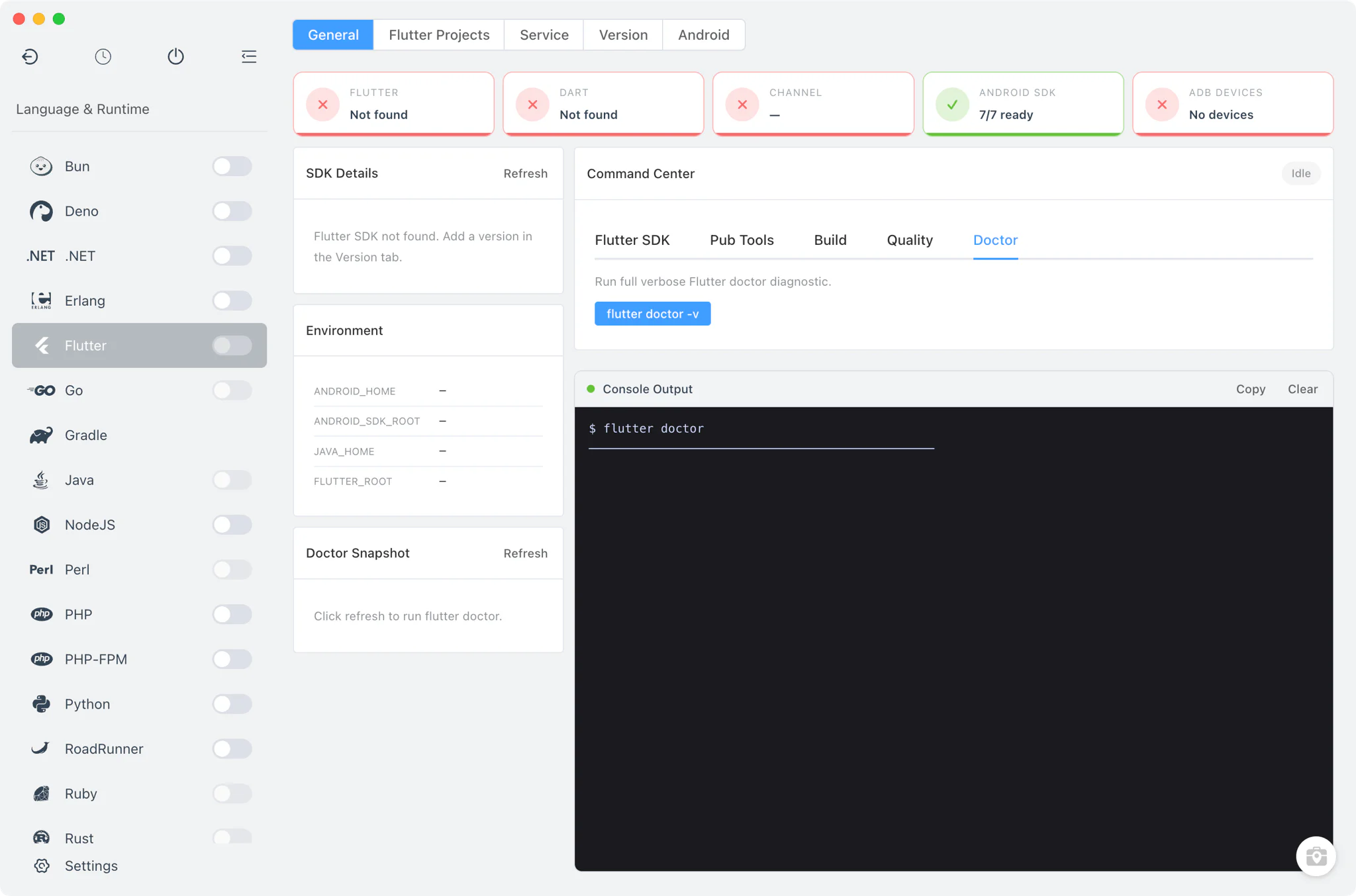
Command Center
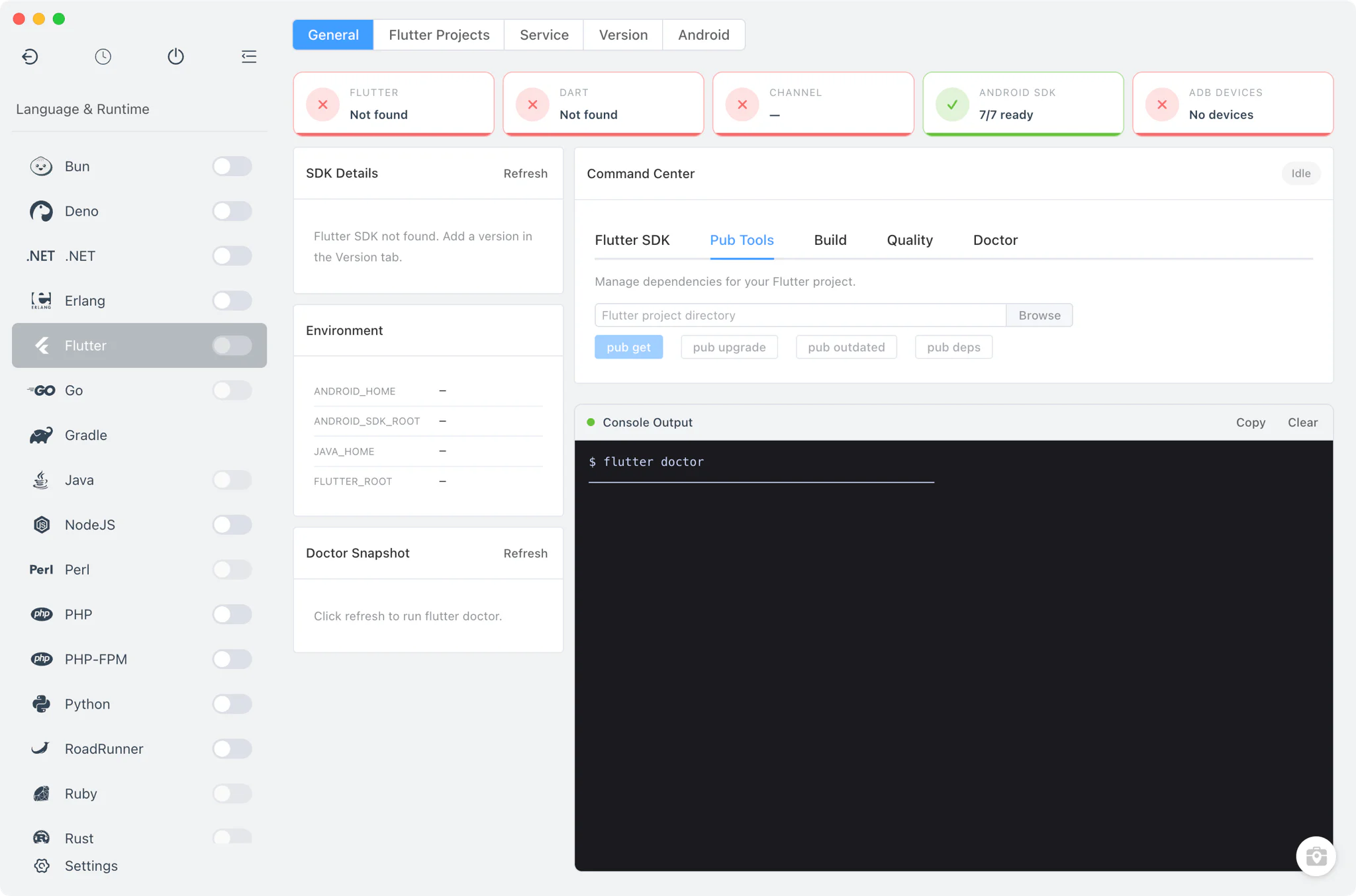
Also on the General tab, the Command Center runs the commands you use every day against a chosen SDK or project directory, with a shared console pane showing the real stdout and stderr (kept to the last 120 KB of output).
- Flutter SDK: run
flutter upgrade, list the available channels and switch between stable, beta and master. - Pub Tools: run
pub get,pub upgrade,pub outdatedandpub depsagainst a selected project directory. - Build:
flutter build apk --debugor--release,flutter build web,flutter build windowsandflutter clean. - Quality:
flutter analyze,flutter testanddart format. - Doctor: re-run Flutter Doctor from the same console when you need a fresh diagnostic.
Project creation and editing
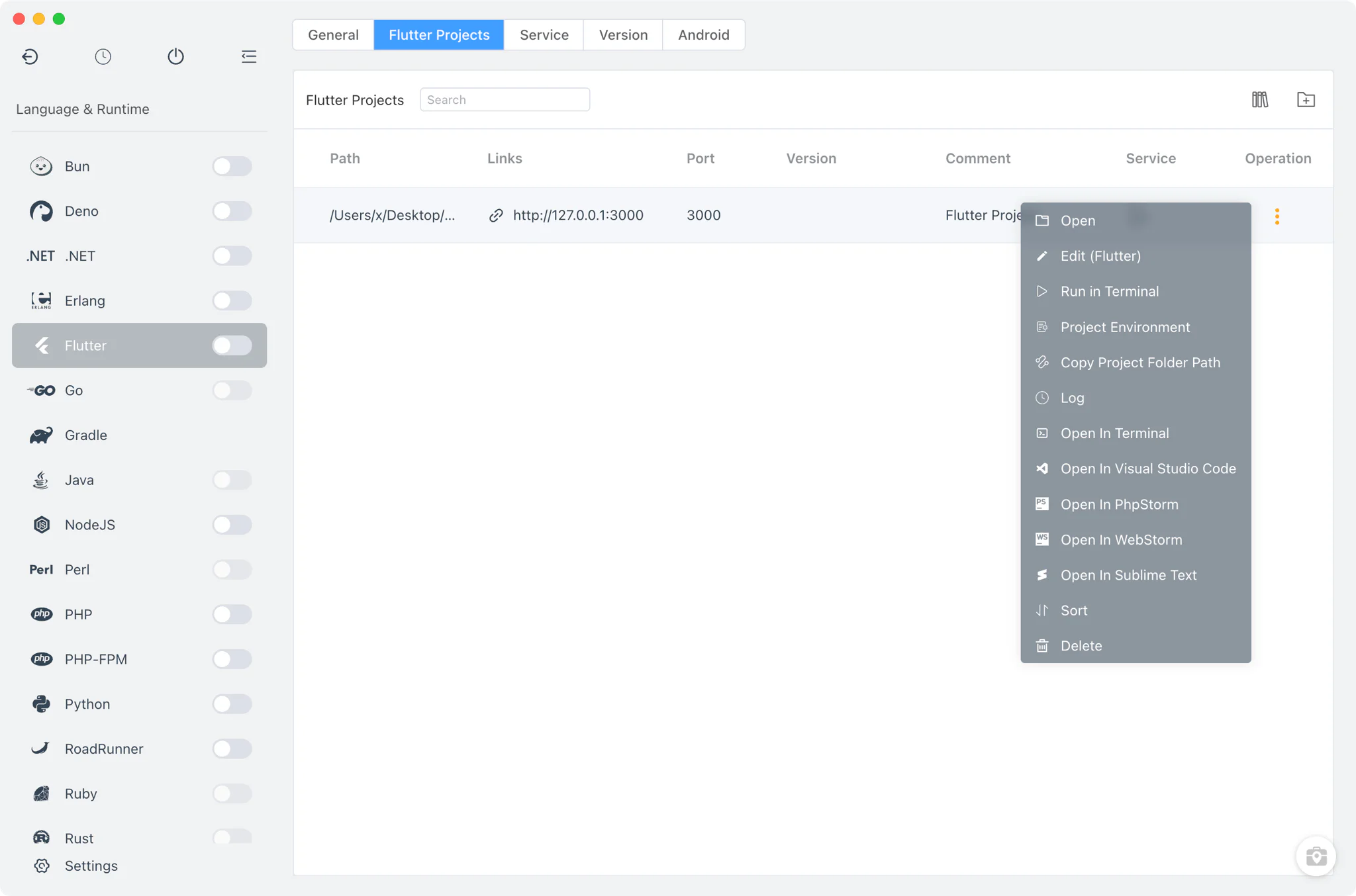
The Flutter Projects tab lists your projects and binds each one to its own Flutter version, following the same project-level runtime environment model as the other language modules.
Create Project scaffolds a new Flutter project without leaving the app:
- Set the project name, output directory, organization and template —
app,package,plugin,moduleorskeleton— and optionally pin a specific Flutter version. - Configure per-platform identities: the Android package name, iOS bundle ID, web app name and desktop bundle ID.
- Search pub.dev and add dependencies (including dev dependencies) before the project even exists.
- Attach Firebase configuration files per platform and set the app icons per platform; the finished project is added to the projects list automatically.
Edit Project reopens the same settings for an existing project: update its identity and package names, manage pubspec.yaml dependencies with an outdated-package report that compares current and latest versions and flags what is upgradable, and replace Firebase files or app icons.
Android toolchain
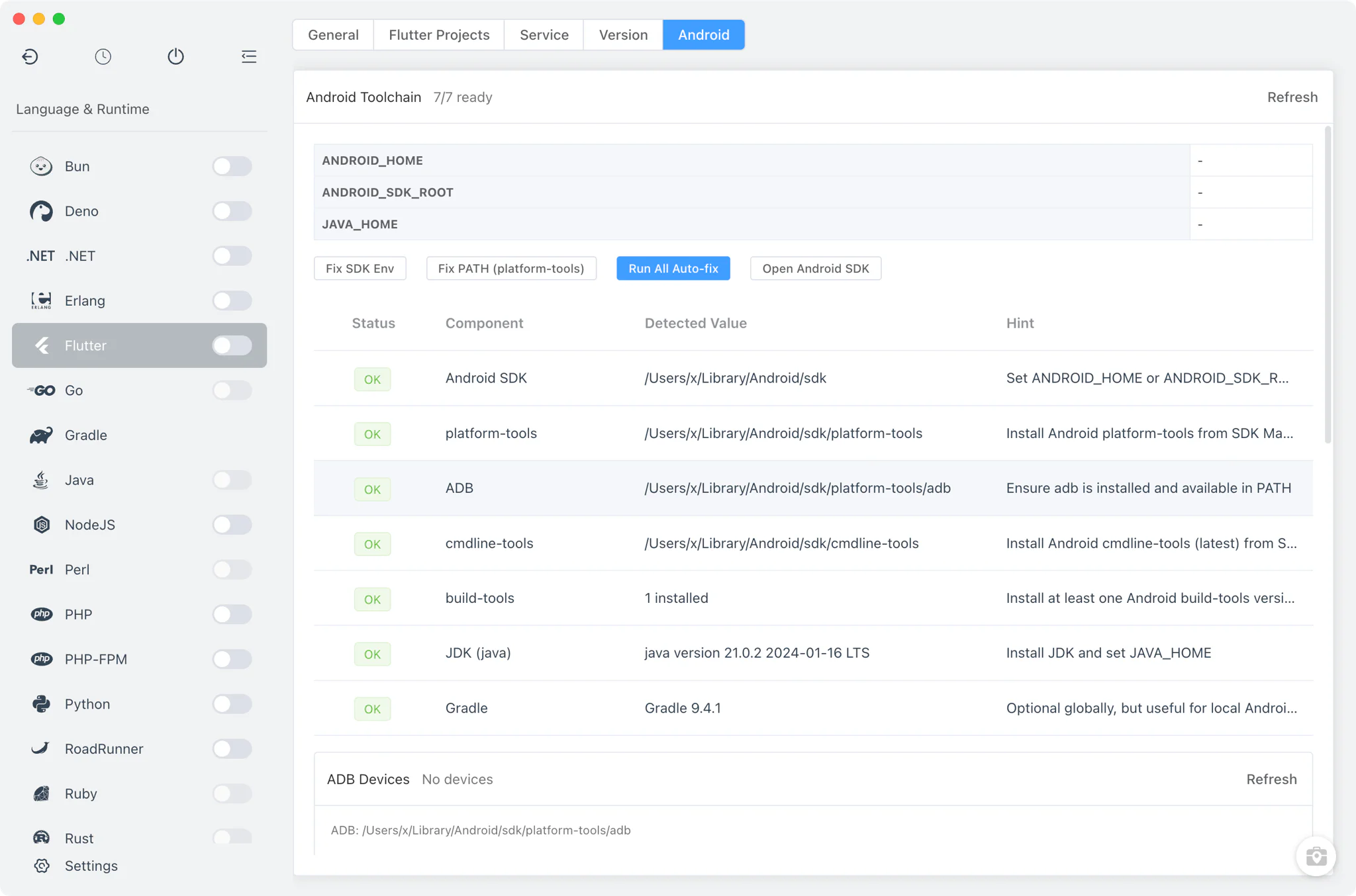
The Android tab checks everything Flutter needs for Android builds and helps you fix what is missing.
- Environment variables: shows the current
ANDROID_HOME,ANDROID_SDK_ROOTandJAVA_HOMEvalues. The system PATH environment guide explains how FlyEnv manages this kind of variable and PATH entry across tools. - Readiness checks: verifies the Android SDK, platform-tools, ADB, cmdline-tools, build-tools, the JDK and Gradle, each with a fix hint when something is missing or misconfigured. FlyEnv's Java and Gradle modules can install and manage both of those dependencies.
- Automatic fixes: one-click actions set the SDK environment variables and add platform-tools to your
PATH. - ADB devices: lists connected devices with actions to set the target device, disconnect a device or view its info.
- Quick actions: run
flutter run,flutter build apkorflutter build appbundleon a chosen project, targeted at the selected device.
Related guides, solutions and demos
Continue with a practical guide, solution, demo, or community perspective.
Compatibility Notes
The Flutter module manages SDK installations, environment variables and command execution; it does not bundle the Android SDK, a JDK or device emulators, and it does not guarantee that every Flutter or Dart version builds on every operating system. Command output appears in the General tab console rather than in log file viewers. Check the Download page and current release notes for the supported platforms and packages.