Command Shortcuts in FlyEnv
Command Shortcuts keeps frequently used terminal commands beside the folders where you run them. Each folder has a card containing its path and saved commands, so you can launch a project task without repeatedly finding the directory and typing the same command.
Install Command Shortcuts from Settings → Plugin Market, then open its sidebar entry. It uses your existing system terminal on macOS, Windows or Linux and has no service runtime to install.
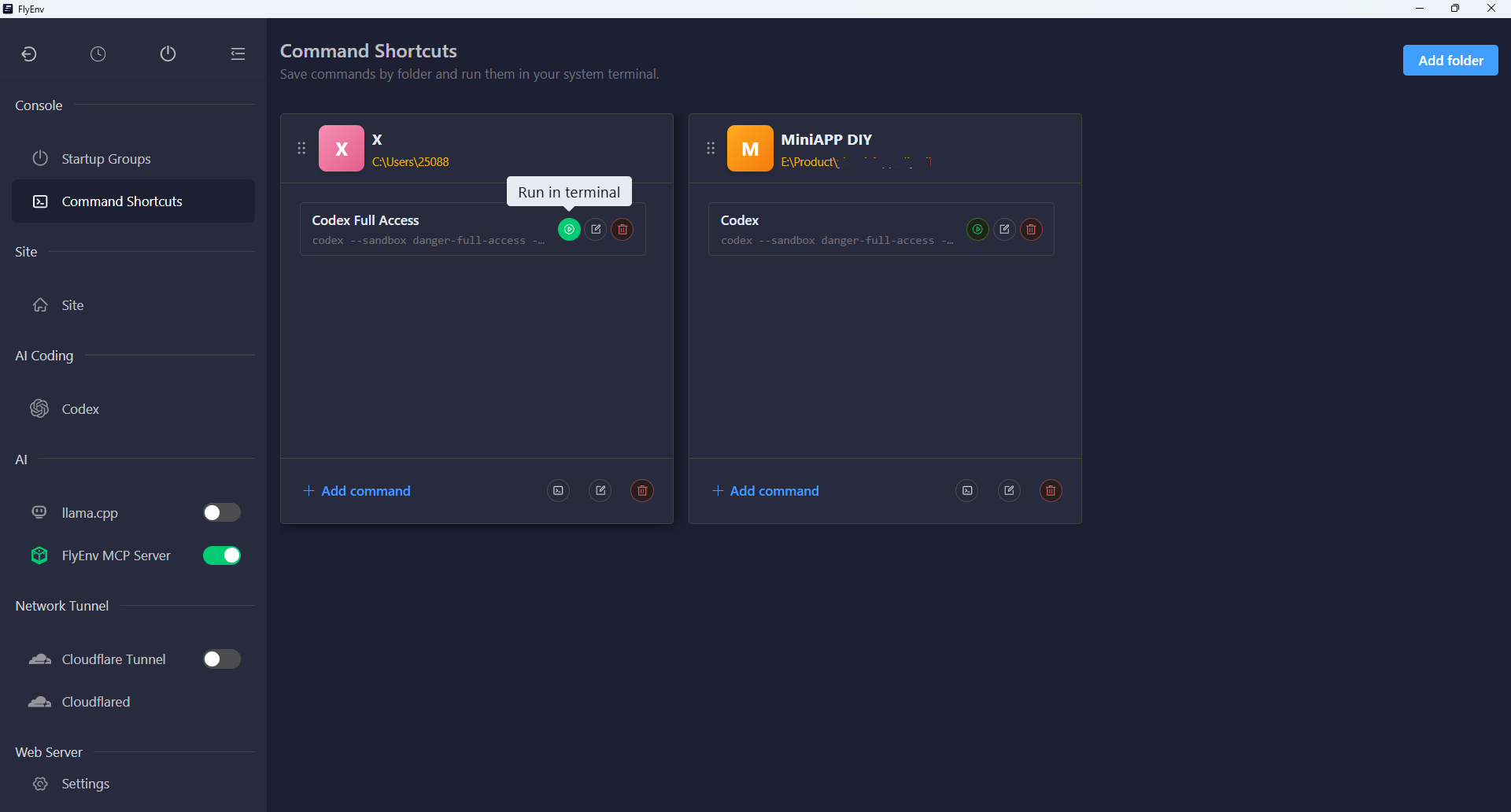
Add a folder and its commands
Choose Add folder, enter a name and select or type an existing folder's absolute path. The card icon uses the first character of the folder name automatically.
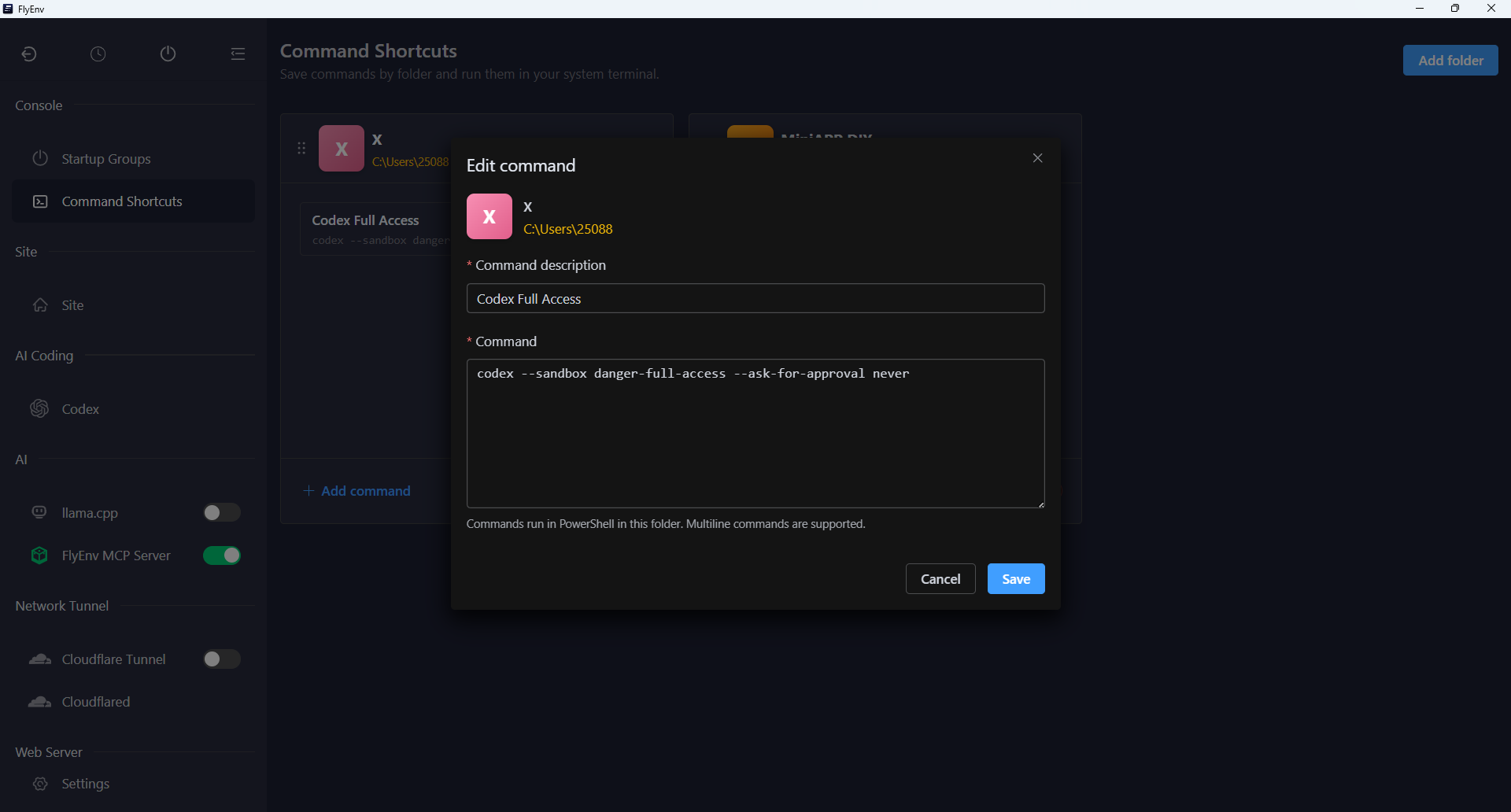
Inside the folder card, choose Add command. Give the command a description and enter the command text; multiline commands are supported. You can keep several tasks in one card, such as a development server, a build command and a test command.
Use the edit controls to update a folder's name or path, or change a saved command's description and text. Commands run in the folder currently associated with their card.
Run in the system terminal
Click a command's Run in terminal button to open the system terminal at the folder's path and execute that command. FlyEnv verifies the directory before handing off the task; a failed directory change prevents command execution.
Command syntax follows the platform's shell:
- macOS: Terminal with its default shell.
- Windows: PowerShell.
- Linux: Bash in an available supported system terminal.
Read output, respond to prompts and check the command's exit status in the terminal window. FlyEnv's handoff notification confirms the request was sent to the terminal; the terminal shows whether the command itself succeeds.
Commands run only when you click their run button. Opened terminals remain under your control; leaving the module or exiting FlyEnv does not terminate them.
Open a folder without running a command
Click the yellow folder path to open the directory in the system file manager. Use Open in terminal in the card footer to open a terminal at that directory without running a preset command. This action also works when the card contains no commands.
Reorder and maintain your collection
Drag the handle beside a folder title to reorder folder cards. Drag a command's handle to reorder commands within that folder. Both orders are saved automatically; dragging does not move commands between folders.
Deleting a command removes its saved entry. Deleting a folder asks for confirmation and removes the card together with its saved commands, while keeping files on disk. Folder records, command text and ordering are retained across plugin updates; the plugin does not actively clear them when disabled or uninstalled.
Use Startup Groups for grouped workspace startup, or User Modules for a command with managed service lifecycle controls. Command Shortcuts is for tasks you launch and interact with in the terminal.