FlyEnv Licensing Guide
You can use FlyEnv for everyday local development without purchasing a license. A FlyEnv Pro License removes the free version's usage limits and unlocks premium tools while supporting the continued development of FlyEnv.
Whether you purchase a license, contribute to the project, or share your original experience with the community, you can request your license directly in the FlyEnv desktop app.
License at a Glance
| FlyEnv Personal License | |
|---|---|
| Price | $10 USD |
| Payment | One-time purchase, no subscription |
| Validity | Lifetime |
| Updates | Future FlyEnv updates included |
| Devices | One active device per license |
| Device transfer | Supported through GitHub and My Licenses |
| Issuance | Manual review and verification |
Visit the License page for purchase options and current licensing information.
Quick Navigation
What would you like to do?
- Get a new license — purchase, contribute code, or share your experience.
- Activate my license — already purchased or contributed? Start here.
- Move my license to another computer — reuse an existing license.
- Reactivate after reinstalling my operating system.
- Use FlyEnv on multiple computers.
- Check Free and Pro features.
- Resolve a licensing problem.
How to Get a License
Pay with Money, Code, or Voice.
There are three ways to obtain a FlyEnv license. All three use the same in-app request and activation process. Requests are reviewed before a license is issued.
Option A: Purchase a Personal License
- Open the License page.
- Complete your purchase using Paddle, or follow the alternative payment instructions on that page.
- Keep your order ID or the email address used for your purchase. For other payment methods, retain the relevant payment confirmation.
- Submit a license request in FlyEnv.
Paddle handles checkout, applicable taxes, receipts and invoices for Paddle purchases. Contact Paddle for payment-related assistance where appropriate.
Already purchased?
You do not need to purchase again. A completed payment does not automatically activate the app. Submit your purchase information through Settings → License first.
Option B: Contribute to FlyEnv
Help improve the FlyEnv open-source project by submitting a meaningful pull request. Contributions can include new features, bug fixes, documentation improvements or translation corrections.
When your contribution is ready for review, submit its pull request URL with your license request. Eligibility is assessed during manual review.
Option C: Share Your Experience
Create original content about your experience using FlyEnv. You can share it in any language on a suitable platform, such as:
| Content type | Examples |
|---|---|
| Technical articles | Personal blogs, Dev.to, Medium, Hashnode |
| Videos and tutorials | YouTube, Bilibili, TikTok |
| Social posts | X, Threads, Facebook, LinkedIn, Instagram |
| Developer discussions | Reddit, V2EX and other developer communities |
A project walkthrough, practical tutorial, comparison or genuine review can help other developers discover how FlyEnv works. Positive feedback is not a condition of eligibility. See the Community page for examples of developer contributions.
Content Requirements
- Create and publish your own original content. Reposts or someone else's work do not qualify.
- Submit your request soon after publication. Content older than three months may no longer qualify.
- Each article, video or post is eligible for one license only. Previously used links cannot be reused for another license.
- Provide a link that can be reviewed. Follow the platform's rules and disclose any license incentive where required.
After publishing, include your content URL and contact email in the in-app request form.
Request and Activate Your License
Complete the following steps after purchasing a license or preparing your contribution. The process is the same for Windows, macOS and Linux; the interface may look slightly different depending on your version.
Step 1: Open License Settings
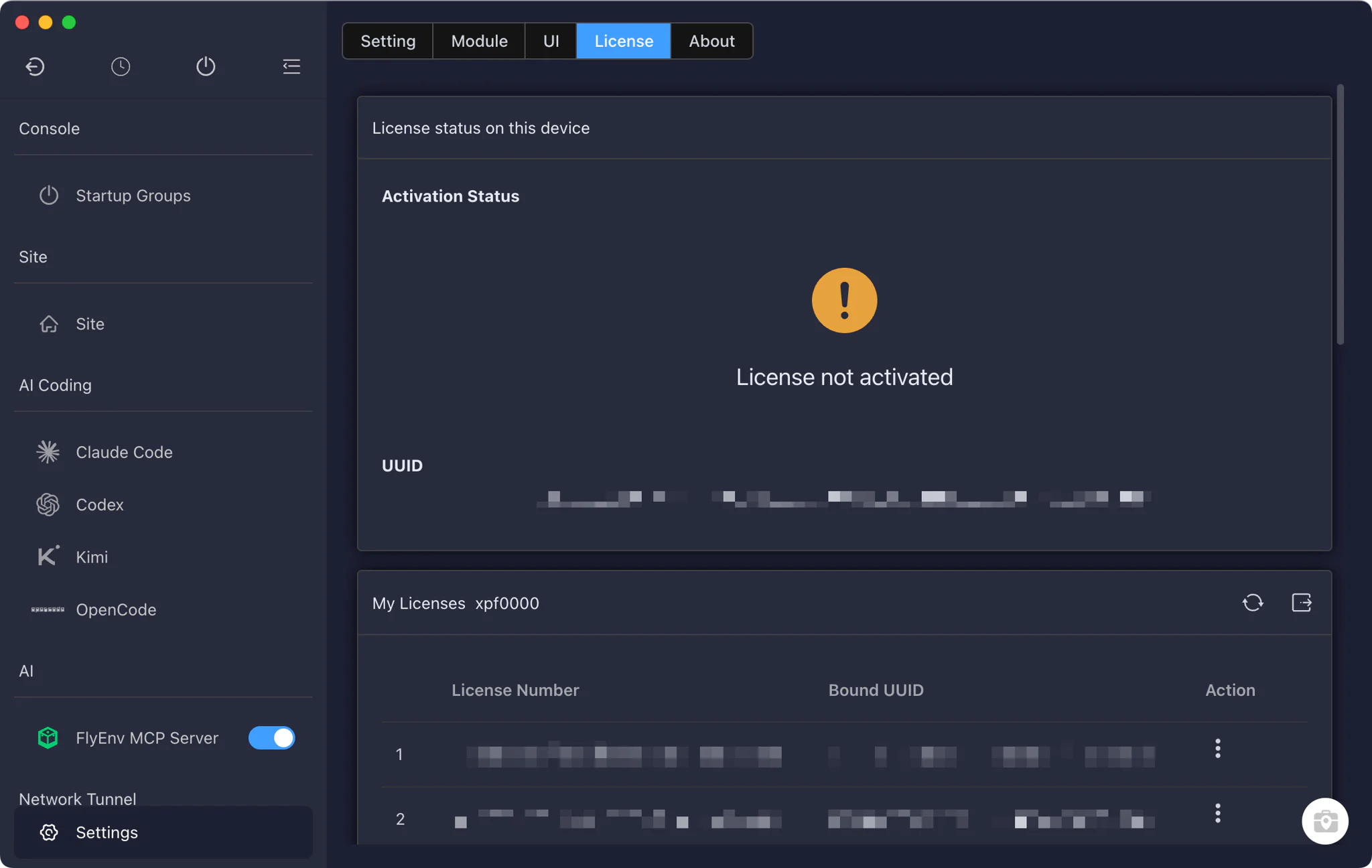
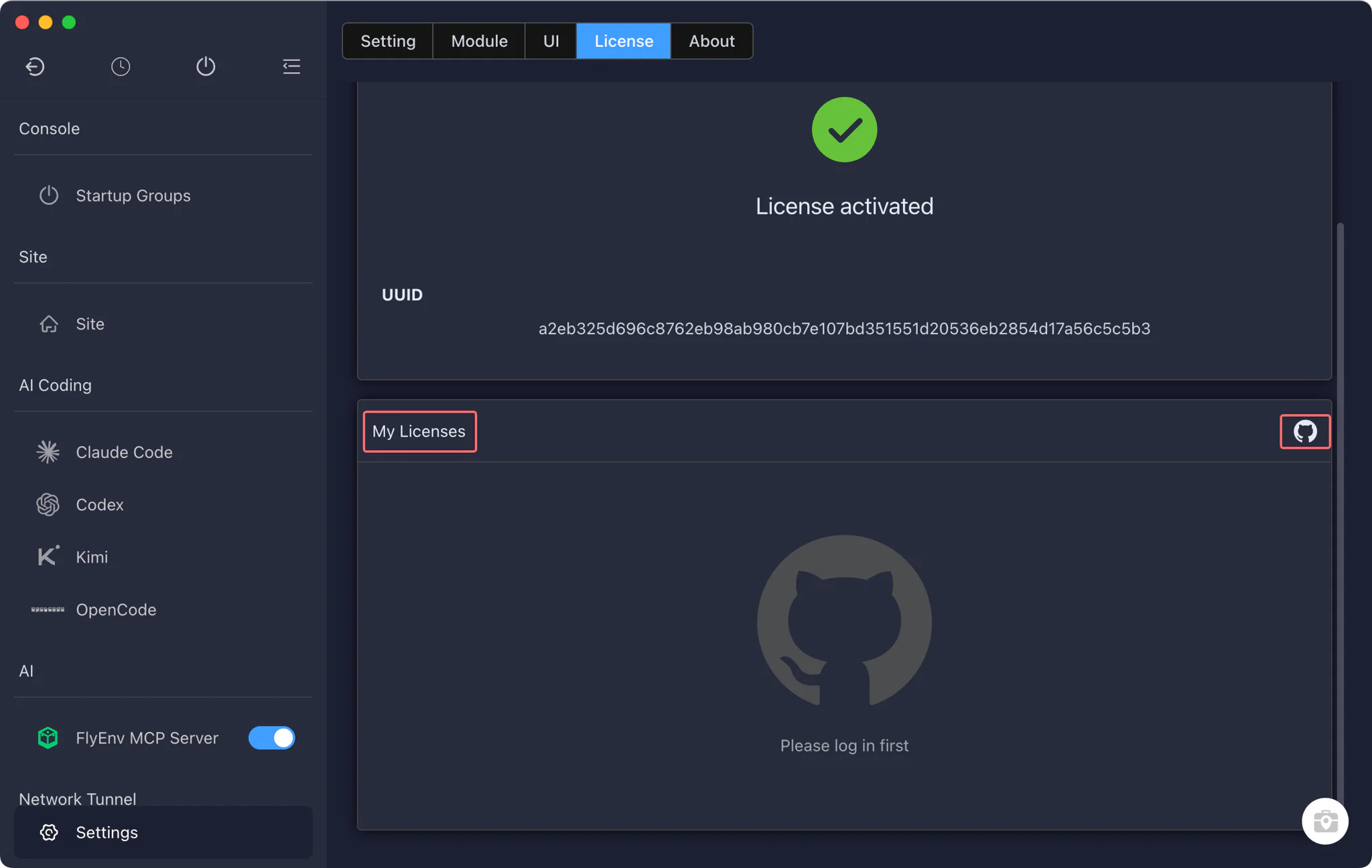
Open FlyEnv and select Settings → License. The top of this page shows whether the current device is activated. Scroll down to the license request area.
Step 2: Enter Your Request Details
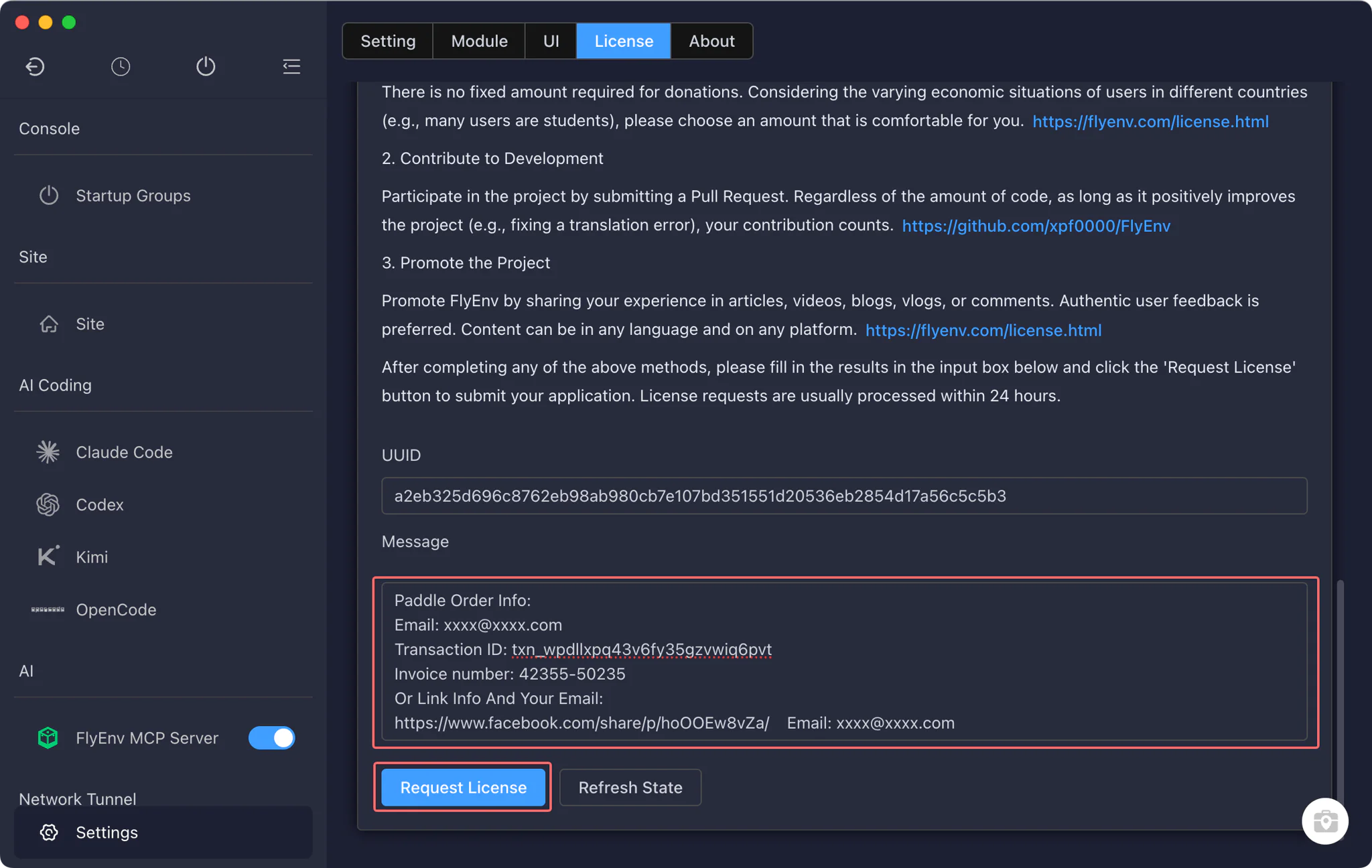
In the Message field, provide a valid contact email and the information corresponding to your request:
| Request type | Information to provide |
|---|---|
| Paddle purchase | Order ID or purchase/receipt email |
| Other payment methods | Relevant payment confirmation |
| Code contribution | GitHub pull request URL |
| Original content | Published article, video or post URL |
For example, a purchase request could look like this:
Contact email: [email protected]
Paddle order ID: YOUR_ORDER_ID
Or, for a community contribution:
Contact email: [email protected]
Content URL: https://example.com/my-flyenv-article
Do not include passwords, full card numbers or GitHub access tokens.
Step 3: Submit Your Request
Click Request License to submit your application. FlyEnv reviews requests manually and sends an email notification after the license has been issued. Please keep access to the contact email you provided.
There is no need to submit the same request repeatedly while it is being reviewed.
Step 4: Activate Your License
After receiving the issuance notification:
- Return to Settings → License in FlyEnv on the device used for the request.
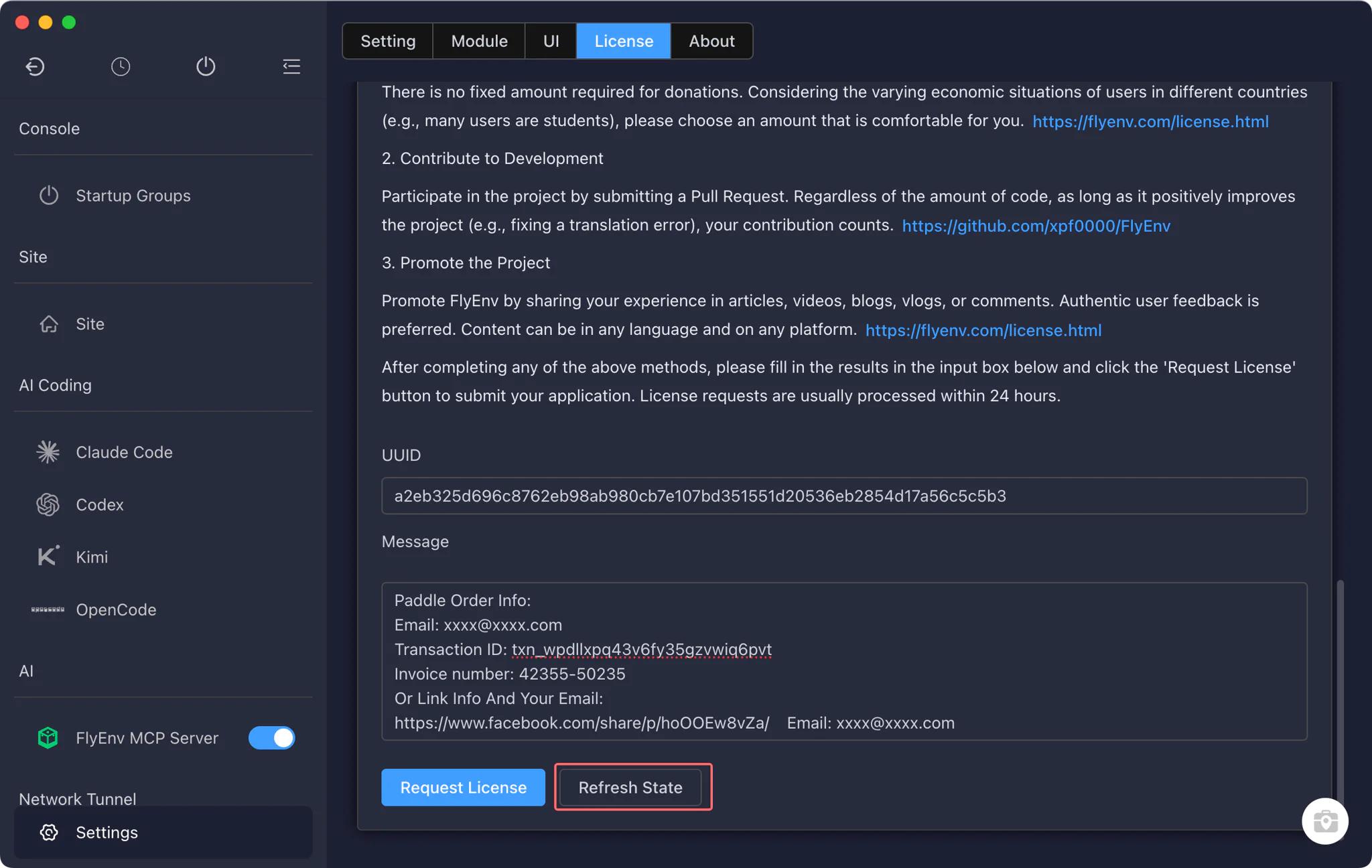
- Scroll to the request area and click Refresh State.
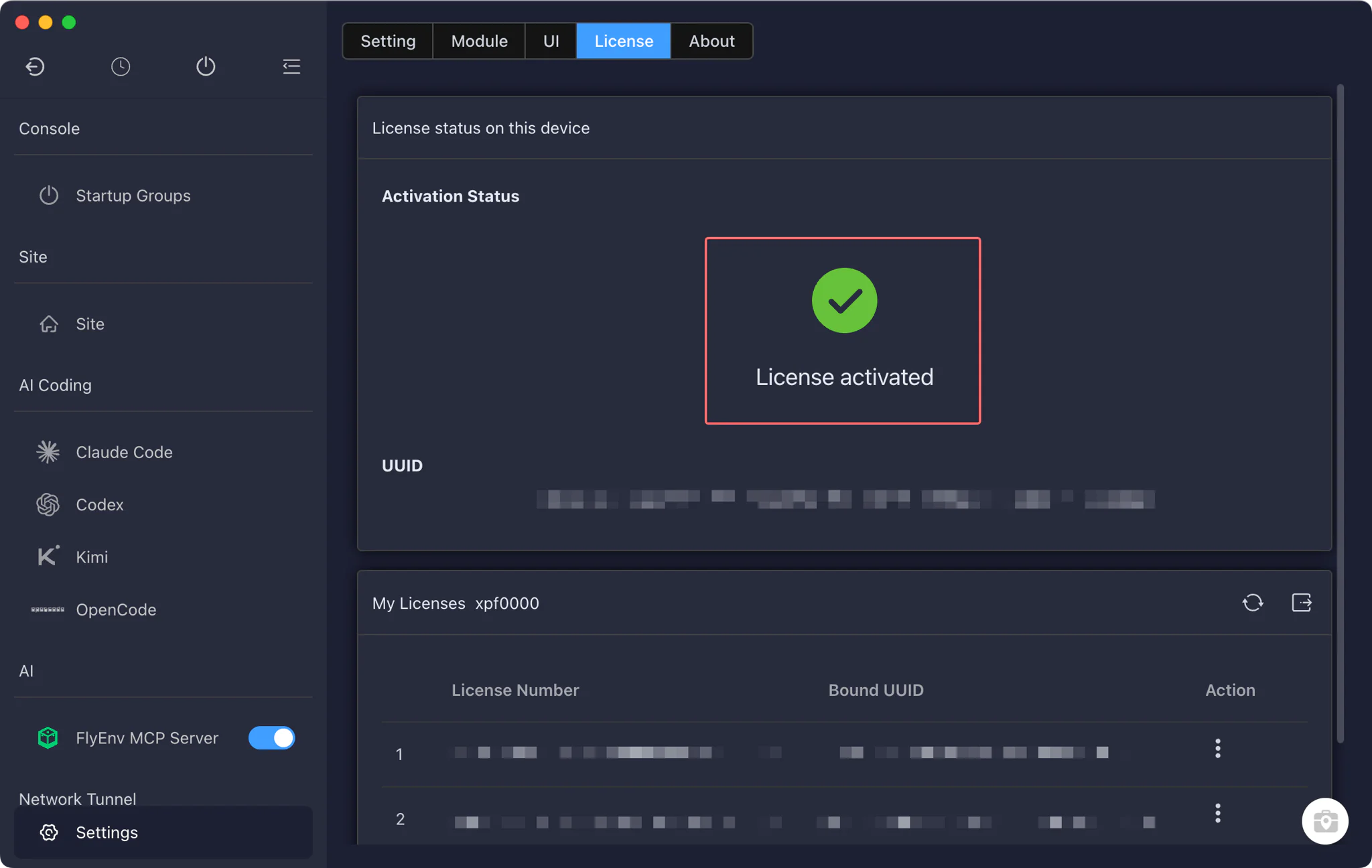
- Check the activation status at the top of the License page. It should show License activated.
Screenshot note
Some screenshots show an earlier app version. Follow the current licensing policy and instructions on this page rather than older policy text visible in the screenshots.
Step 5: Connect Your GitHub Account
Once your device is activated, locate My Licenses on the License page and use its GitHub sign-in button to authorize your account. Verify that your license appears in My Licenses.
Important: Connect GitHub before changing devices
Link your license to your GitHub account now, even if you do not plan to change computers. This lets you manage your license independently if you reinstall your operating system or lose access to your old computer.
Manage Your Licenses
A FlyEnv license is associated with the device UUID reported by the app. It allows one active device at a time, but is not permanently restricted to the original computer.
Your linked GitHub account provides access to My Licenses, where you can manage device bindings.
Transfer to Another Device
You do not need to purchase a new license simply because you have changed computers.
- Install FlyEnv on the new computer.
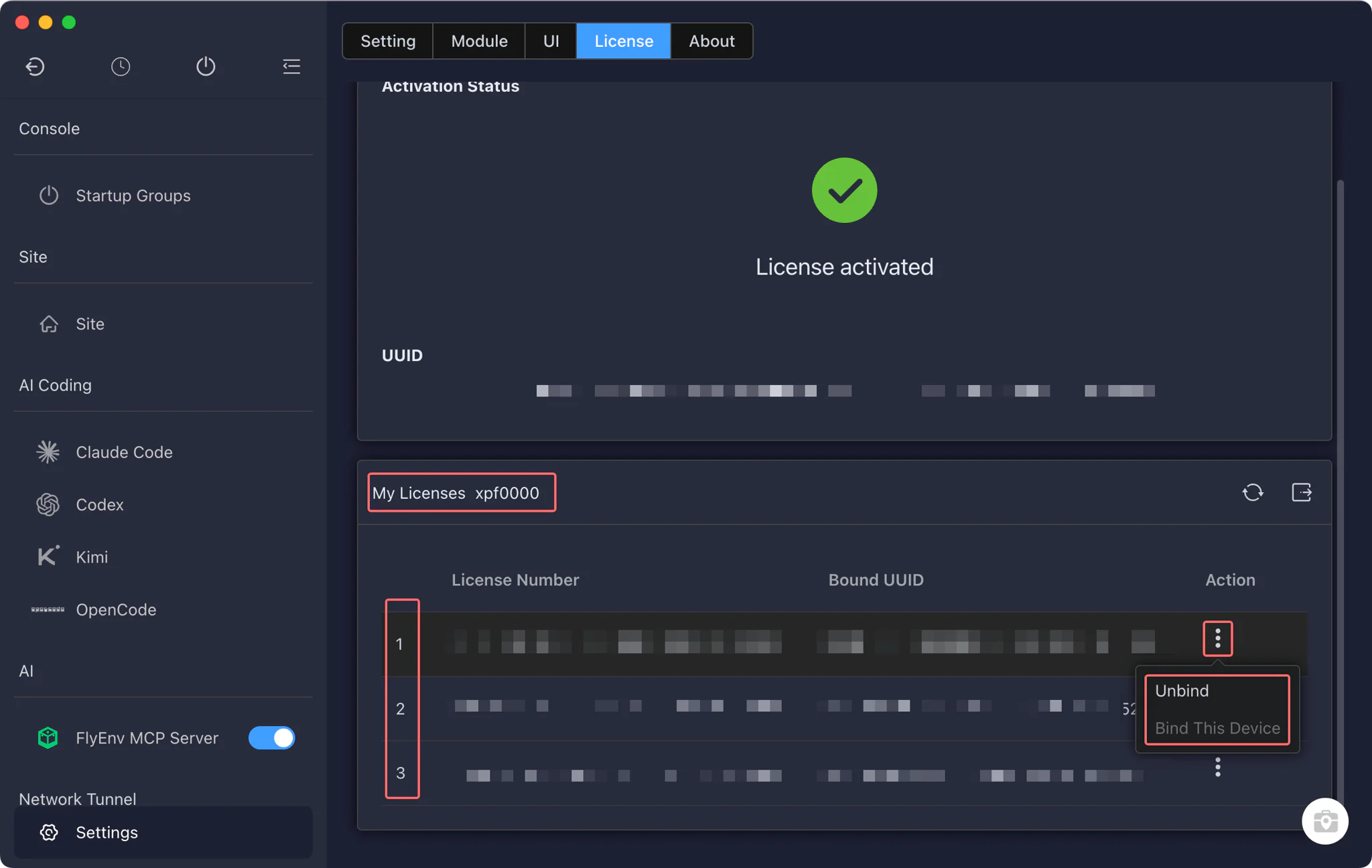
- Open Settings → License → My Licenses.
- Sign in with the same GitHub account previously linked to your license.
- Find the license you want to transfer. Check its bound UUID, particularly if you have multiple licenses.
- Open its action menu and select Unbind to release the old device.
- Select Bind This Device for the same license.
- Confirm that the new device shows License activated. Use Refresh State if needed.
One active device per license
Transferring a license releases its previous device binding. If you want both computers to remain licensed, you need a separate license for each computer.
Reinstall Your Operating System
Reinstalling Windows, macOS or Linux may change the device UUID. If FlyEnv still recognizes your license after reinstalling, no action is needed. Otherwise, follow the device transfer steps to unbind the previous UUID and bind the current device.
If you never linked the license to GitHub and can no longer access the old installation, contact support for verification and assistance.
Use FlyEnv on Multiple Computers
You can purchase or qualify for additional licenses if you want to use FlyEnv on multiple devices at the same time. For example, you can have one license for your work computer and another for your personal computer.
Manage Multiple Licenses
One active device per license does not mean one license per GitHub account.
You can associate multiple independent FlyEnv licenses with the same GitHub account. Binding or transferring one license does not change the other licenses associated with that account. Select the correct license before unbinding a device.
Free and Licensed Features
Core local development is available for free, including runtime and database management, HTTPS and Startup Groups. The following limits apply to specific features:
| Feature | Free | Pro |
|---|---|---|
| Local sites | Up to 3 | No site-count limit |
| Custom projects | Up to 3 per runtime | No project-count limit |
| Cloudflare Tunnel | 1 tunnel | Multiple tunnels |
| AI Assistant | 3-day trial | Full access |
| Screenshot Utility | 3-day trial | Full access |
| Image Optimizer | 3-day trial | Full access |
| Plugin Market | Active license required to install and update plugins | Plugin installation and updates available |
The limits apply to FlyEnv's own features; third-party software or services may have their own terms, platform requirements or charges.
For details on optional modules, see the Plugin Market guide. For the built-in MCP Server, see the FlyEnv AI Workspace & MCP Guide.
Frequently Asked Questions
I paid for a license. Why is FlyEnv not activated?
Purchasing and activating are separate steps. Check that your payment was completed, then submit your license request in FlyEnv. After the issuance notification arrives, click Refresh State on the License page.
My license request is still pending. What should I do?
Requests are verified manually. Check the contact email you provided, including the spam folder. If you suspect your request details are incorrect or have not received a response, contact support with your request information.
My payment failed. Can I still get a license?
An unsuccessful payment cannot be used as proof of purchase. Check the payment status before submitting a new request. If the payment method is unavailable in your region, check the alternatives on the License page.
Do I need a new license after reinstalling my system?
No. If the device UUID changed, use your linked GitHub account to transfer the existing license to the current device.
What if my old computer is lost or no longer works?
If your license is linked to GitHub, you can manage its device binding from the new computer without accessing the old one. If it was not linked, contact support for help recovering your license.
Can I use the same license on two computers?
Not at the same time. Each simultaneously licensed computer requires its own license. Multiple licenses can be managed with the same GitHub account.
Can I submit an article or purchase that has already been used?
A previously used contribution or content link cannot be used to request another license. A purchase supports the number of licenses actually purchased, not additional licenses beyond that quantity. If your goal is to move an existing license, use My Licenses rather than submitting a new request.
Does my license expire? Are future updates included?
The current personal license is a lifetime license with no recurring fee. Future FlyEnv updates are included under the current licensing policy.
Are team or education licenses available?
Team and education arrangements can be discussed individually. Use the contact information on the License page and include your organization, intended use and number of devices.
Get Help
If the steps above do not resolve your issue, use the contact information on the License page. For general technical problems, visit GitHub Issues.
For private licensing support, provide the email used in your request, the relevant order ID or contribution link, and a short explanation of the problem. Include your FlyEnv version and current device UUID if they are relevant to the issue.
Do not post receipts, personal email addresses, license numbers or device identifiers in public issues or discussions.